
How to Use MongoDB for Database Creation, CRUD Operations, Indexing, and Data Import and Export?
MongoDB is a popular NoSQL database known for its high performance, scalability, and flexibility in handling unstructured data. On AccuWeb.Cloud, MongoDB is even easier to get started with the
one-click installations for both Standalone and Community Edition setups.
This guide will show you how to get started with MongoDB, including database creation, CRUD operations, indexing, and importing/exporting data.
Step 1: Install MongoDB with One-Click Installation
AccuWeb.Cloud offers one-click MongoDB installation on your VPS or cloud server. You can choose between:
- MongoDB Standalone – ideal for development and small-scale projects.
- MongoDB Community Edition – full-featured edition for production workloads.
To install:
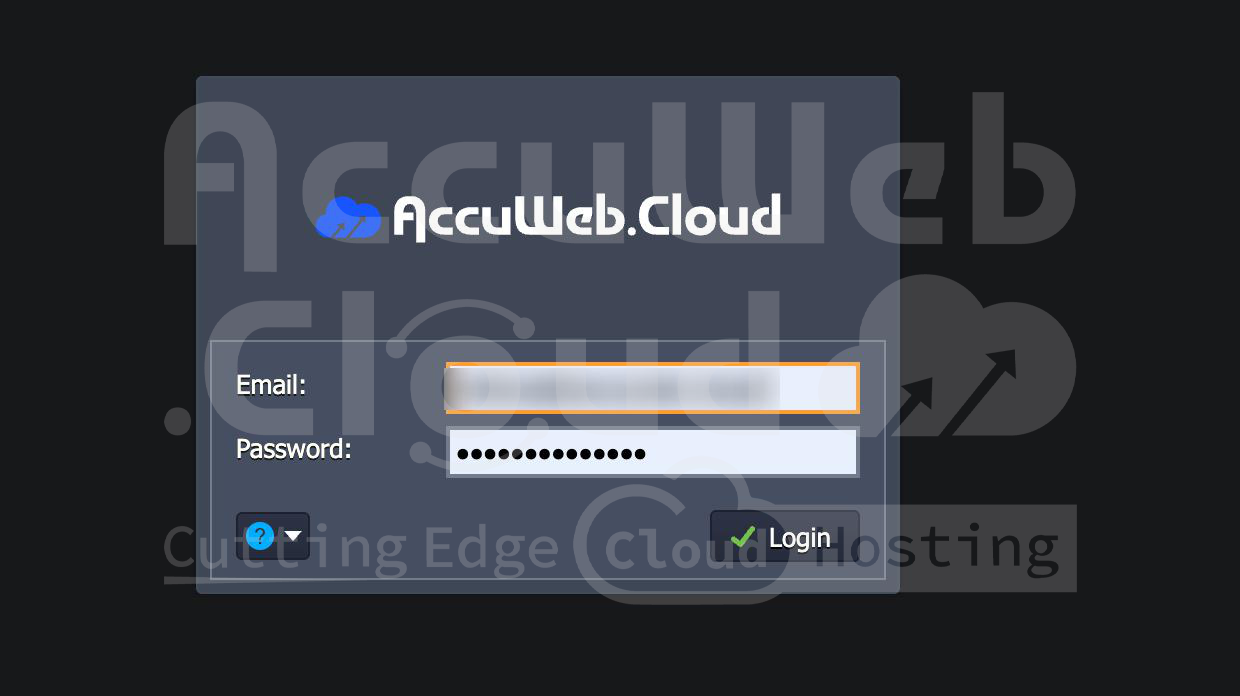
- Log in to your AccuWeb.Cloud VPS dashboard.
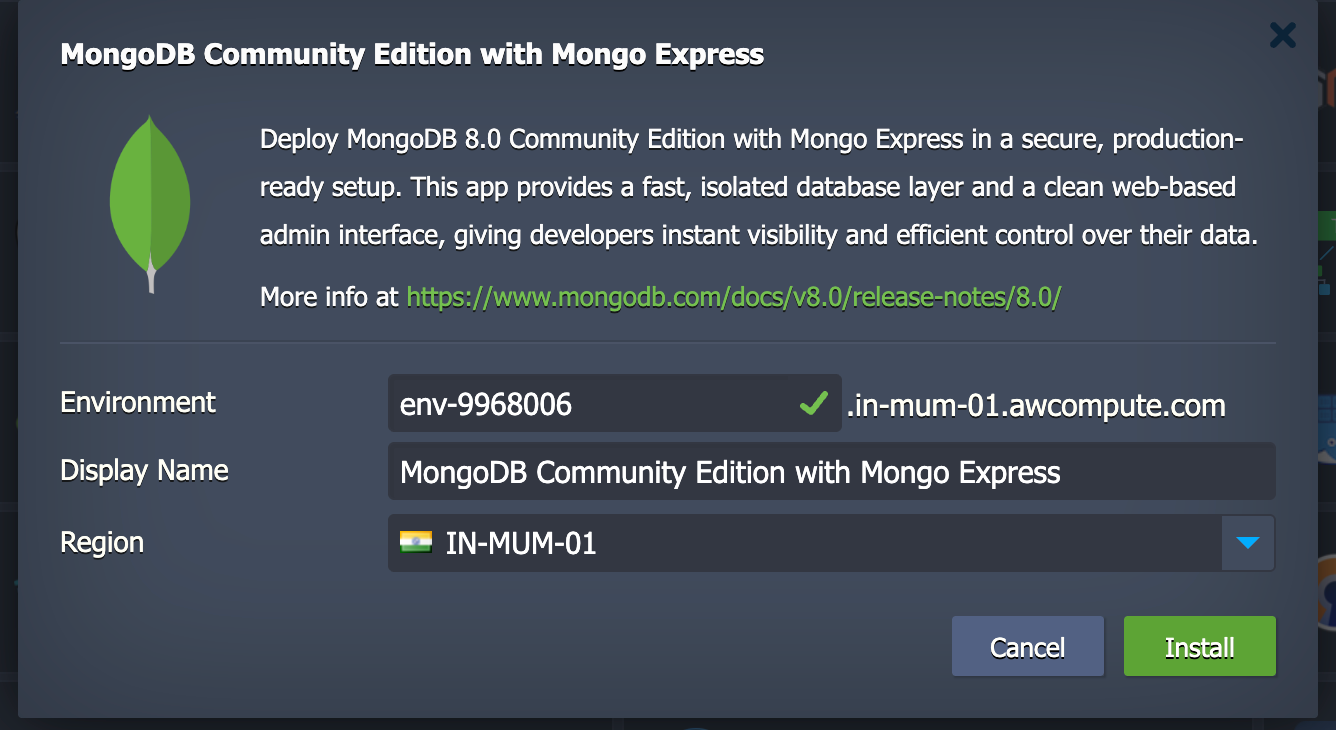
- Navigate to Marketplace and search for MongoDB.

- Select your preferred edition (Standalone or Community Edition) and click Install.
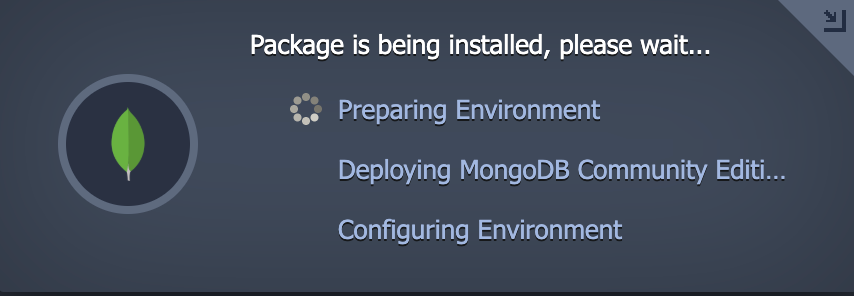
- The system automatically sets up MongoDB and starts the service.
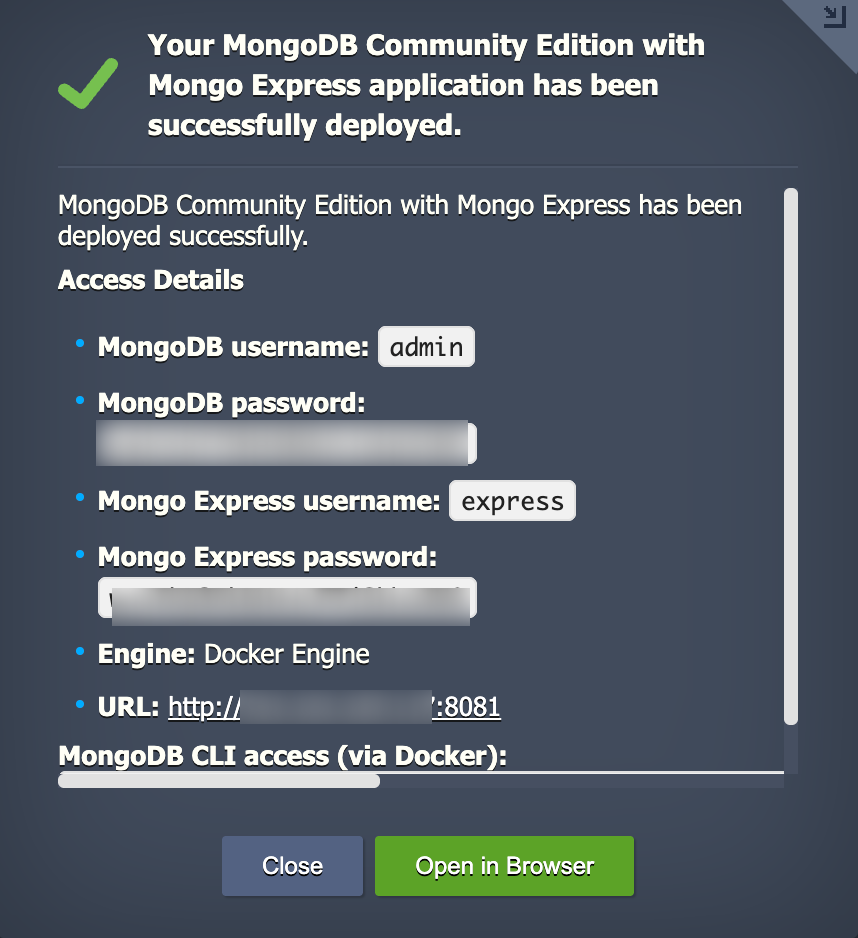
Once installed, you can access MongoDB via the credentials received in your email, also after installation.
Step 2: Access Mongo Express Dashboard
- Open a web browser
- Enter the Mongo Express URL provided in the installation email http://YOUR_SERVER_IP:8081
- Log in using the Mongo Express username and password
After login, the Mongo Express dashboard will be displayed.
Step 3: Create or View Databases
- On the dashboard, click Create Database
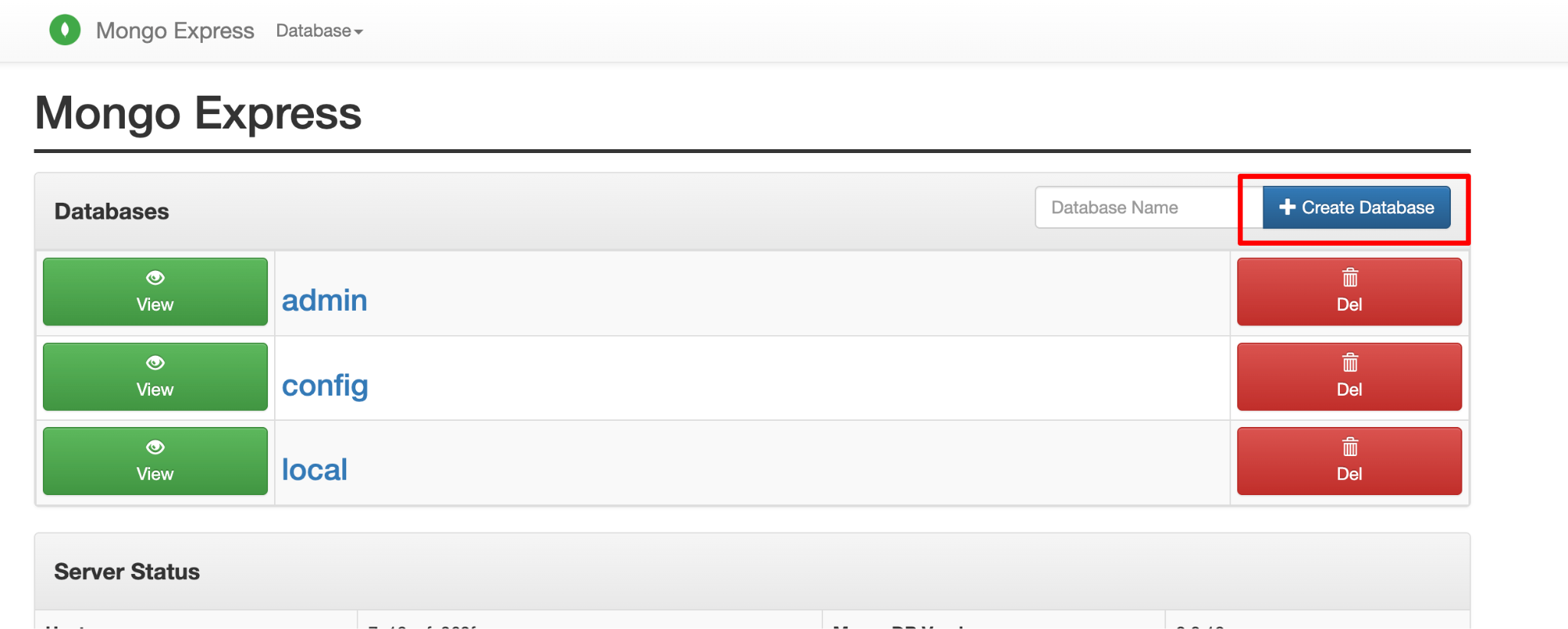
- Enter a database name, for example: test
- Click Create Database
To view existing databases, scroll down the dashboard list.
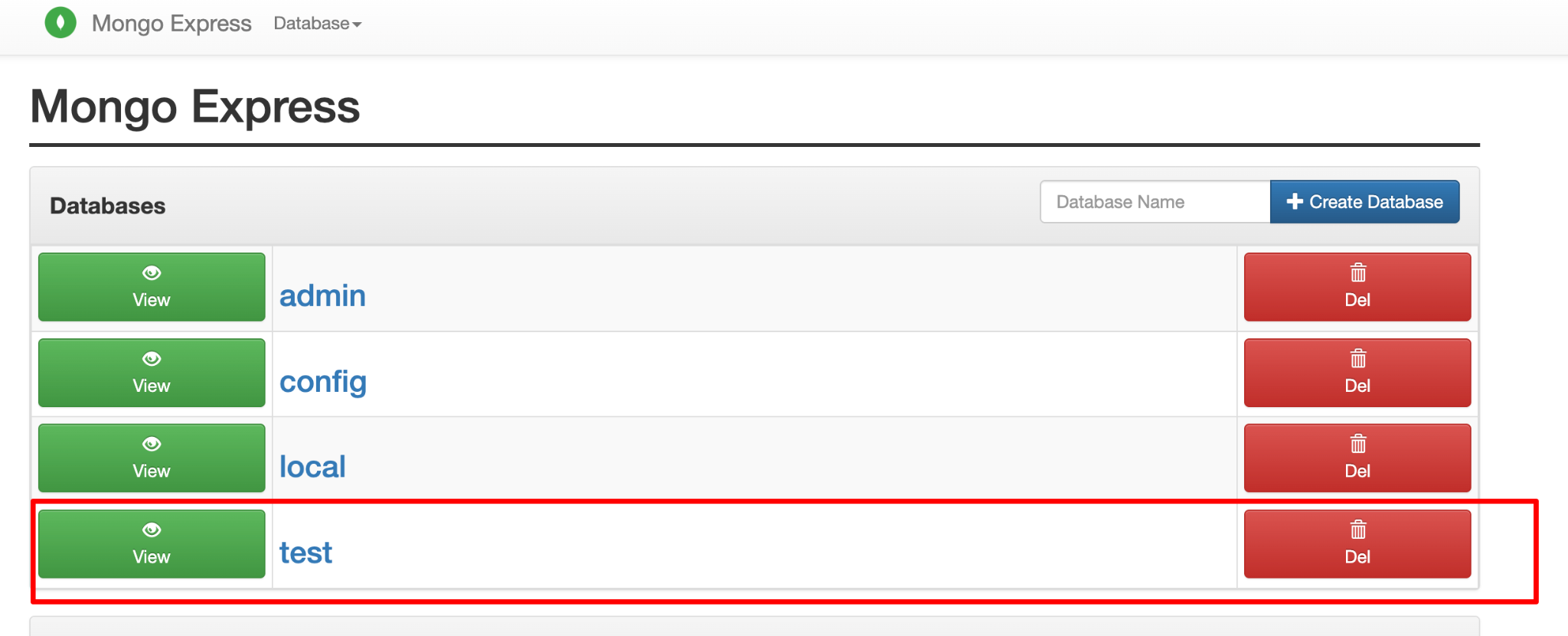
Step 4: Create and Manage Collections
- Click on the database name you want to manage
- Click Create Collection
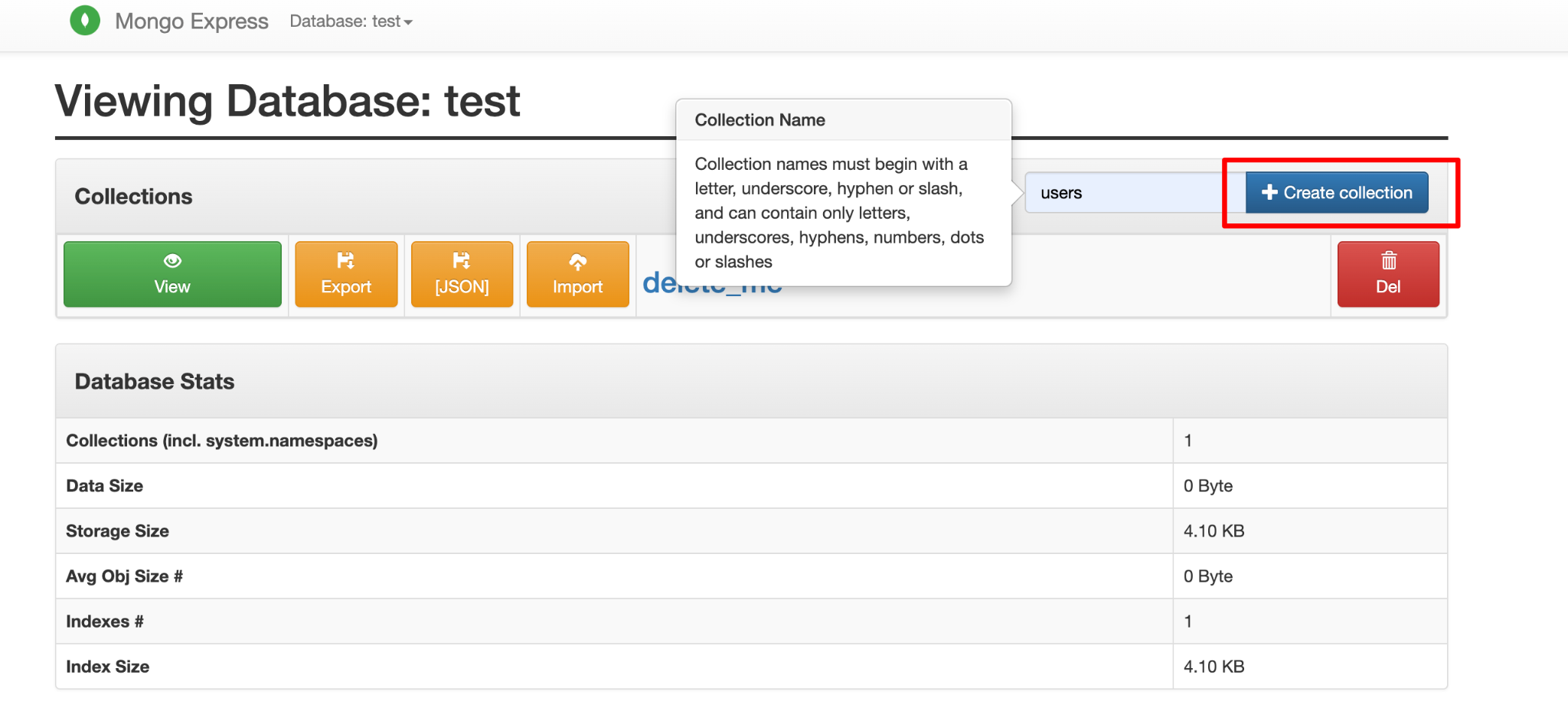
- Enter the collection name for Example: users
- Click Create Collection
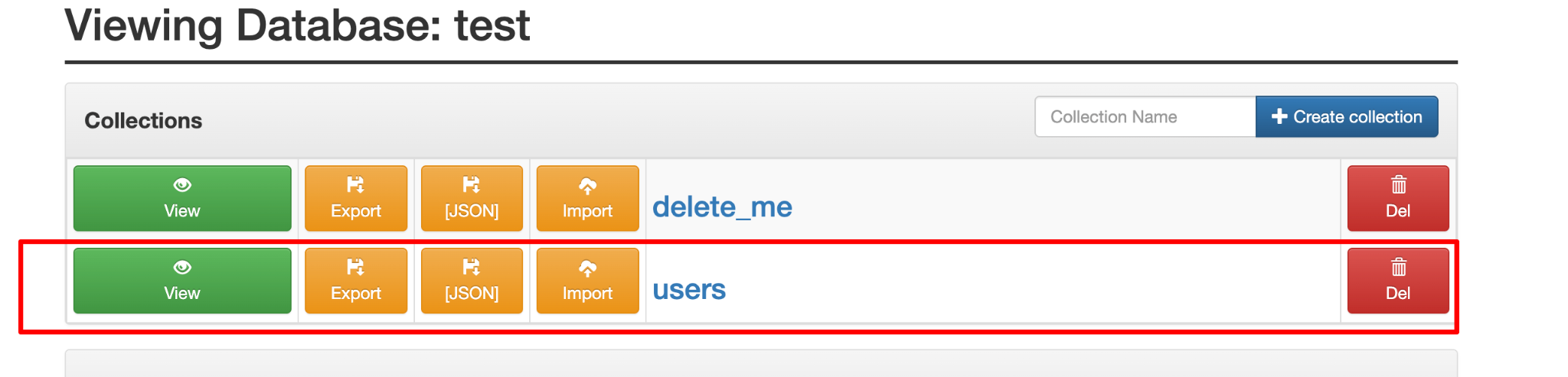
You can view all existing collections inside the selected database.
Step 5: Insert Documents
- Open a collection (for example, users)
- Click New Document
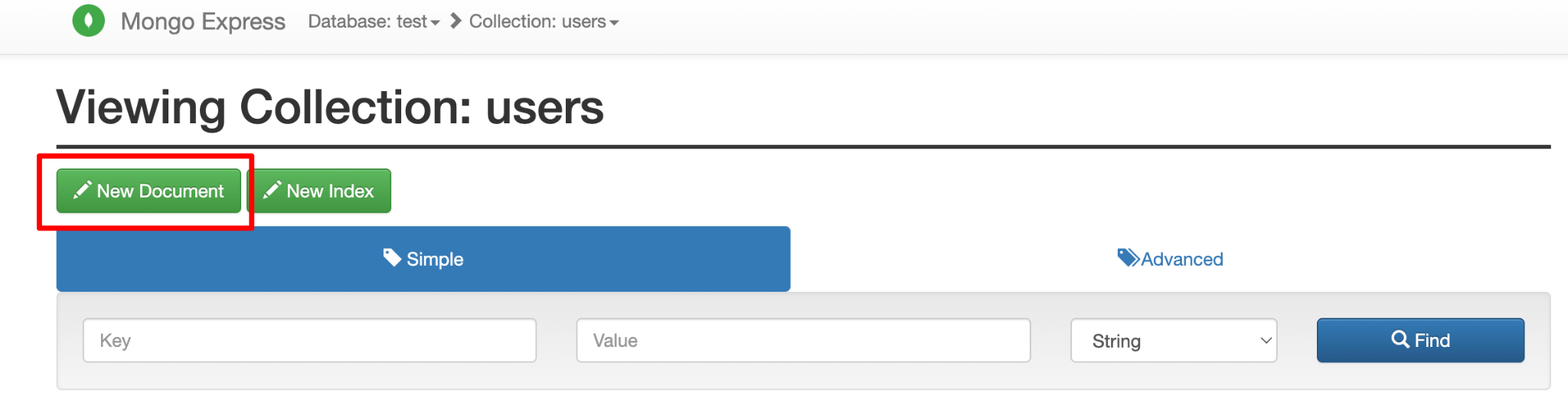
- Enter document data in JSON format:
{
“name”: “John Doe”,
“email”: “[email protected]“, “age”: 28
}
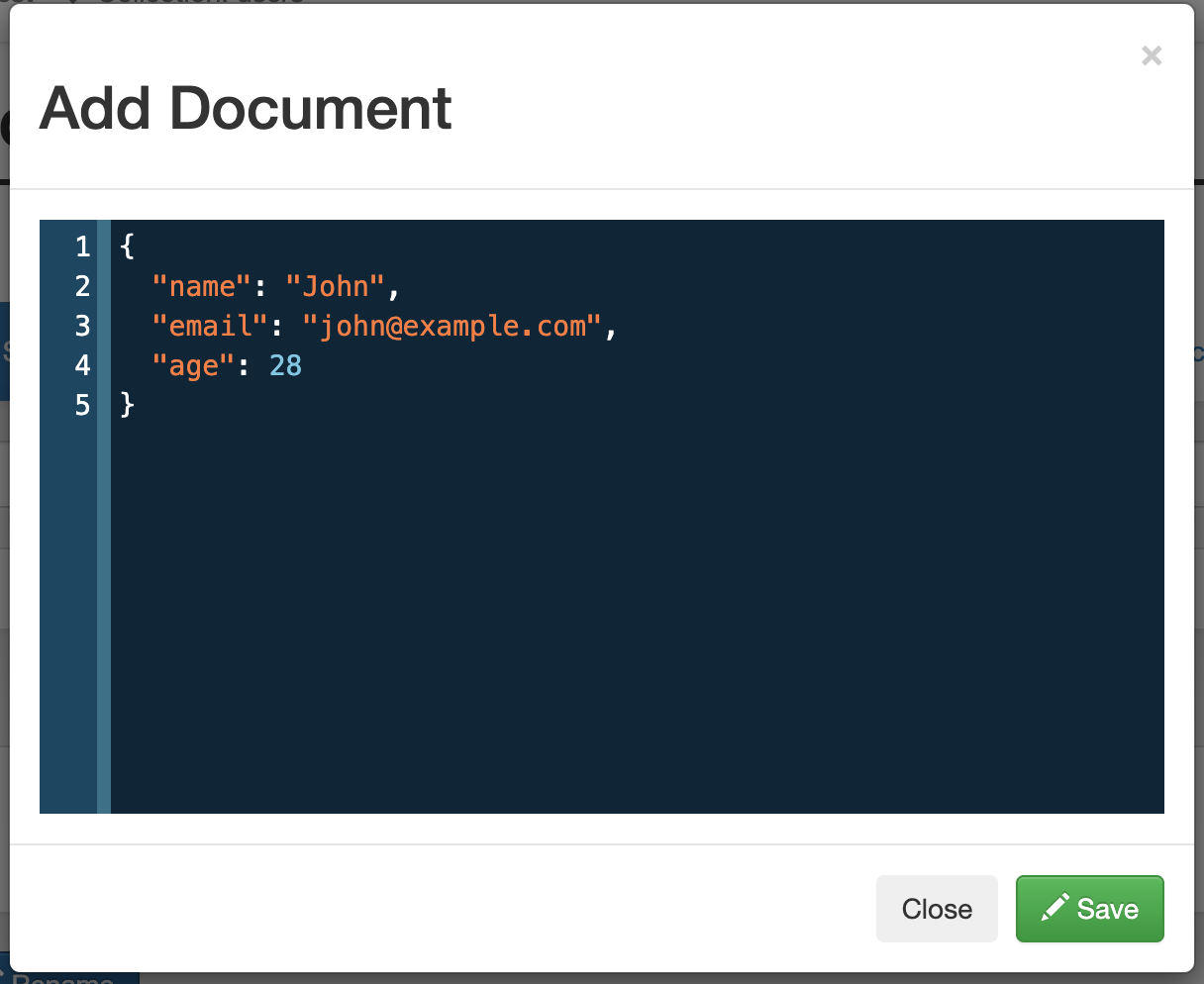
- Click Save
The document will be inserted into the collection.
Step 6: Edit or Delete Documents
Edit a Documen
- Click the document you want to modify
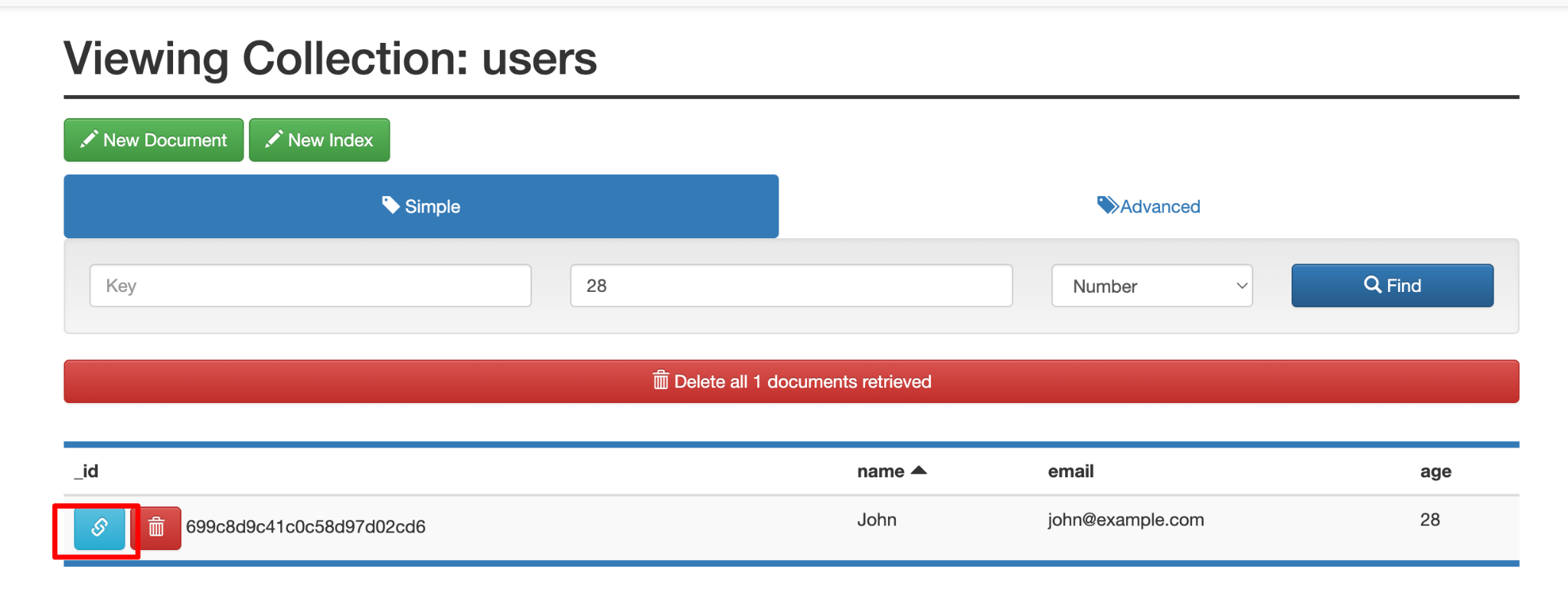
- Update the fields
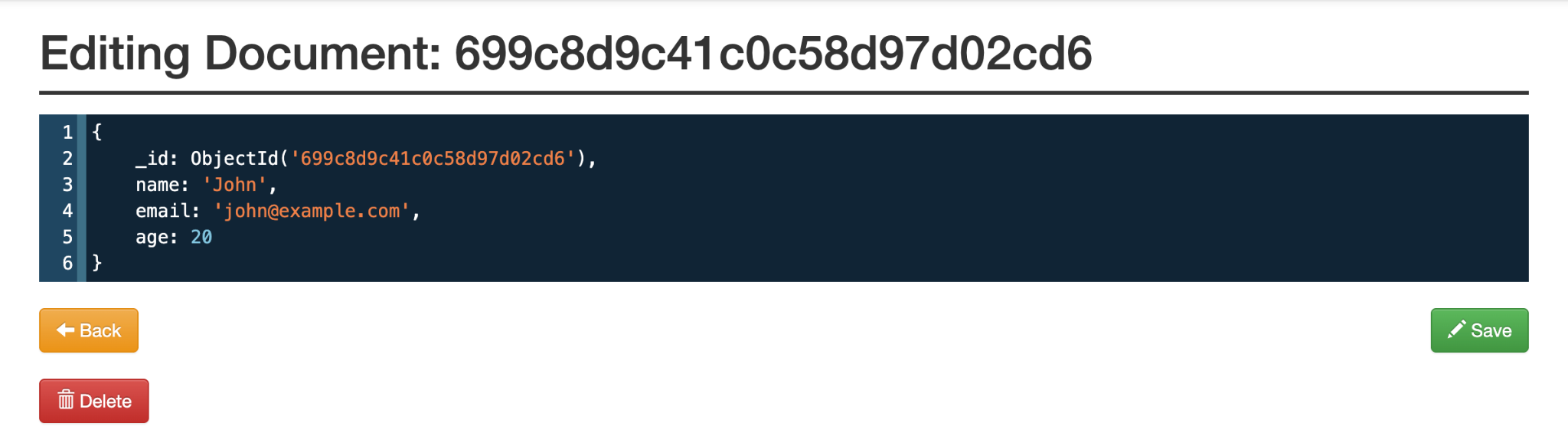
- Click Save
Delete a Document
- Select the document
- Click Delete

- Confirm the action
Step 7: Create and Manage Indexes
- Open the required collection
- Click the Indexes tab
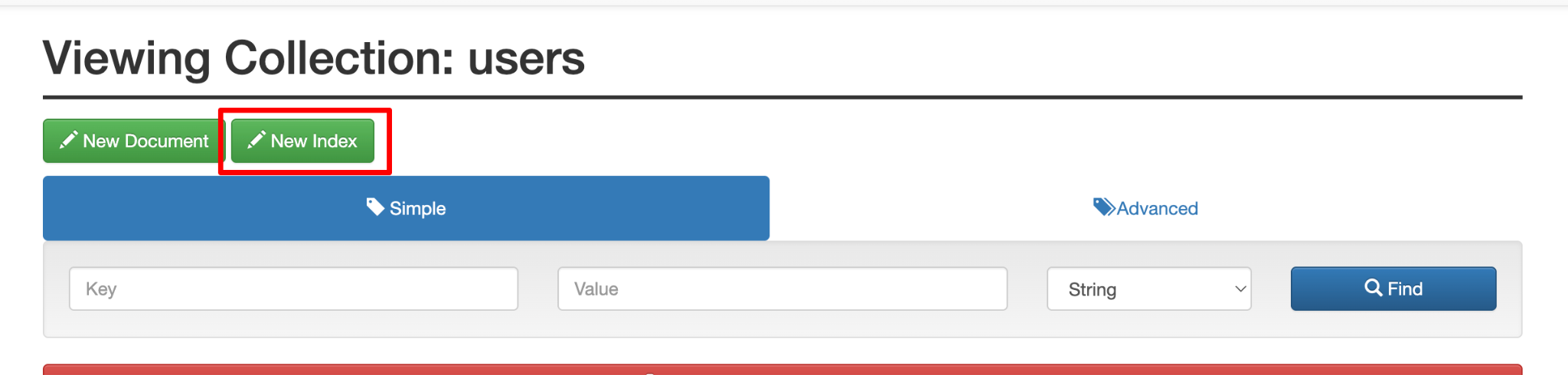
- Click Add Index
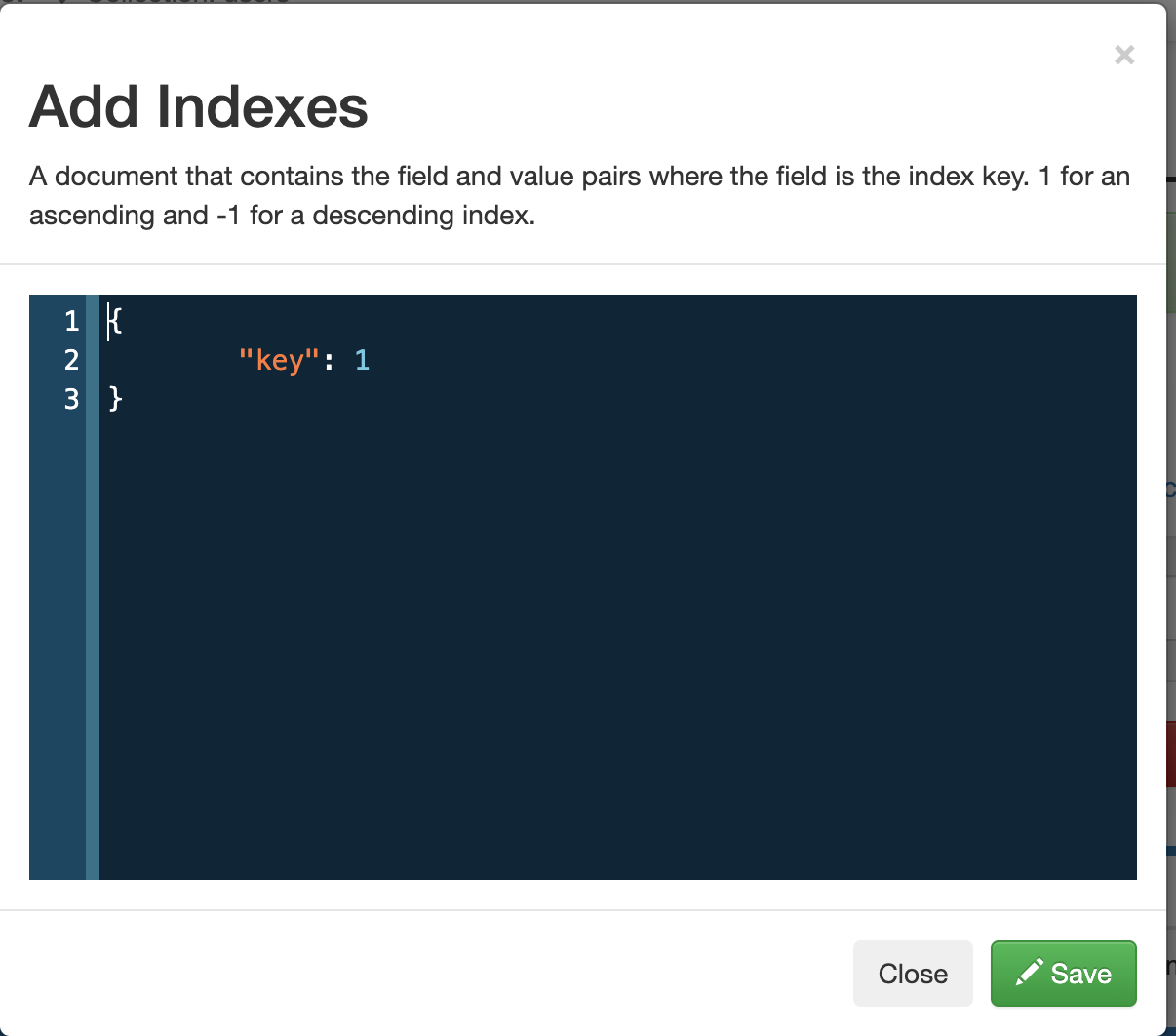
- Specify the field name and index type (ascending or descending)
- Click Save.
Indexes help improve query performance.
Step 8: Export
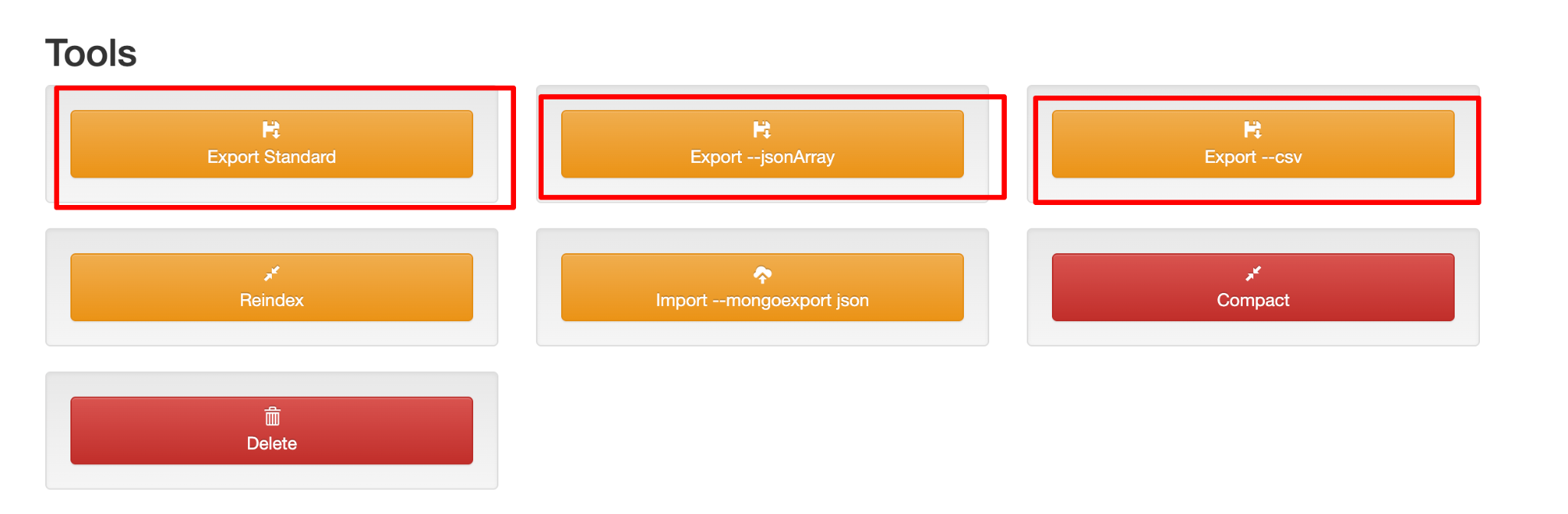
Option 1: Export Standard (JSON)
Use this option when you want to export collection data in standard JSON format.
Steps:
- Click Export Standard
- The browser will download a .json file
- Save the file to your local system
This format is suitable for backups and manual review.
Option 2: Export –jsonArray
Use this option when you want to re-import the data later or use it in applications that require a JSON array.
Steps:
- Click Export –jsonArray
- Mongo Express exports all documents as a JSON array
- Download and save the file
This format works best with mongoimport –jsonArray.
Option 3: Export –csv
Use this option when you want to export MongoDB data to spreadsheets or reporting tools.
Steps:
- Click Export –csv
- The data is downloaded in .csv format
- Open the file using Excel, Google Sheets, or similar tools
Step 10: Import –mongoexport json
Use this option when you want to import a JSON file that was previously exported using MongoDB tools or Mongo Express.
Steps:
- Open the required collection
- Click Import –mongoexport json
- Choose the JSON file from your local system
- Click Import
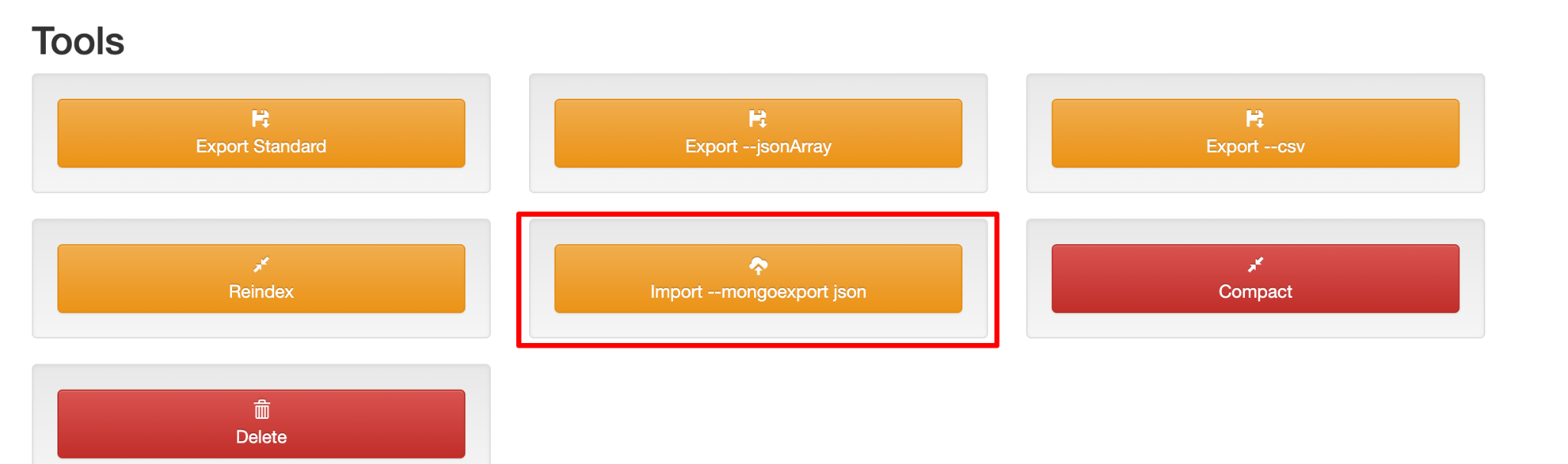
The data will be inserted into the selected collection.
Conclusion
With AccuWeb.Cloud one-click MongoDB installation, you can easily create databases, perform CRUD operations, use indexing for faster queries, and import/export data efficiently. This simplifies development, testing, and production deployment for developers and businesses alike.