
Deploy Mirotalk Application
This article explains how to install MiroTalk P2P on an Ubuntu 22.04 VPS in a stable and production-ready manner. The guide follows a structured, practical approach similar to AccuWeb.Cloud knowledgebase articles and is suitable for users who want a clean setup with SSL, reverse proxy, and automatic service restart.
Introduction
MiroTalk P2P is an open-source, browser-based video conferencing solution that allows real-time audio, video, chat, and screen sharing without requiring user accounts. In this guide, we will deploy MiroTalk P2P on a VPS using Node.js, secure it with Let’s Encrypt SSL, and configure PM2 for process management.
Prerequisites
Before proceeding, ensure the following requirements are met:
- Ubuntu 22.04 LTS VPS
- Root or sudo access
- Public IP address
- Registered domain name pointing to the VPS IP
- Ability to modify DNS records
Update the Server and Install Required Packages
Step 1: Start by updating the system packages and installing basic utilities.Before installing Docker and Mirotalk, you’ll need some basic tools such as Git and Curl. Install both with:
sudo apt update && sudo apt upgrade -y
sudo apt install git curl -y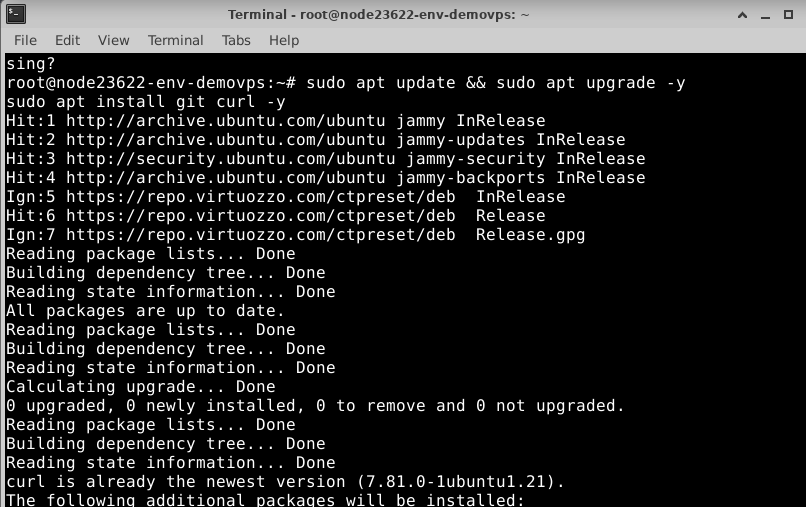
Keeping the system updated ensures better security and compatibility.
Step 2: MiroTalk P2P requires Node.js. Install the recommended Node.js 20 LTS version using NodeSource:
curl -fsSL https://deb.nodesource.com/setup_20.x | sudo bash -
sudo apt install -y nodejs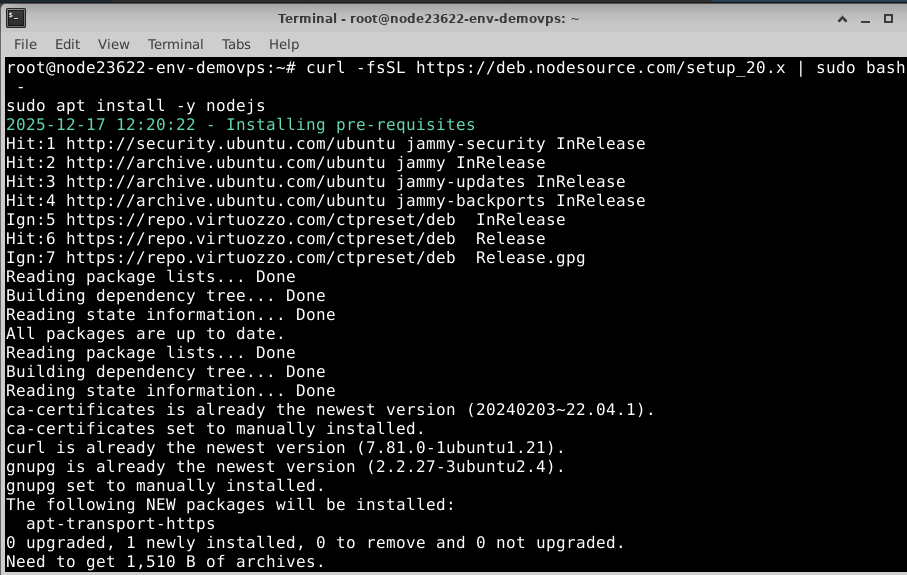
Verify the installation by following commands:
node -v
npm -v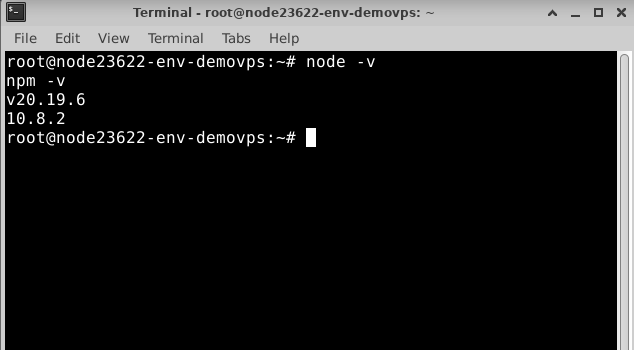
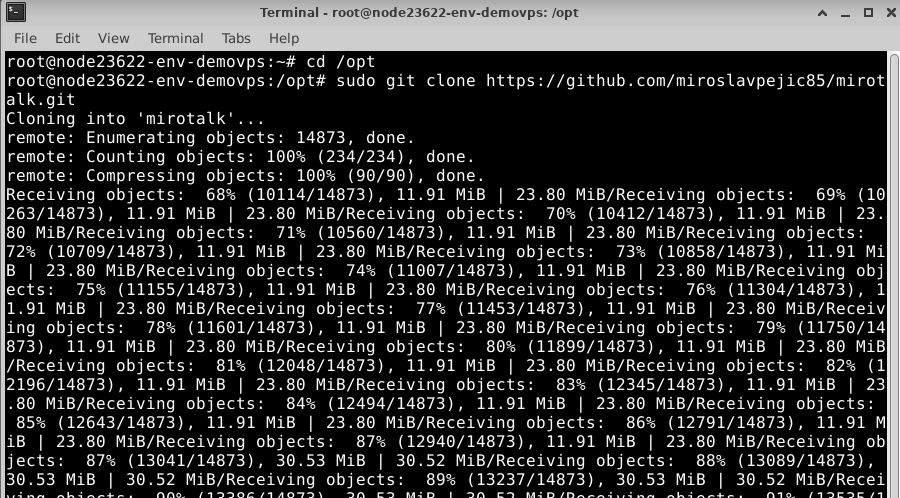
Step 3: Navigate to the directory where you want to install MiroTalk (for example, /opt) and clone the official repository:
cd /opt
sudo git clone https://github.com/miroslavpejic85/mirotalk.git
cd mirotalk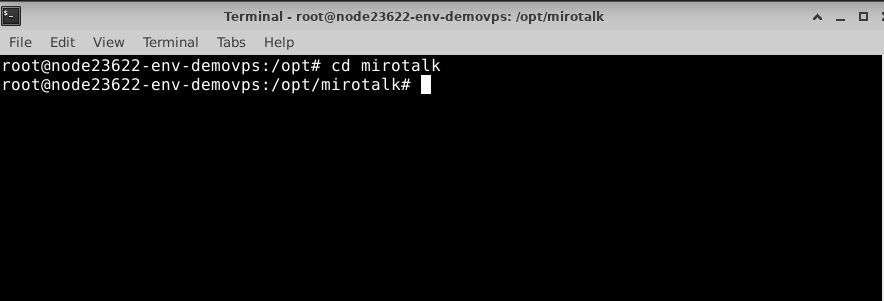
Step 4: Install the required Node.js dependencies:
npm install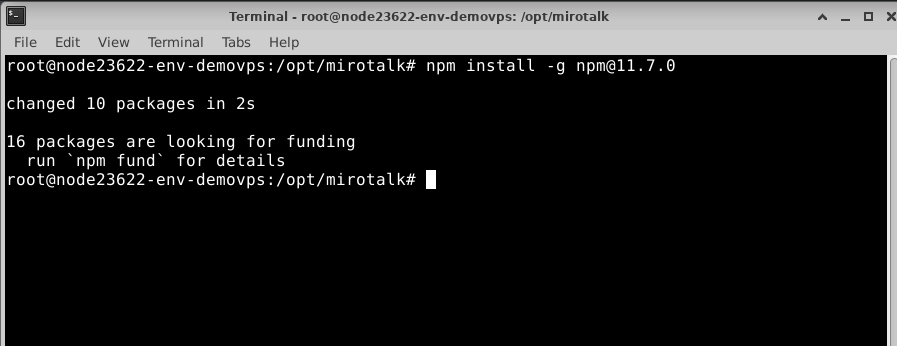
If you receive a warning suggesting that a new version should be installed, run the suggested command.
MiroTalk uses an environment file to manage configuration settings.
Deploy Mirotalk in 1 Click
Create the Environment File
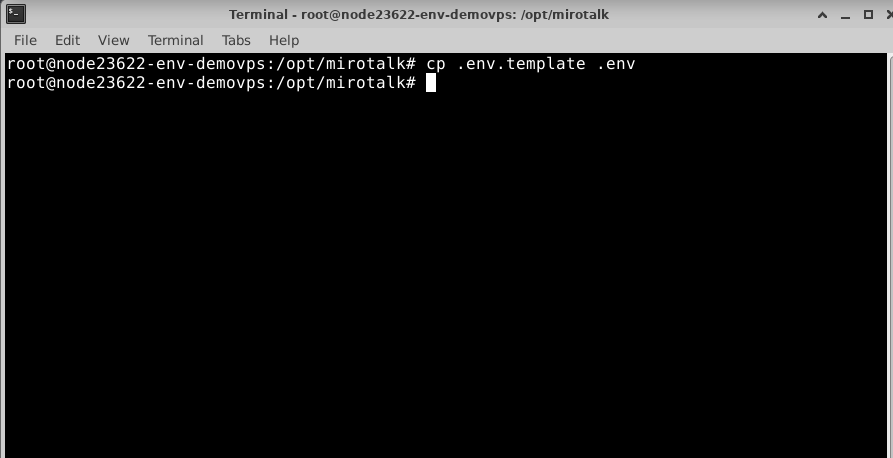
Step 5: cp .env.template .env
Step 6: Edit the Configuration
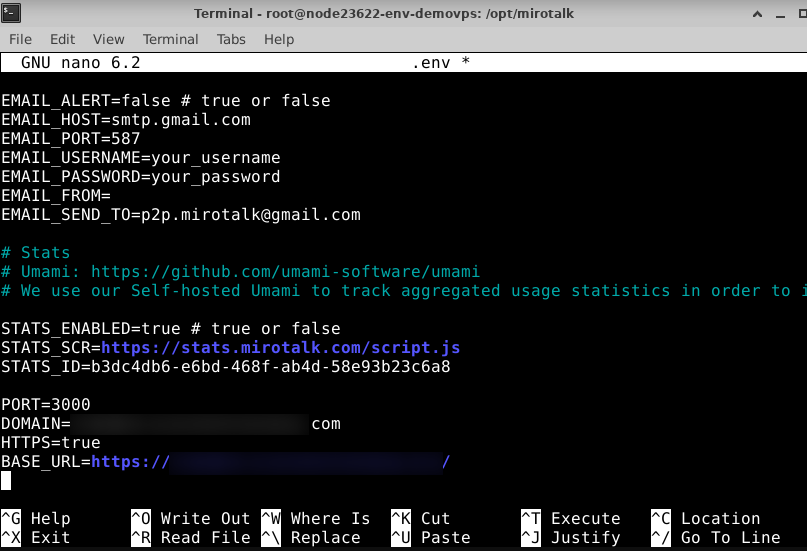
sudo nano .envUpdate the following values:
HTTP=true
HTTPS=false
PORT=3000
BASE_URL=https://yourdomain.com
Important Notes:
- Replace yourdomain.com with your actual domain name.
- HTTPS will be enabled after SSL configuration.
Save and exit (CTRL + X, then Y, then ENTER).
Step 7: Start MiroTalk manually to ensure it runs correctly:
npm start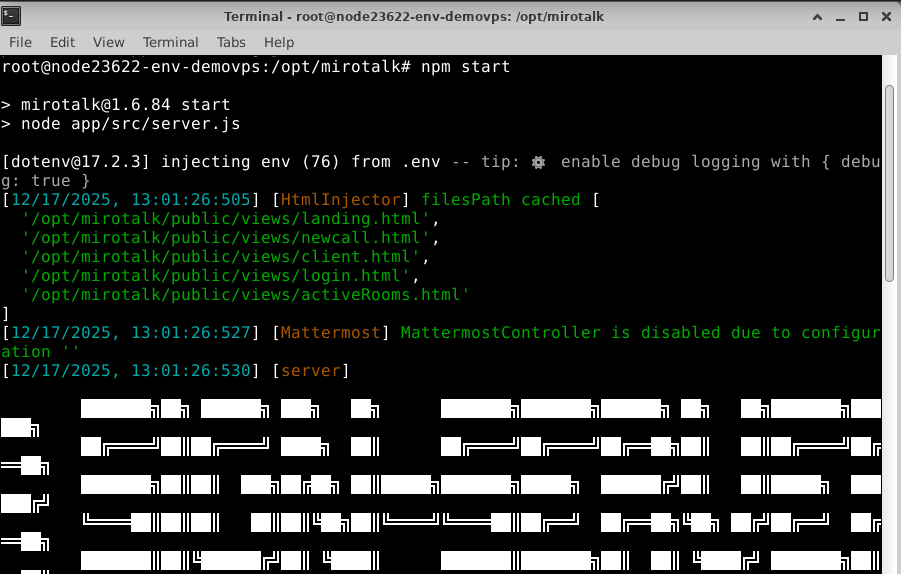
Once the application starts successfully, stop it using:
Click Ctrl + c to exit
Nginx will forward web traffic to the MiroTalk application.
Step 8: Install Nginx
sudo apt install nginx -y
sudo ufw allow 'Nginx Full'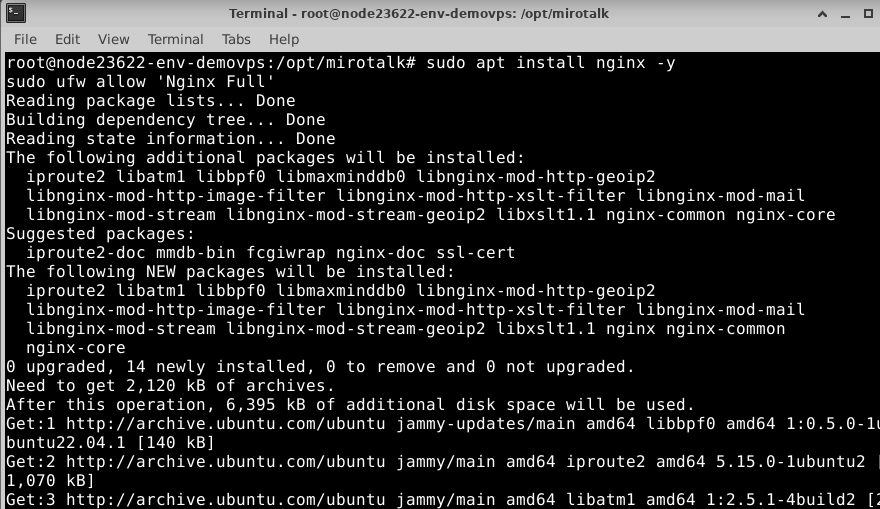
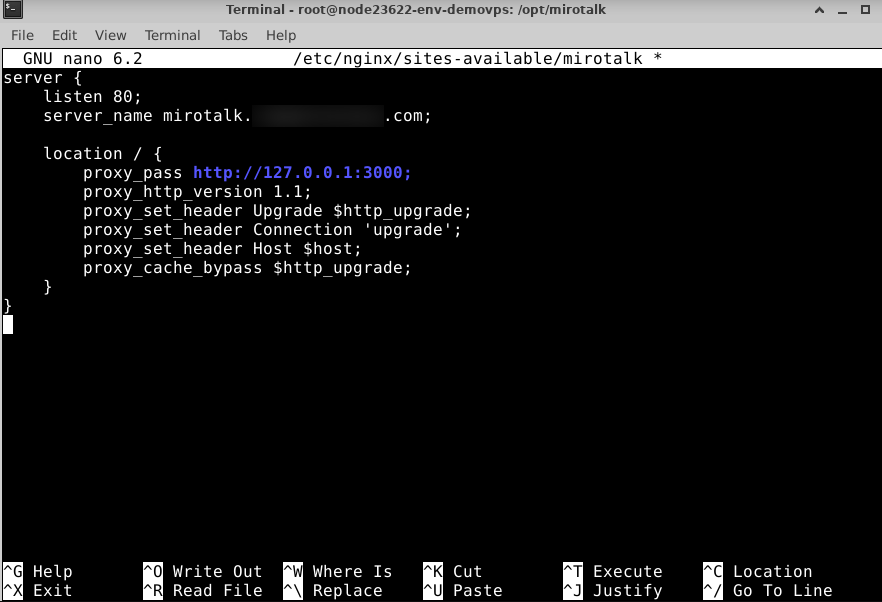
Step 9: Create Nginx Server Block
sudo nano /etc/nginx/sites-available/mirotalkAdd the following configuration:
erver
{
listen 80;
server_name yourdomain.com;
location / {
proxy_pass http://127.0.0.1:3000;
proxy_http_version 1.1;
proxy_set_header Upgrade $http_upgrade;
proxy_set_header Connection 'upgrade';
proxy_set_header Host $host;
proxy_cache_bypass $http_upgrade;
}
}
Enable the configuration and restart Nginx:
sudo ln -s /etc/nginx/sites-available/mirotalk /etc/nginx/sites-enabled/
sudo nginx -t
sudo systemctl restart nginx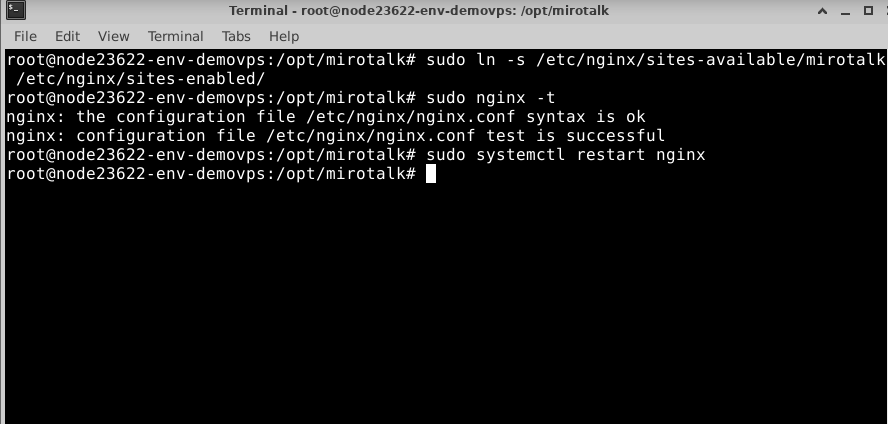
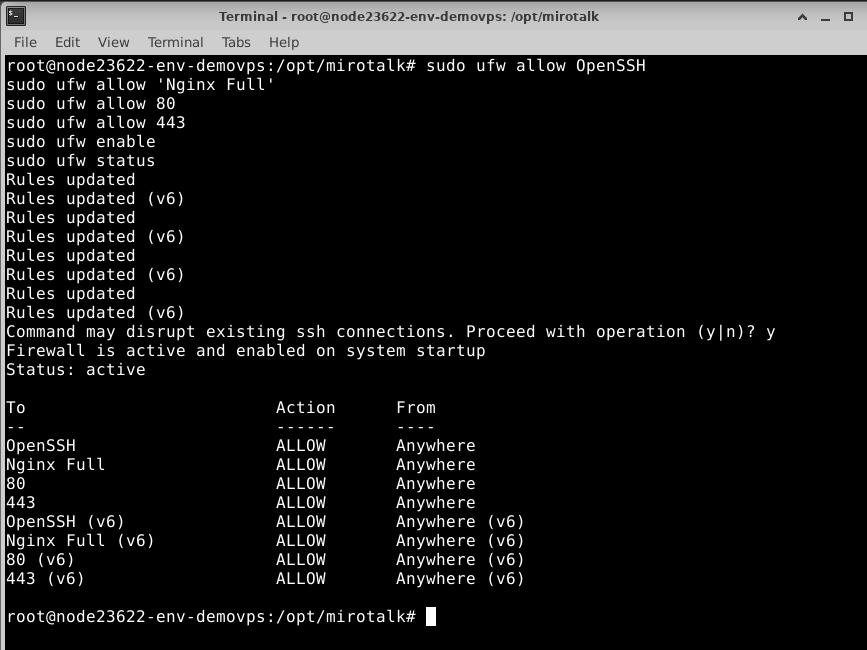
Step 10: Enable and configure the firewall for production security.
sudo apt update
sudo apt install -y ufw
sudo ufw allow OpenSSH
sudo ufw allow 'Nginx Full'
sudo ufw allow 80
sudo ufw allow 443
sudo ufw enable
sudo ufw status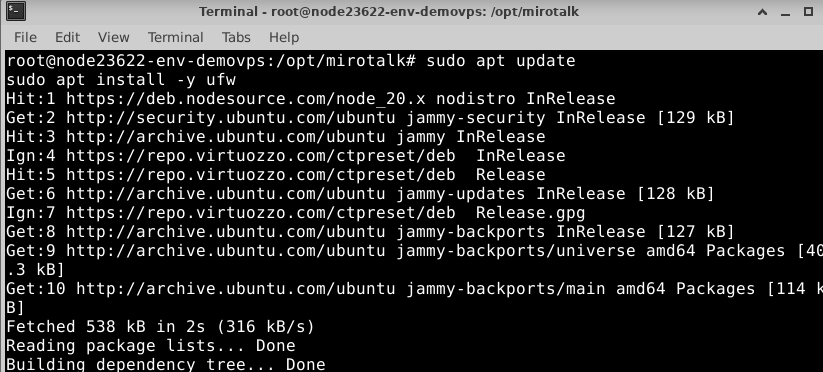
Step 11: Ensure that your domain DNS is already pointing to the VPS IP.
Install Certbot:
sudo apt install certbot python3-certbot-nginx -y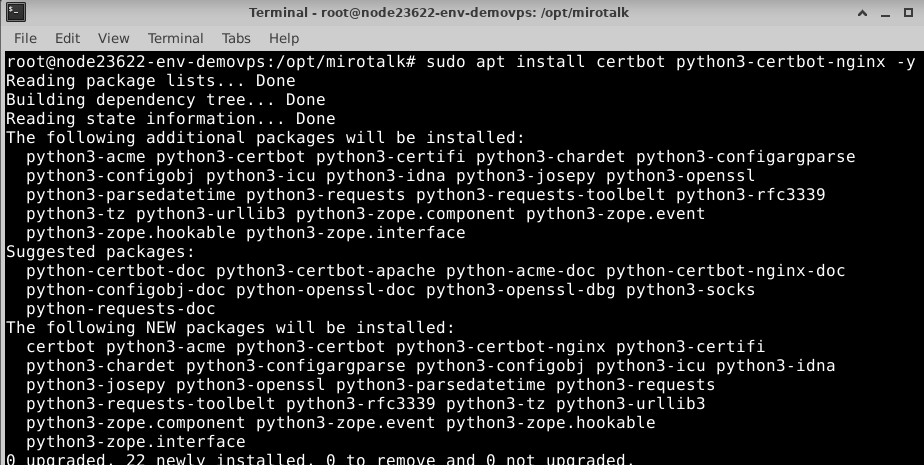
Generate the SSL certificate:
sudo certbot --nginx -d yourdomain.com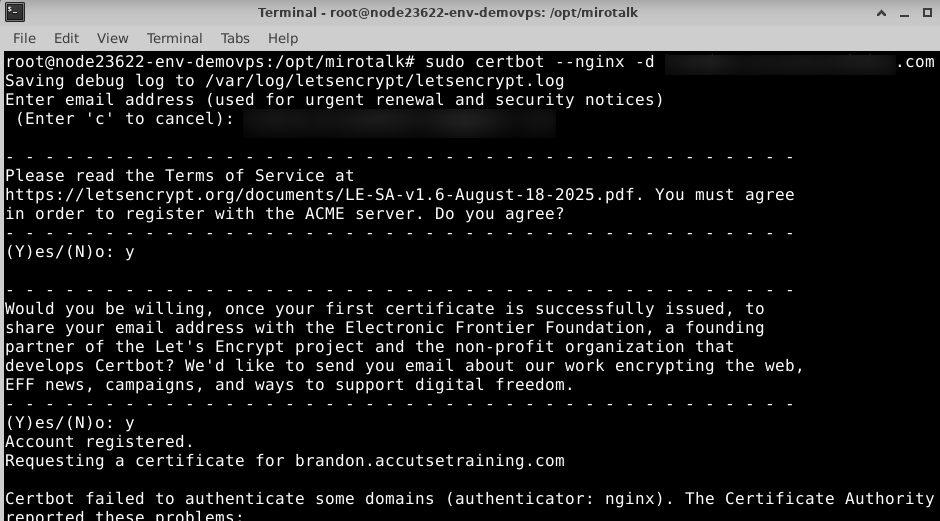
Once SSL is issued, update the environment file:
sudo nano .envModify the following values:
HTTPS=true
BASE_URL=https://yourdomain.com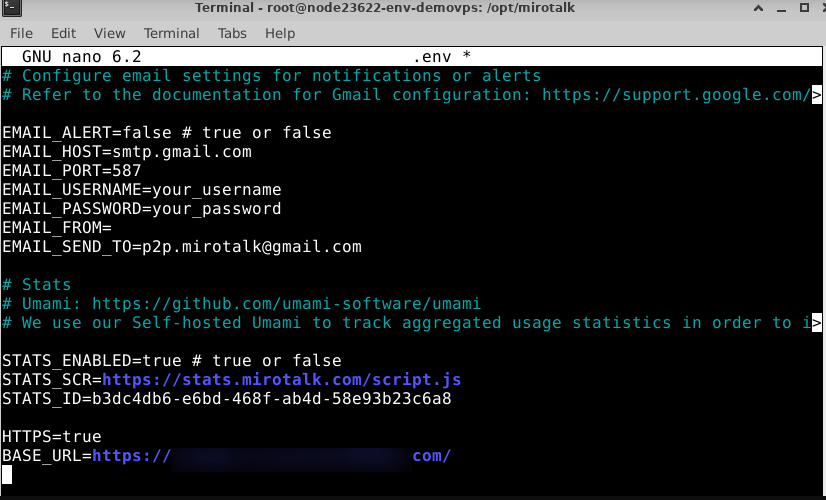
Save and exit.
PM2 ensures MiroTalk runs continuously and restarts automatically if the service stops.
Step 12: Install PM2
sudo npm install -g pm2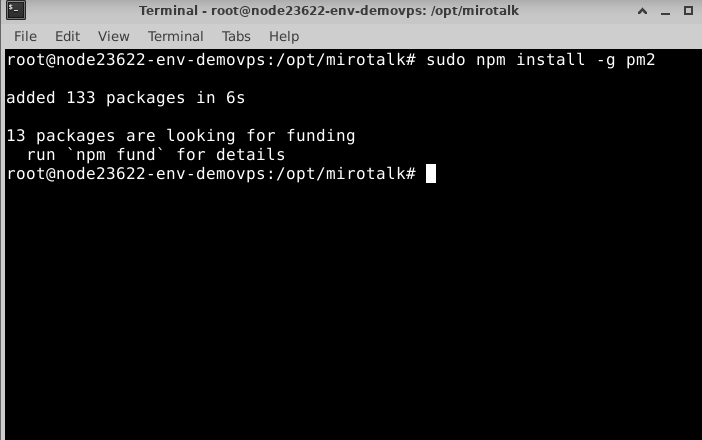
Step 13: Start MiroTalk with PM2
pm2 start server.js --name mirotalk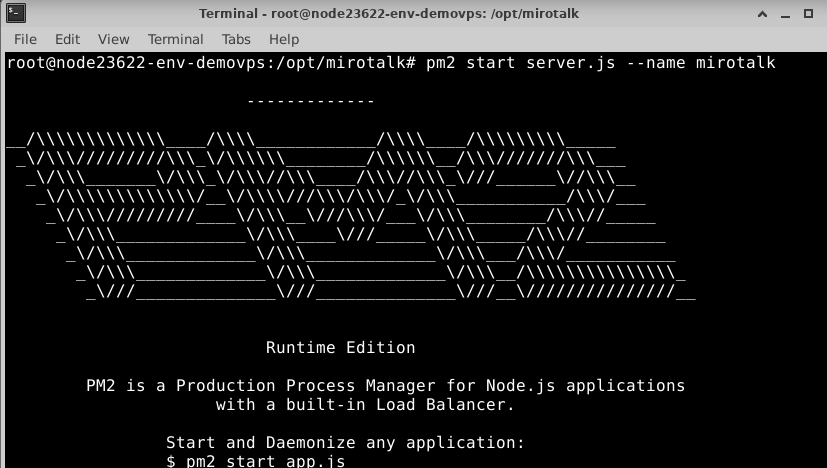
Step 14: Enable PM2 Startup on Boot
pm2 startup
pm2 save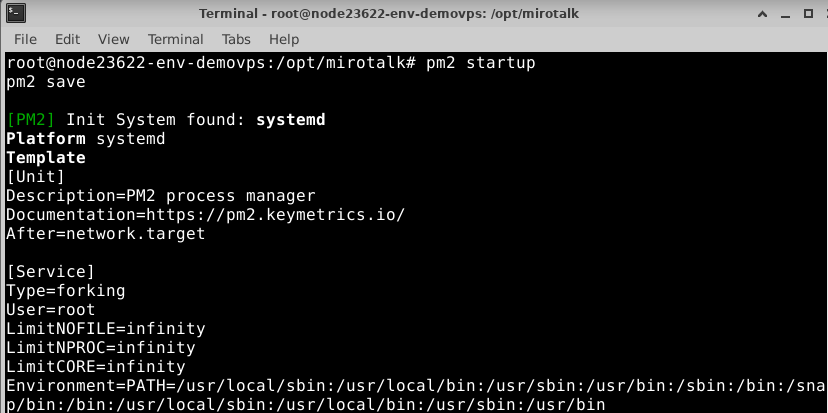
Final Step: Access MiroTalk
Open your browser and visit:
https://yourdomain.com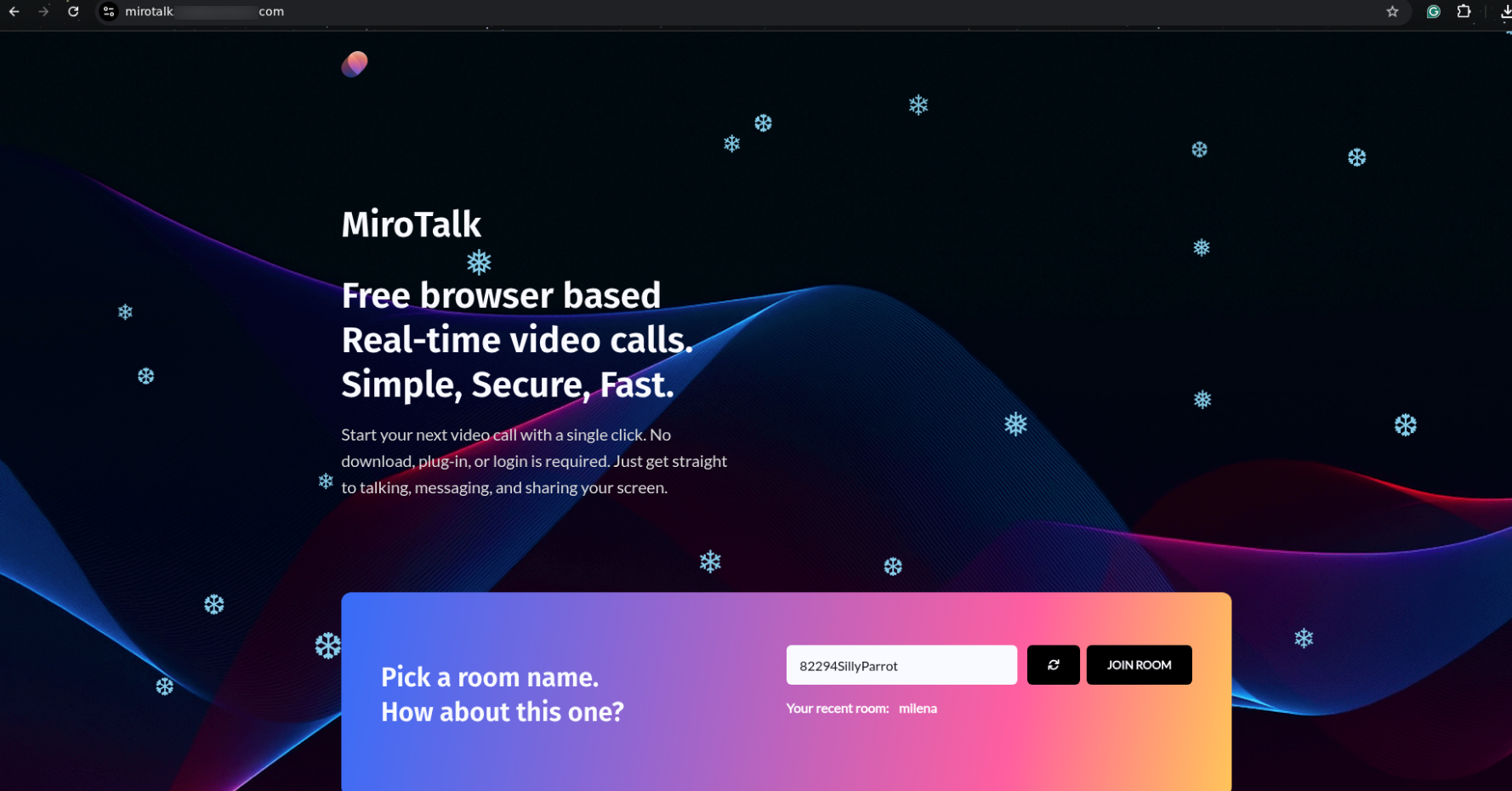
Your MiroTalk P2P server is now live and ready for real-time video, audio, chat, and screen sharing.
Deploy Mirotalk in 1 Click
Conclusion
You have successfully installed MiroTalk P2P on Ubuntu 22.04 with a secure, production-ready setup using Nginx, Let’s Encrypt SSL, and PM2. This configuration ensures stability, security, and automatic service recovery, making it suitable for long-term usage and client deployments.