
How to Start, Stop, Restart, and Reboot Your Cloud VPS?
Introduction
Managing your Cloud VPS often requires performing power actions such as starting, stopping, restarting, or rebooting the server. Whether you’re applying system updates, troubleshooting an issue, or bringing an instance back online, these actions can be performed directly from the AccuWeb.Cloud panel in just a few clicks.
This guide explains what each action does and how to perform it from the AccuWeb.Cloud panel.
Understanding Power Actions
| Action | Description |
| Start | Powers on a stopped VPS. |
| Stop | Gracefully shuts down the VPS. |
| Reboot | Performs a complete power cycle by turning the VPS off and back on. This is useful if the server becomes unresponsive. |
Note: The available actions may vary depending on the current state of your VPS. For example, the Start option is only available when the instance is stopped.
Step 1: Log in to the AccuWeb.Cloud panel
Log in to your AccuWeb.Cloud account using your registered email address and password.

Step 2: Locate Your VPS
After logging in, navigate to the Instances section from the left-hand menu. Find the VPS you want to manage in the list of available instances.
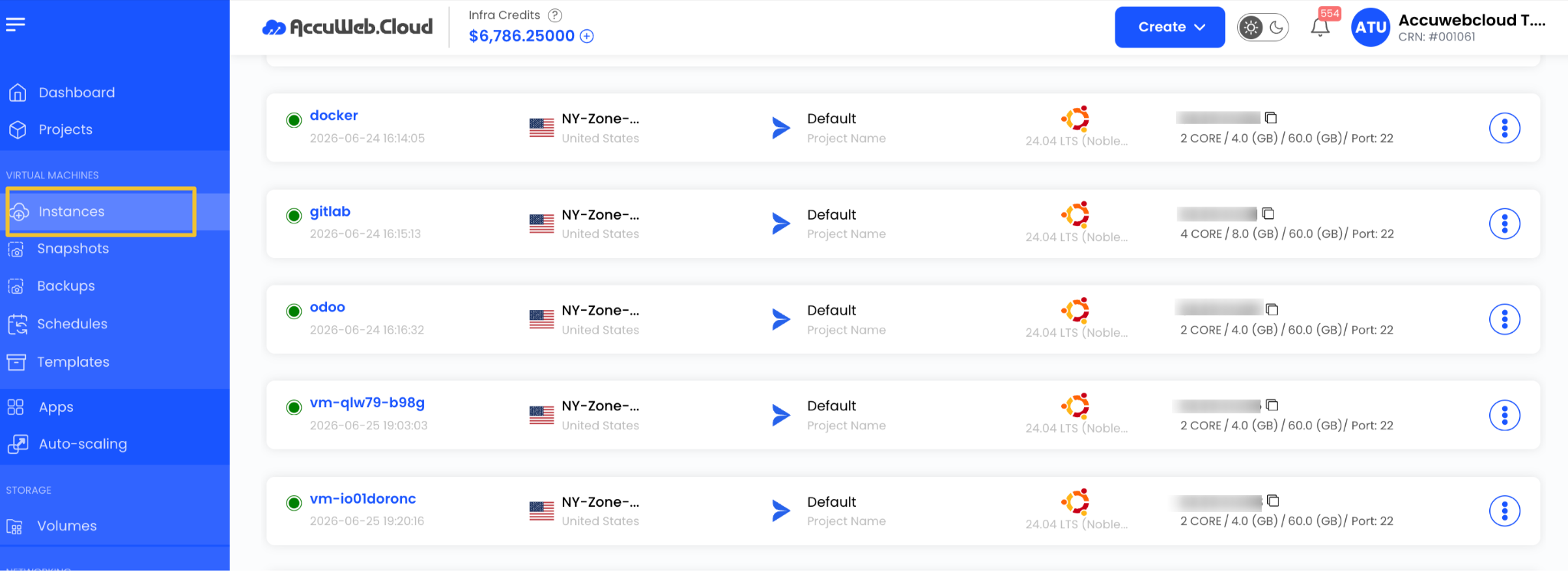
Step 3: Open the Action Menu
Click the three-dot (⋮) menu on the right side of the instance entry.

A list of available power actions will appear.
Step 4: Choose the Desired Action
Select the appropriate action based on what you want to do.
Start the VPS
If your VPS is currently stopped:
- Click the three-dot (⋮) menu.
- Select Start.
- Wait a few moments while the VPS powers on.
- The status will change to Running once the instance is online.

Stop the VPS
To safely power off your VPS:
- Click the three-dot (⋮) menu.
- Select Stop.
- Confirm the action if prompted.
- Wait until the instance status changes to Stopped.
Note: Stopping the VPS shuts down the operating system gracefully.

Reboot the VPS
If the VPS becomes unresponsive or requires a full power cycle:
- Click the three-dot (⋮) menu.
- Select Reboot.
- Confirm the action.
- Wait for the VPS to shut down and start again.

Verify the VPS Status
After performing any power action, check the Status column in the Instances page.
- Running – The VPS is powered on and ready to use.
- Stopped – The VPS is powered off.
- Starting, Stopping, or Restarting – The requested action is currently in progress.
Wait until the action completes before attempting another operation.
Troubleshooting
If the requested action does not complete successfully:
- Refresh the AccuWeb.Cloud panel and check the current instance status.
- Allow a few minutes for the operation to finish.
- Verify that there are no ongoing maintenance tasks affecting the VPS.
- If the instance remains stuck or becomes inaccessible, contact our support team.
Conclusion
The AccuWeb.Cloud panel makes it easy to manage your Cloud VPS with simple power controls. By using the three-dot menu, you can quickly start, stop, restart, or reboot your server whenever needed. Understanding when to use each action helps ensure smooth maintenance and minimizes downtime for your applications.