
Odoo PostgreSQL Connection Error: Causes and Fixes
A production troubleshooting guide for Odoo with PostgreSQL 16 on Linux, based on errors we reproduced in a test server.
Meta description: Getting errors connecting to PostgreSQL in Odoo?Discover the possible reasons for database login failure in Odoo, such as incorrect username entry, presence of db_user duplicate, or incorrect password entry.
URL slug: odoo-postgresql-connection-error
Keywords: Odoo PostgreSQL, Odoo database connection error, PostgreSQL authentication failed, Odoo database username, PostgreSQL password error, odoo.conf db_user
Is Odoo Unable to Connect to PostgreSQL?
Odoo stores its application data, user accounts, configuration and business records in PostgreSQL. If Odoo cannot authenticate with PostgreSQL, the application cannot reach its database, and users will see a failed login page or a server error.
Typical errors in the Odoo log look like this:
psycopg2.OperationalError:
Unable to connect to the PostgreSQL server at 127.0.0.1 on port 5432:
FATAL: password authentication failed for user "odoo"
If the specified username does not exist:
FATAL: role "odoo_missing_test" does not existDuring testing, we reproduced three related problems:
- Wrong or missing PostgreSQL username: Odoo tried to connect with a role that did not exist.
- Conflicting db_user entries: odoo.conf contained more than one db_user line with different values.
- PostgreSQL incorrect password: The password given in Odoo was not the same as the password given in PostgreSQL for the database user.
Before You Start: Check That PostgreSQL Is Running
Before you troubleshoot usernames or passwords, confirm that PostgreSQL is running and accepting connections. This shows whether the problem is the service itself or authentication.
Check the service status:
systemctl is-active postgresqlExpected output:
activeCheck that PostgreSQL accepts connections on the local TCP port:
pg_isready -h 127.0.0.1 -p 5432Expected output:
127.0.0.1:5432 - accepting connectionsIf either check fails, fix the PostgreSQL service first. If both pass, continue with Step 1.
Step 1: Fix a PostgreSQL Username Error
Odoo needs a valid PostgreSQL role. In the event that the username is not found in PostgreSQL, the job will instantly fail.
1.1 Check whether the role exists
List all roles on the server:
sudo -u postgres psql -c "\du"Or check one specific role:
sudo -u postgres psql -c "\du odoo"If the user mentioned in odoo.conf is not in the list, then Odoo would fail to make a connection with PostgreSQL.

1.2 Confirm the error in the logs
Check the Odoo log:
tail -n 50 /var/log/odoo/odoo.logAnd the PostgreSQL log:
tail -n 50 /var/log/postgresql/postgresql-16-main.logFor a missing role, both will show:
FATAL: role "root" does not exist
1.3 Correct the username
If the right role already exists, simply fix odoo.conf:
db_user = odooOtherwise, if there is no such database role, you can create one and grant the right permissions to that database role.
sudo -u postgres createuser --createdb odooCreate the role only after you verify that there is no other role with the same name. If the role was accidentally deleted, check whether the Odoo database ownership also needs to be assigned again.
root@odoo-test:~# grep -nE '^(db_user|db_host|db_port|db_password)' /etc/odoo/odoo.conf
3:db_user = odoo
root@odoo-test:~#
1.4 Check for duplicate db_user entries
If odoo.conf contains more than one db_user line, it is unclear which value Odoo uses, and a wrong value can make the connection fail. List every database setting in the file with its line number:
grep -nE '^(db_user|db_host|db_port|db_password)' /etc/odoo/odoo.confEach setting should appear only once. A correct file shows a single db_user line, for example:
3:db_user = odooIf db_user, or any other setting, appears on more than one line, open the file and keep only the correct entry. Delete the extra lines, or put a # at the start of each one to disable it:
sudo nano /etc/odoo/odoo.confSave the file and run the grep command again to confirm that each setting appears only once.
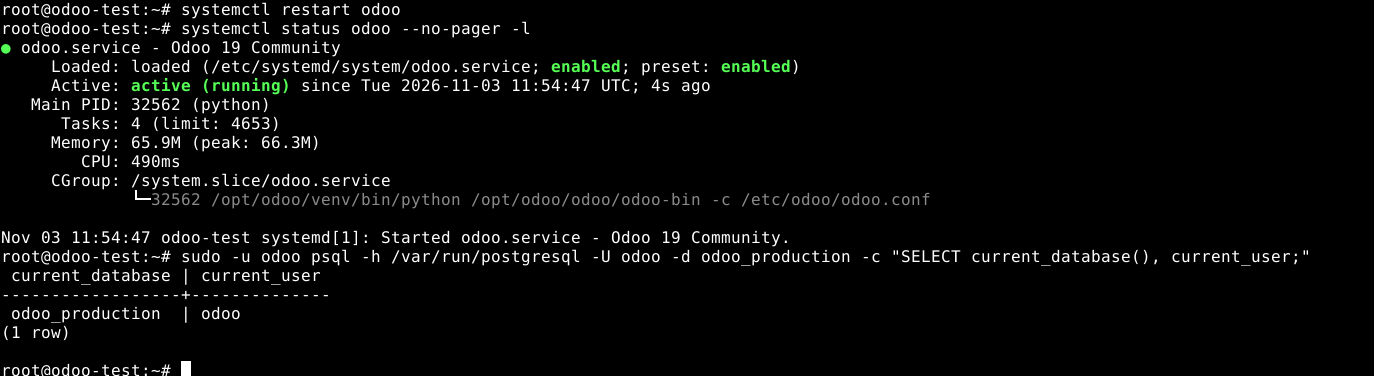
1.5 Restart Odoo and verify
systemctl restart odoo
systemctl status odoo --no-pager -l
Make sure that the Odoo application user connects to the PostgreSQL database with a local socket.
sudo -u odoo psql -h /var/run/postgresql -U odoo -d odoo_production -c "SELECT current_database(), current_user;"Expected output:
odoo_production | odooThis confirms that local socket authentication succeeded. The authentication method depends on PostgreSQL’s pg_hba.conf configuration. If Odoo uses db_host = 127.0.0.1, it connects over TCP instead of the local socket, so test the TCP connection and credentials separately, as shown in Step 2.7.
Step 2: Fix PostgreSQL Password Authentication Failed
It is possible that PostgreSQL will be working fine, and the username will be correct but not the password.
2.1 Review the connection settings
Open odoo.conf again and make sure the username, host, port and password are all correct:
db_user = odoo
db_host = 127.0.0.1
db_port = 5432
db_password = YOUR_POSTGRESQL_PASSWORD
Setting db_host = 127.0.0.1 makes Odoo connect over TCP, which means password authentication is used.
2.2 Check the PostgreSQL authentication rules
nano /etc/postgresql/16/main/pg_hba.confThe rule that applies to local TCP connections is:
host all all 127.0.0.1/32 scram-sha-256This requires password authentication using SCRAM-SHA-256.
2.3 Read the PostgreSQL log
tail -n 30 /var/log/postgresql/postgresql-16-main.logIn our test, PostgreSQL returned:
FATAL: password authentication failed for user "odoo"The log also showed which rule matched the connection:
DETAIL: Connection matched file
"/etc/postgresql/16/main/pg_hba.conf" line 125:
"host all all 127.0.0.1/32 scram-sha-256"
This tells you PostgreSQL was reachable and the rule was applied, so the problem is the password itself.
2.4 Reset the PostgreSQL password
Open the PostgreSQL console:
sudo -u postgres psqlSet a new password:
\password odooEnter the new password twice, then exit:
\q2.5 Update the password in Odoo
Edit /etc/odoo/odoo.conf and set the same password:
db_password = YOUR_NEW_POSTGRESQL_PASSWORDKeep this file readable only by the accounts that need it, because it contains database credentials.
2.6 Restart Odoo
systemctl restart odoo
systemctl status odoo --no-pager -l
2.7 Test the credentials from the config file
This command will test the database connection with the details in odoo.conf file without displaying the password.
sudo -u odoo /opt/odoo/venv/bin/python -c 'import configparser, psycopg2; c=configparser.ConfigParser(interpolation=None); c.read("/etc/odoo/odoo.conf"); d=c["options"]; conn=psycopg2.connect(host=d["db_host"], port=d["db_port"], user=d["db_user"], password=d["db_password"], dbname="odoo_production"); cur=conn.cursor(); cur.execute("SELECT current_database(), current_user;"); print(cur.fetchone()); conn.close()'Expected output:
('odoo_production', 'odoo')
Step 3: Verify the Odoo Application
Once the problem in logging in has been fixed, ensure that Odoo is working well and responding to requests.
curl -I http://127.0.0.1:8069/web/loginExpected response:
HTTP/1.1 200 OKFor production, access Odoo through a configured HTTPS domain and reverse proxy instead of exposing port 8069 directly. You can secure the domain with a free certificate by following our guide to installing a Let’s Encrypt SSL certificate on an AccuWeb.Cloud VM.
Important: A systemd status of active (running) does not prove that database authentication works. Check both the Odoo and PostgreSQL logs. Also test the database connection on its own to find where the problem is.

Quick Troubleshooting Checklist
- Only one db_user, db_host, db_port and db_password line exists in odoo.conf.
- The db_user role appears in \du in PostgreSQL.
- The db_password matches the password set with \password.
- Check that pg_hba.conf allows the way Odoo connects, either over the network (TCP/IP) or through a local socket.
- Check /var/log/odoo/odoo.log and PostgreSQL logs after starting the services. Make sure no new FATAL errors show up.
- curl -I http://127.0.0.1:8069/web/login returns 200 OK.
Conclusion
Odoo can fail to connect to PostgreSQL even when PostgreSQL is running fine. Missing user, wrong db_user setting, or a wrong password can stop from connecting the database.
Find the problem, check the database details in odoo.conf. Make sure the PostgreSQL user exists. Then look at pg_hba.conf to see which logins are allowed. Read the Odoo and PostgreSQL logs; they show the error.
After fixing the issue, test the database connection. Then open the Odoo login page in your browser and check that it loads. If you are setting up a new server, see how to install Odoo Community Edition from the AccuWeb.Cloud Marketplace or the guide to Odoo application hosting with Cloud VPS.