
How to Check Your Instance Status and Health?
Keeping an eye on your virtual machine is one of the easiest ways to prevent unexpected downtime. By checking your Instance regularly, you can spot resource bottlenecks, network issues, or service interruptions before they affect your applications.
AccuWeb.Cloud includes built-in monitoring tools that let you view your Instance’s current status, hardware allocation, network details, and performance metrics from a single dashboard.
Sign in to AccuWeb.Cloud
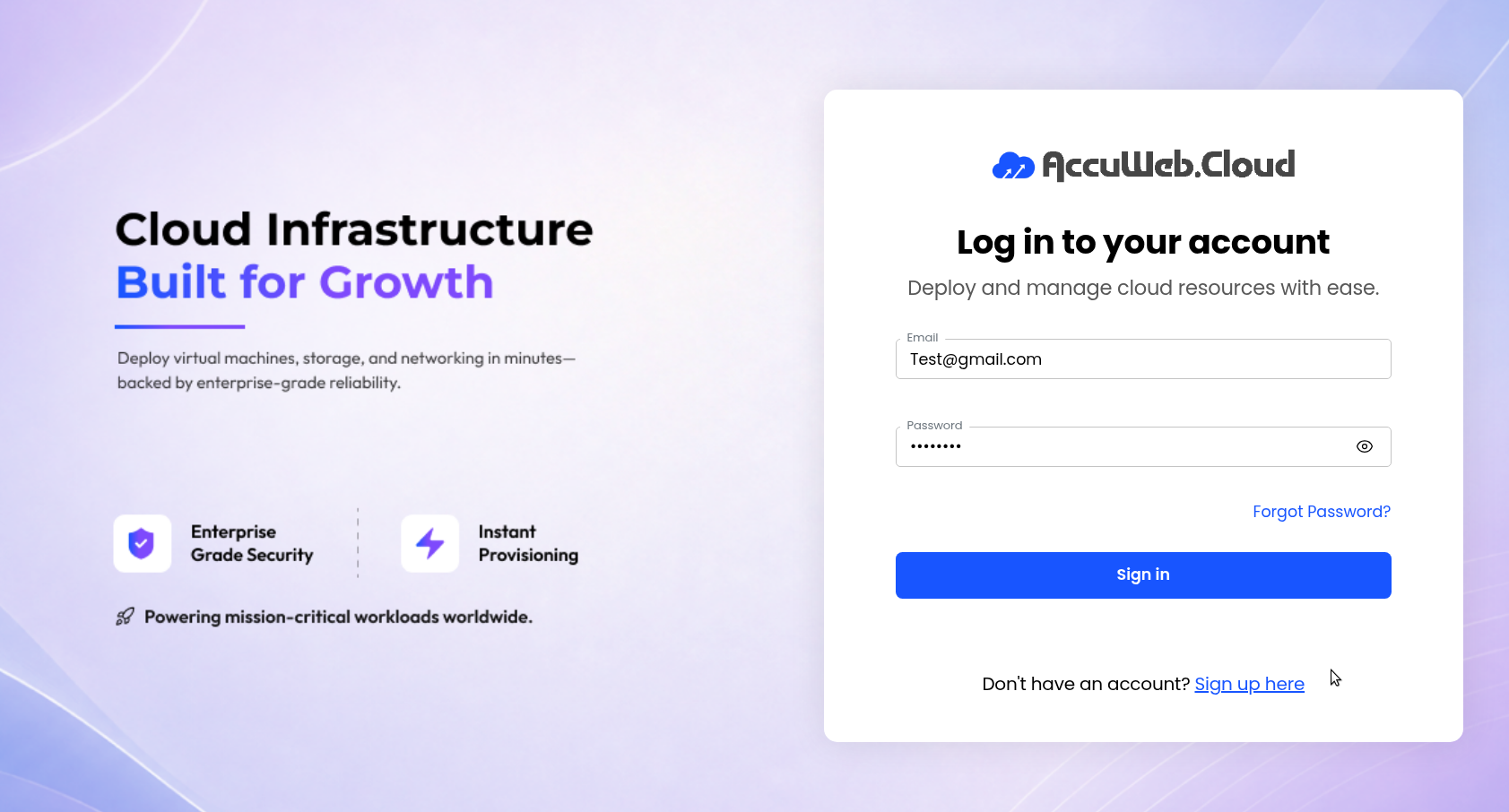
Log in to your AccuWeb.Cloud account using your registered email address and password.
Open the Instances Page
After signing in, select Instances from the navigation menu on the left side of the portal.
The page displays every virtual machine available in your account.

Open Your Instance
Click the Instance you want to review.
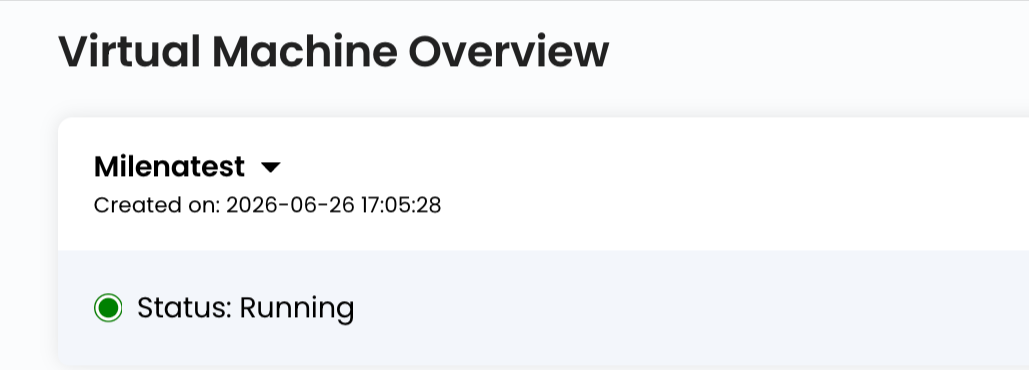
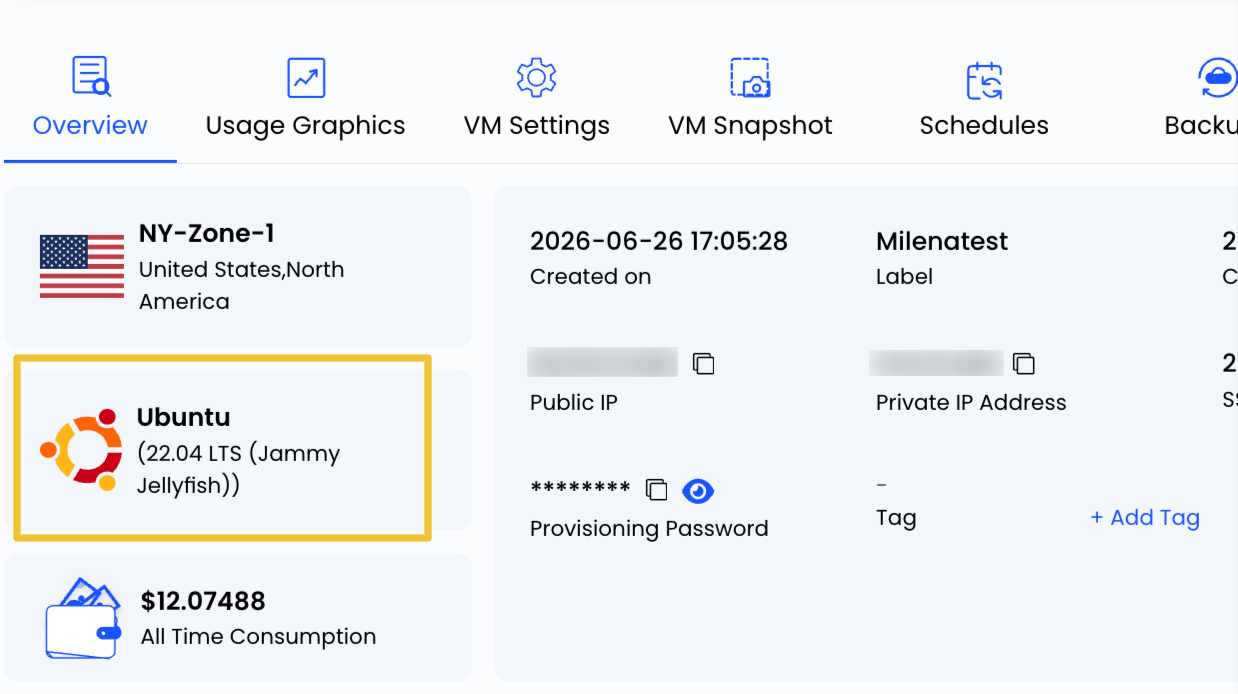
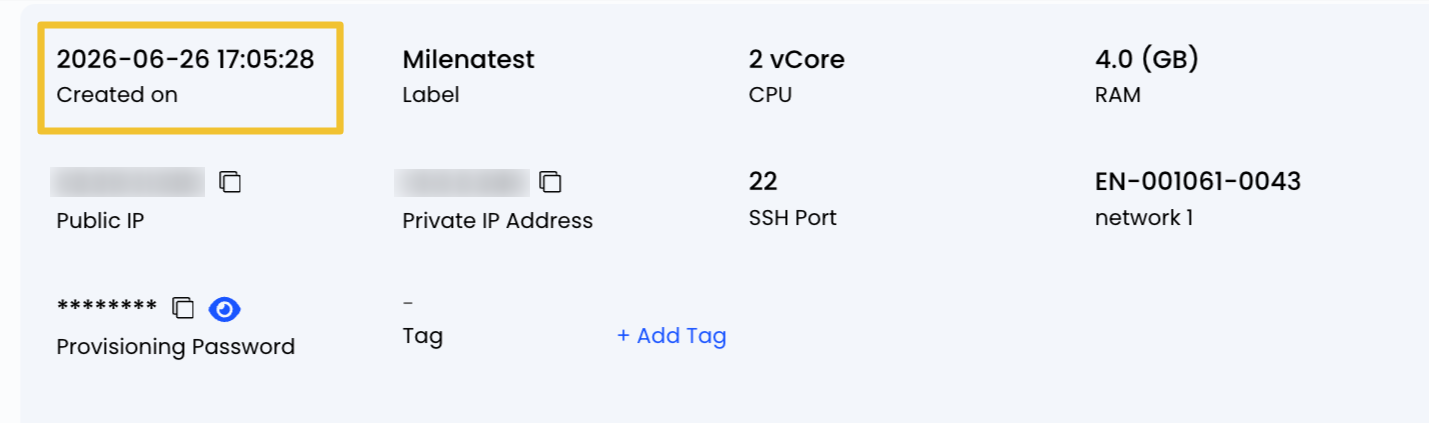
The Overview page displays important information such as:

- Current status (Running, Stopped, Starting, etc.)
- Operating system
- Allocated CPU and memory
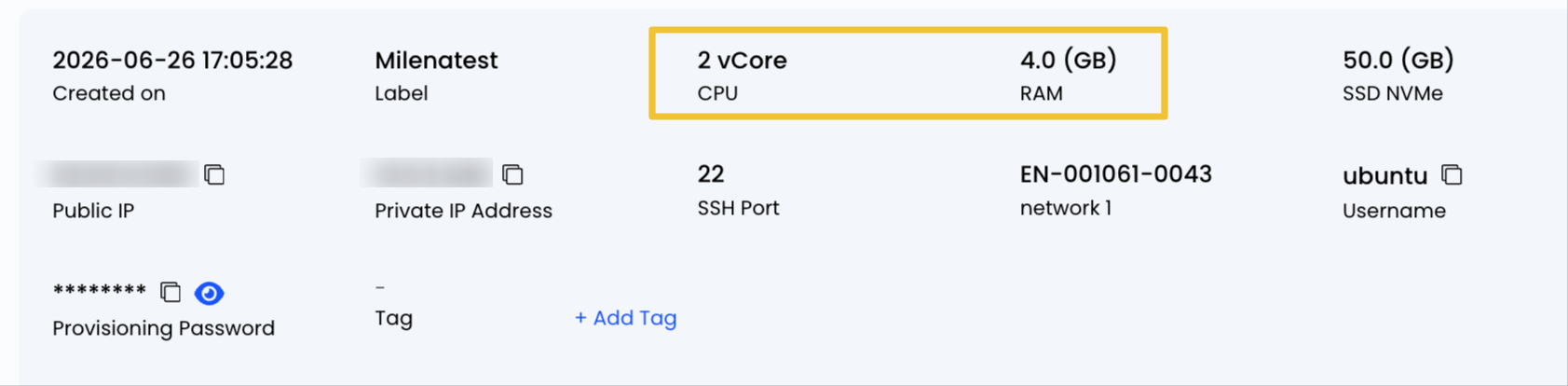
- Attached storage
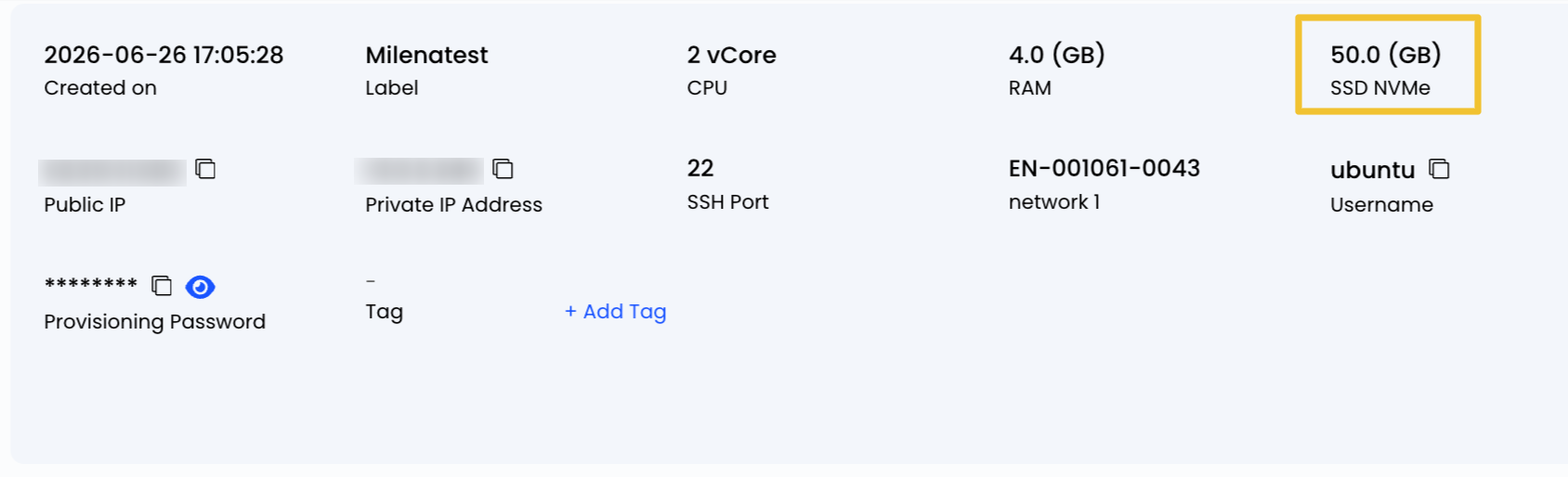
- Public and private IP addresses
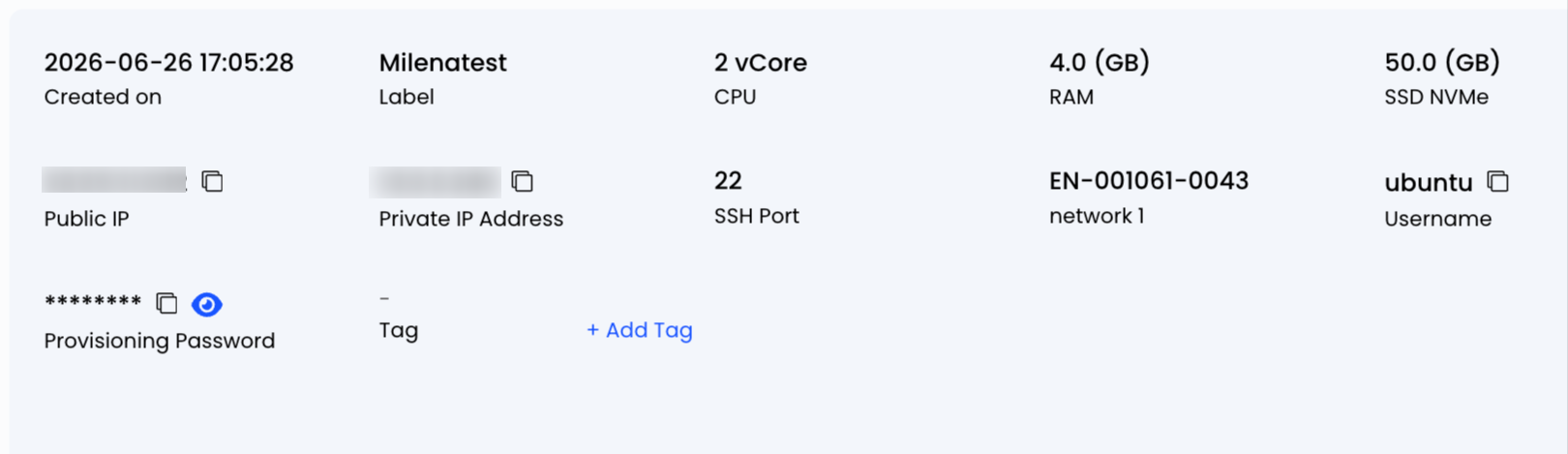
- Instance creation date
Review Resource Usage
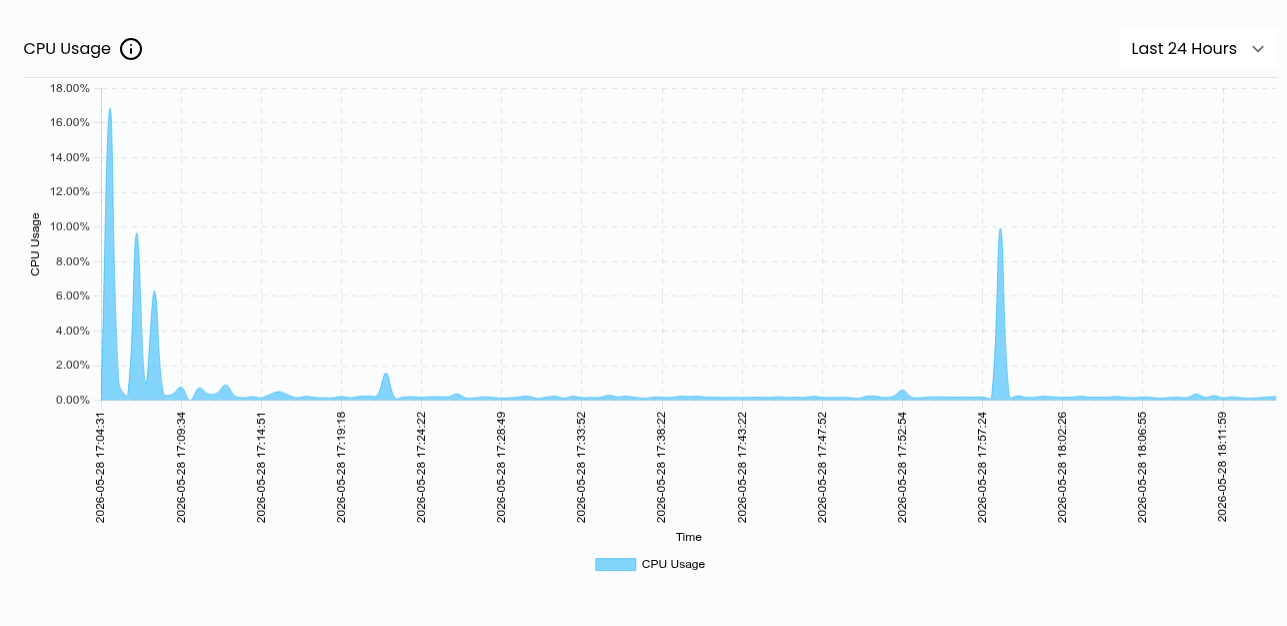
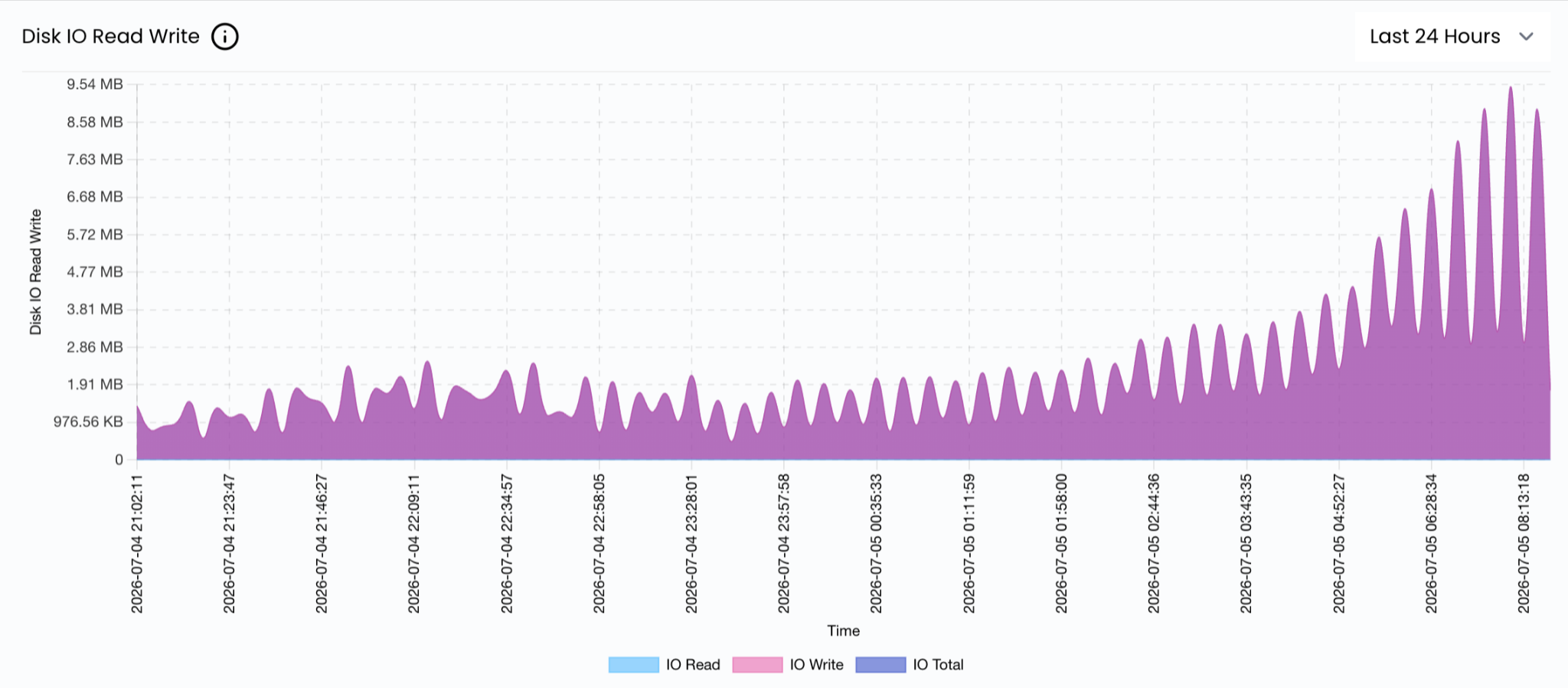
Open the usage graph section to review your Instance performance.
Available metrics typically include:
- CPU utilization
- Memory (RAM) usage

- Disk I/O Read/Write
- Network traffic

- Disk read/write activity

Reviewing these graphs regularly helps you identify unusual activity or increasing resource consumption before it impacts performance.
Verify Network Health
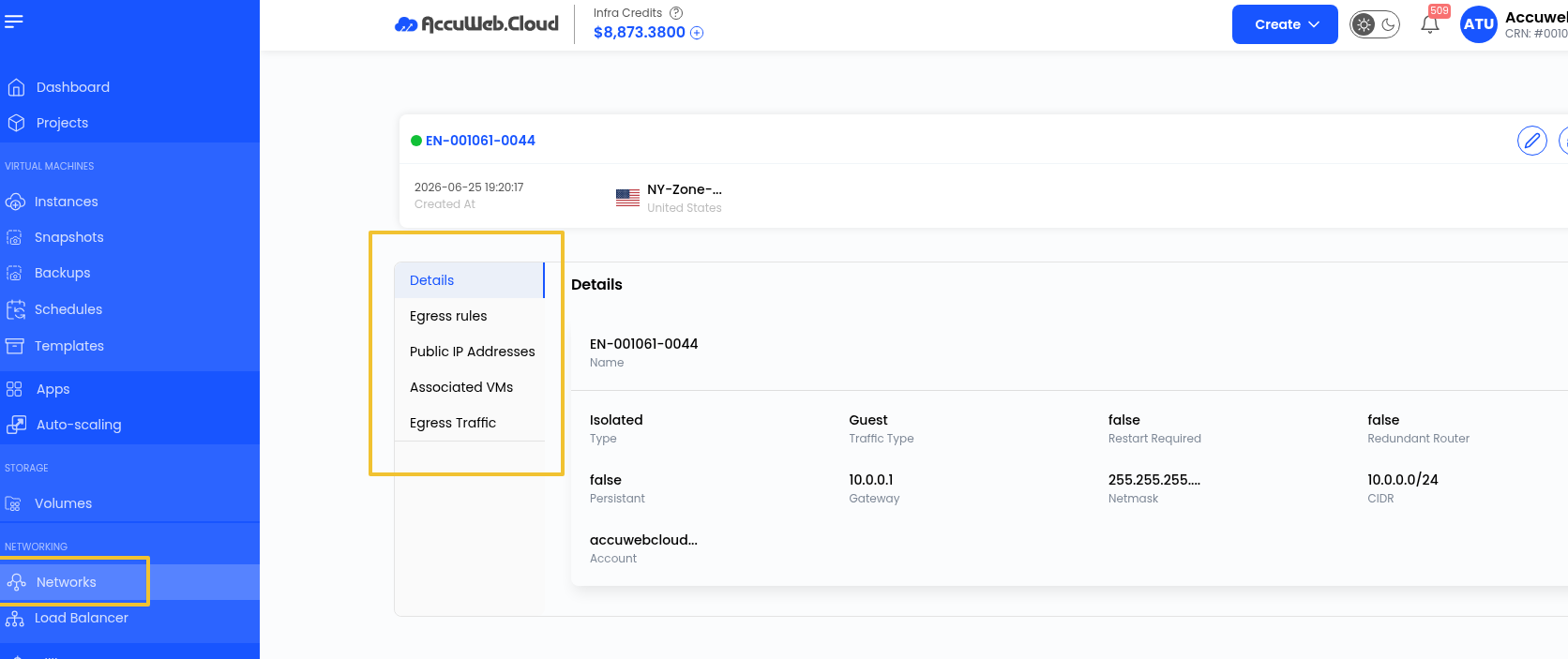
Review the networking details to ensure your instance is reachable.
Check the following:
- Public IP address
- Private IP address (if assigned)
- Connected network
- Firewall rules
- Port forwarding rules (if configured)
If the Instance is powered on but cannot be reached, verify that the required ports are open and the firewall settings allow incoming connections.
Instance Status
| Status | Description |
| Running | The VM is powered on and operating normally. |
| Stopped | The VM is powered off. |
| Starting | The VM is currently booting. |
| Stopping | The VM is shutting down. |
| Rebooting | The VM is restarting. |
| Error | The VM encountered an issue and may require troubleshooting. |
Review Recent Events
If your VM was recently started, stopped, or rebooted, review the recent activity or events shown in the AccuWeb.Cloud portal to confirm that the requested action was completed successfully.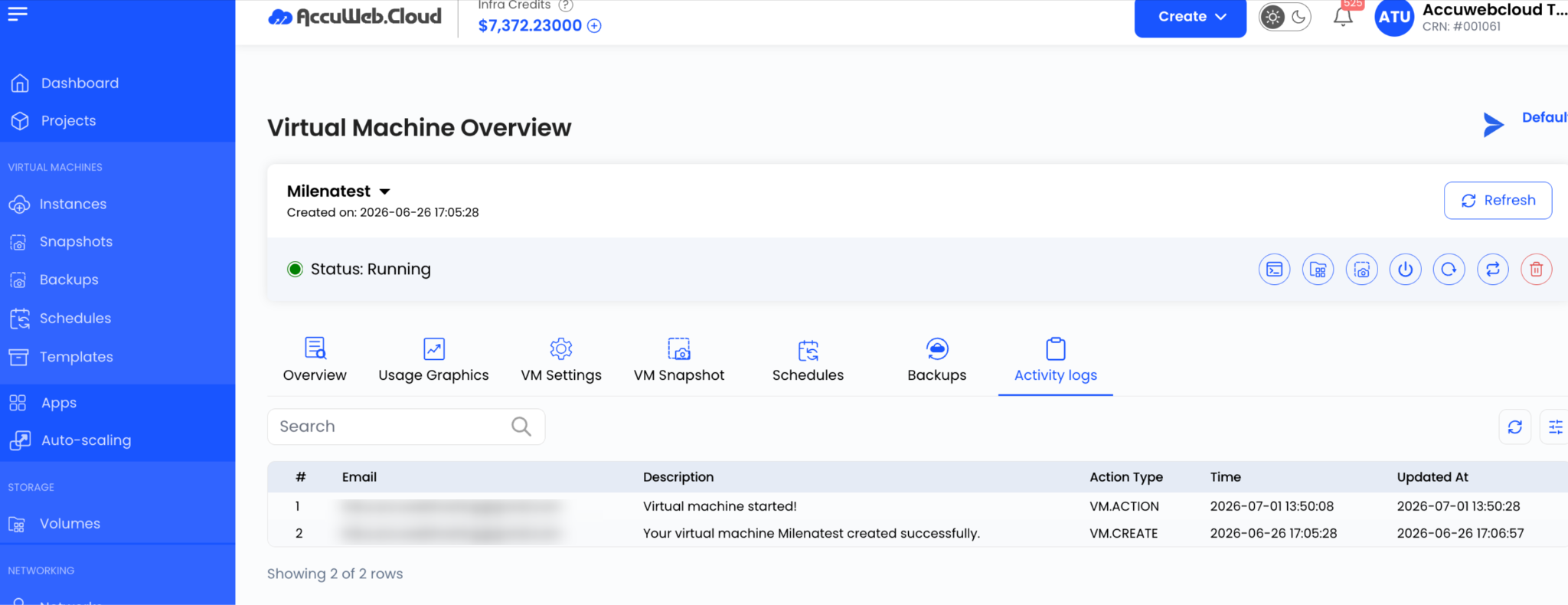 Recommended Health Checks Regularly verify that:
- The VM status is Running.
- CPU and memory usage remain within acceptable limits.
- Sufficient disk space is available.
- Network traffic appears normal.
- Required services and applications are running.
- SSH or Remote Desktop connectivity is working properly.
Recommended Health Checks
Regularly verify that:
- CPU and memory usage remain within acceptable limits.
- The VM status is Running.
- Sufficient disk space is available.
- Network traffic appears normal.
- Required services and applications are running.
- SSH or Remote Desktop connectivity is working properly.
Troubleshooting
VM is not running
Start the Instance from the AccuWeb.Cloud portal and wait for it to complete the boot process.
High CPU or memory usage
Check the running processes inside the operating system and consider upgrading your instance resources if utilization remains consistently high.
Step 1: Connect via SSH: Open your terminal and connect to your Instance using:
ssh username@your_server_ip
Step 2: Check Resource Usage
Run: top
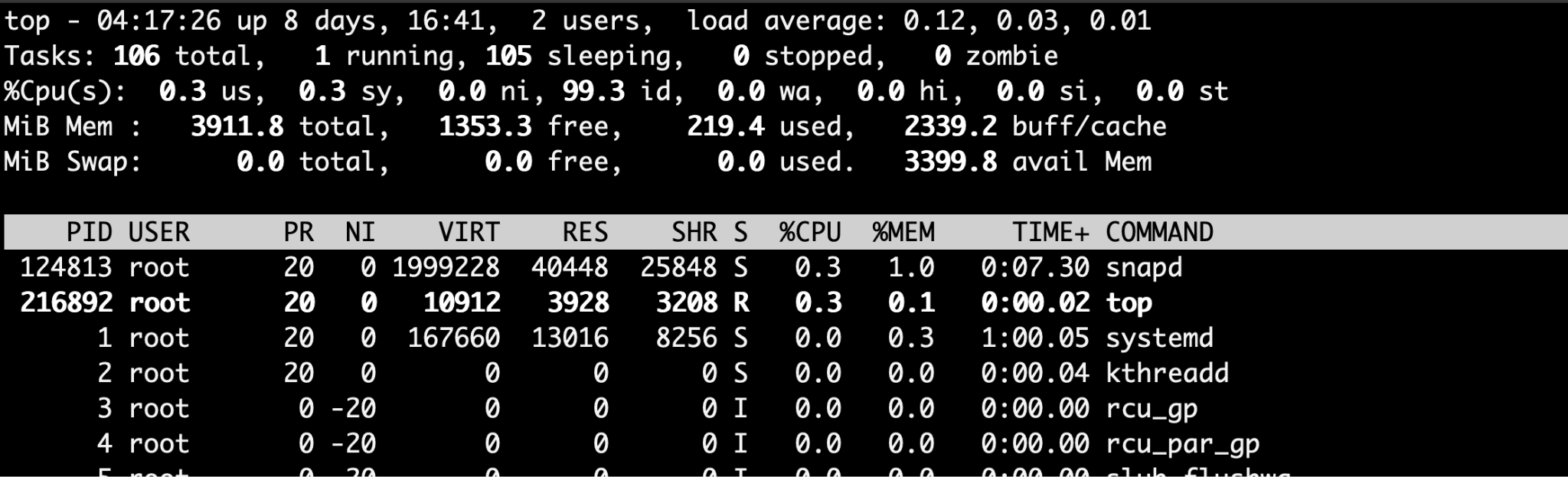 orfree -h
Low disk space
Remove unnecessary files, clean up logs, or increase your storage capacity if needed.
Unable to connect to the VM
Verify that:
- The VM is in the Running state.
- Firewall rules allow the required ports.
- The correct public IP address is being used.
- Your login credentials are correct.
- The VM’s network configuration is properly set up.
Conclusion
Regular monitoring makes it easier to maintain a healthy virtual machine and reduce unexpected downtime. By reviewing your Instance status, resource usage, and network configuration, you can detect potential problems early and keep your applications running reliably. The monitoring features available in AccuWeb.Cloud provide the information you need to troubleshoot issues and maintain stable performance.