
A Private, Google Drive–Like Cloud with Full Data Control
Businesses and professionals increasingly rely on cloud storage platforms like Google Drive for file access and collaboration. While these tools are convenient, they also come with limitations around data ownership, privacy, and control.
A powerful alternative is combining AccuWeb.Cloud Marketplace, Nextcloud, and LibreOffice. This setup delivers the same convenience as Google Drive, but with full control over your infrastructure and data.
Nextcloud with LibreOffice: A Private Google Drive Alternative
Installing Nextcloud from AccuWeb.Cloud and connecting it to LibreOffice using WebDAV creates a private alternative to Google Drive. Files stay in your own cloud while being edited locally with automatic synchronization.
This guide explains:
- How to install Nextcloud from AccuWeb.Cloud Marketplace
- How to connect LibreOffice on your local system using WebDAV
- How this setup replaces Google Drive and Google Docs
- When and why this architecture is the right choice
Everything is explained step by step, so you can find exactly what you’re looking for without jumping between multiple sources.
Why Use Nextcloud with LibreOffice?
Nextcloud with LibreOffice lets you store files securely in your own cloud while editing them locally using a full desktop office suite, with automatic synchronization and complete data ownership.
Real-World Benefits
- No dependency on third-party cloud providers
- Files remain under your control
- Desktop-grade editing instead of browser-limited tools
- Automatic sync without manual uploads or downloads
This approach combines cloud convenience with local performance and privacy.
Where This Setup Makes Sense
This solution is ideal for:
- Companies replacing Google Drive or OneDrive
- Organizations with strict data sovereignty requirements
- Teams preferring desktop editors over browser tools
- Professionals editing large documents locally
- Businesses needing private, compliant cloud storage
Just like Google Docs works with Google Drive in a browser, LibreOffice works with Nextcloud directly from your local system, but without giving up ownership of your data.
Prerequisites
Before starting, make sure you have:
- An active AccuWeb.Cloud account
- Access to the AccuWeb.Cloud Dashboard
- LibreOffice installed on your local system
- Nextcloud login credentials (sent via email after installation)
Part 1: Install Nextcloud from AccuWeb.Cloud Marketplace
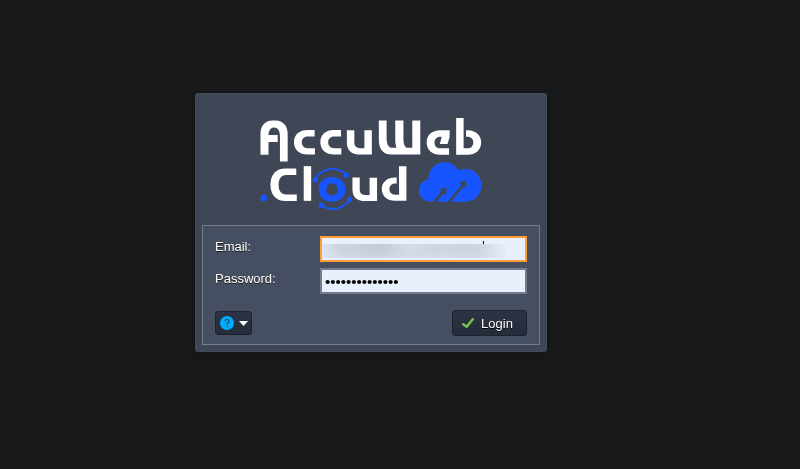
Step 1: Log in to AccuWeb.Cloud Dashboard
Sign in using your registered AccuWeb.Cloud credentials..
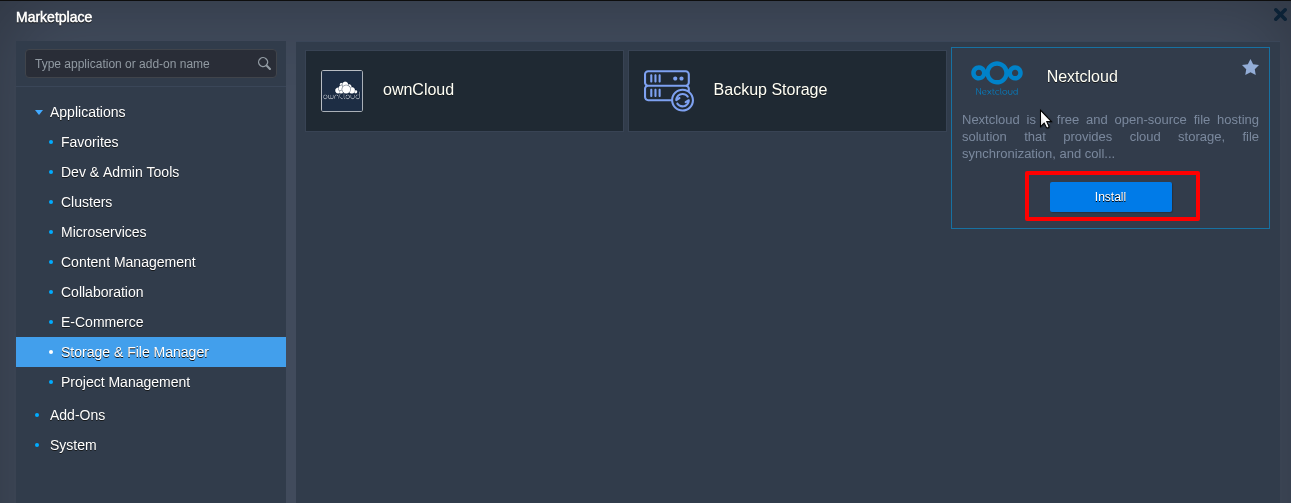
Step 2: Open the Marketplace
From the dashboard, navigate to Marketplace, search for Nextcloud, and select the application.
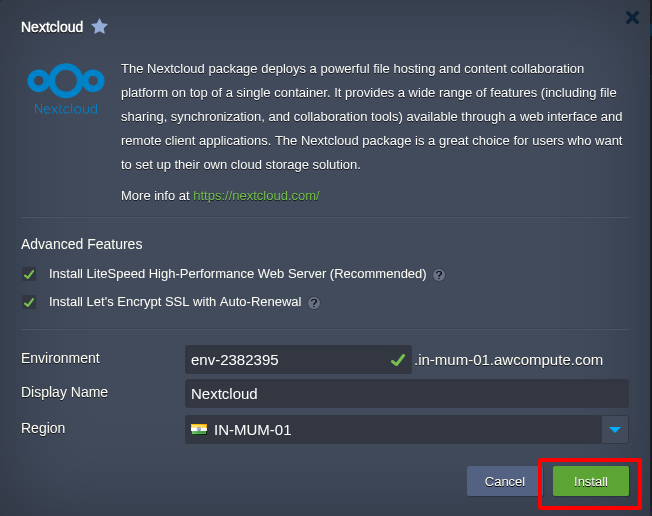
Step 3: Install Nextcloud
Click Install and choose:
- Cloud environment
- Resource plan
- Deployment region
Proceed with the installation.
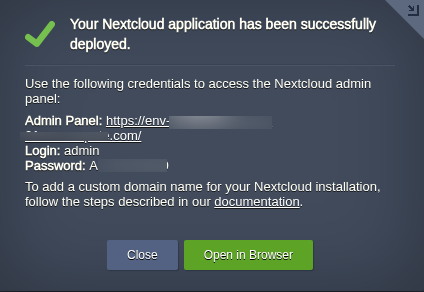
After deployment:
- Nextcloud is provisioned automatically
- A snapshot or access screen appears in the dashboard
- Login credentials are emailed to you
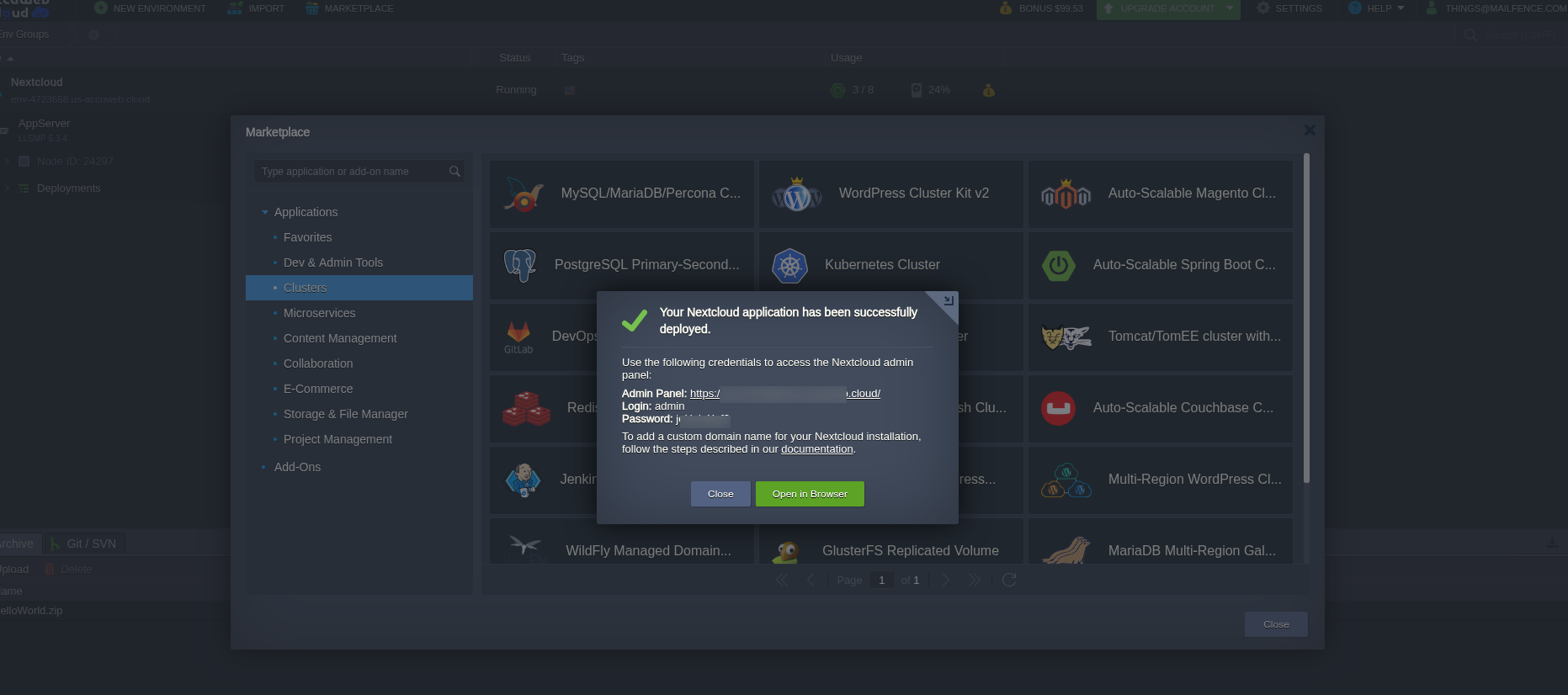
Note: Please check your inbox (and spam folder) for the Nextcloud login details.
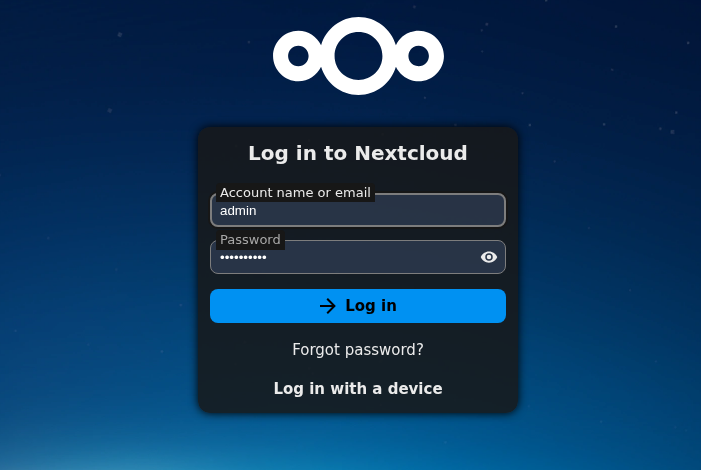
Step 4: Log in to Nextcloud
Open the provided URL in your browser and log in using the admin or assigned user credentials.
Your private cloud is now live.
Part 2: Integrate LibreOffice with Nextcloud (Local System)
This integration uses WebDAV, allowing LibreOffice to treat Nextcloud as a remote drive.
Important: All the steps below are performed on your local system, not inside the Nextcloud web interface.
Step 1: Get the WebDAV URL from Nextcloud
i) Log in to Nextcloud via browser
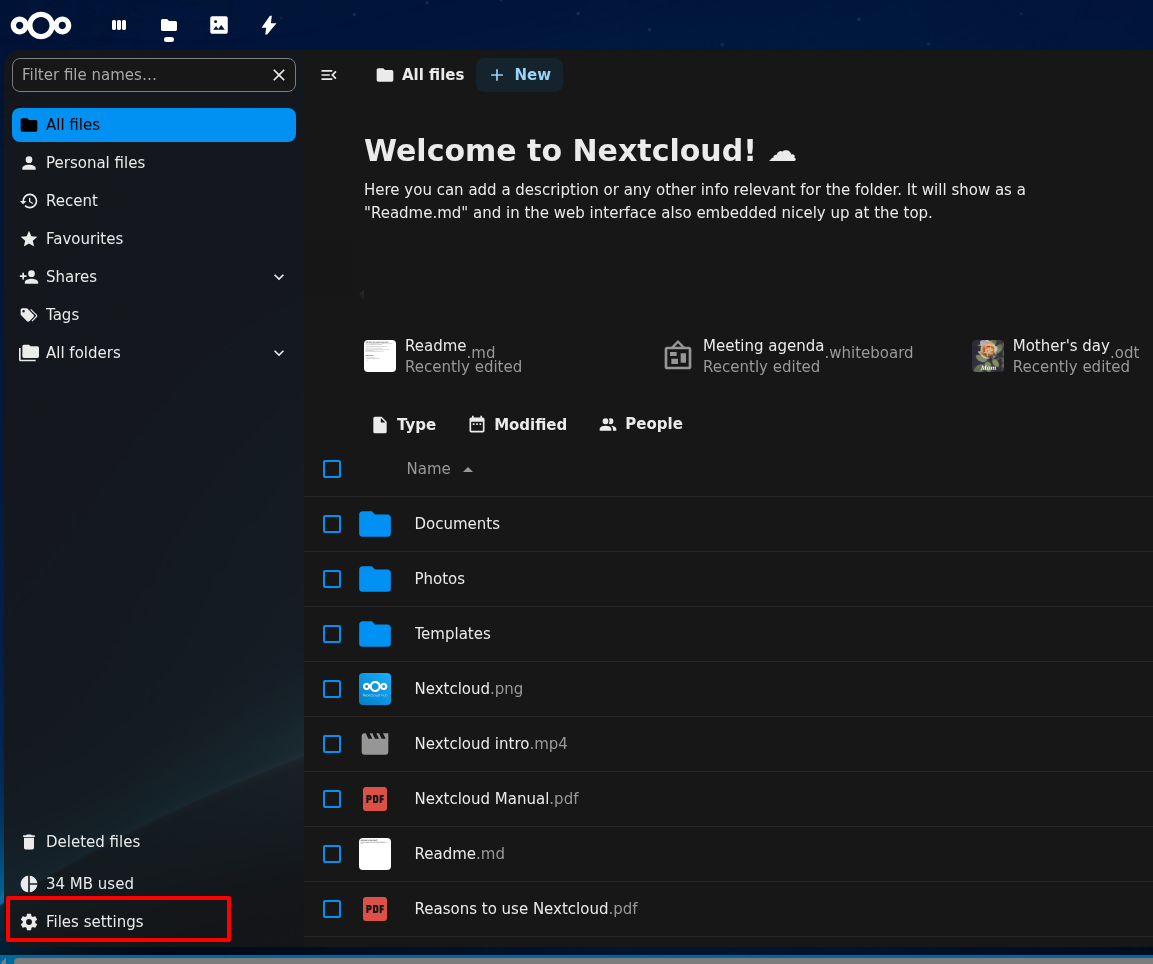
ii) Click on Settings (gear icon) at the bottom-left corner
iii) Locate the WebDAV section
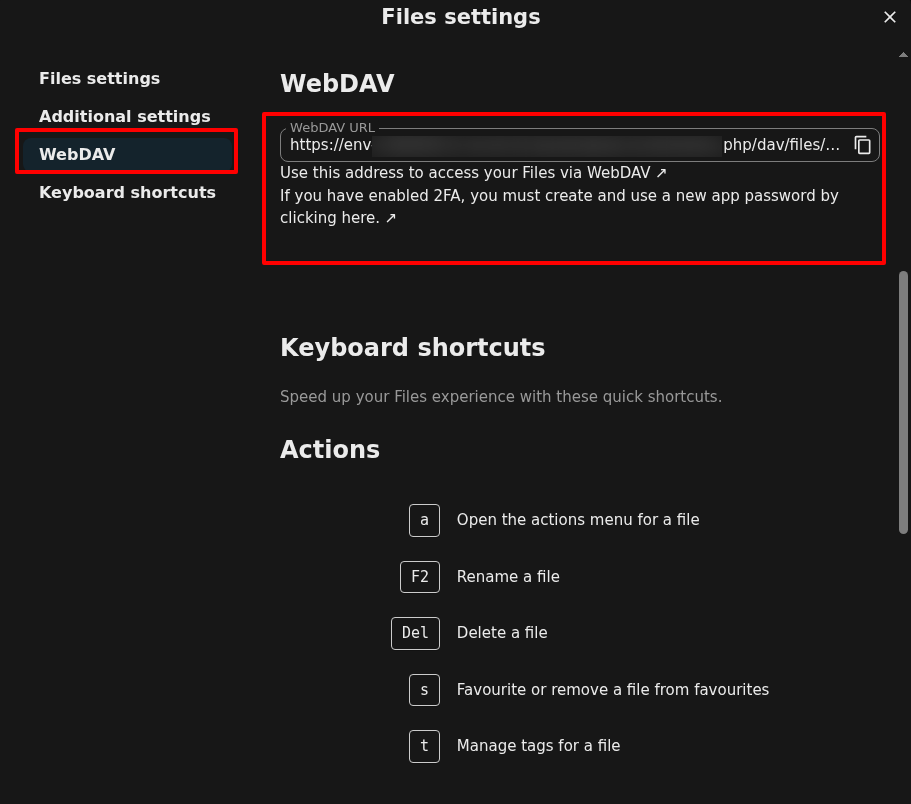
iv) Copy the URL
https://your-environment/remote.php/dav/files/username
Step 2: Open LibreOffice on Your Computer
Open any LibreOffice application: LibreOffice Writer, LibreOffice Calc, LibreOffice Impress
This is done entirely on your local system.
Step 3: Open the “Open Remote” Option
In LibreOffice, click on File from the top menu
Select Open Remote
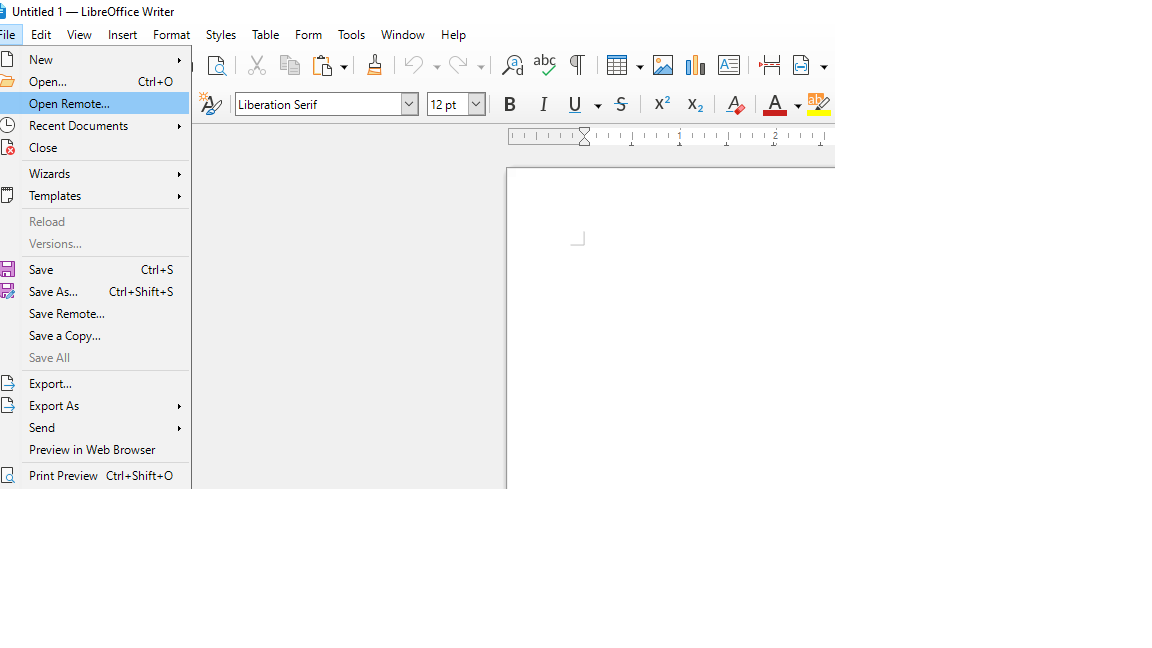
A new window will open to manage remote connections
Step 4: Add a New Remote Service
Click on Add Service and choose WebDAV as the service type
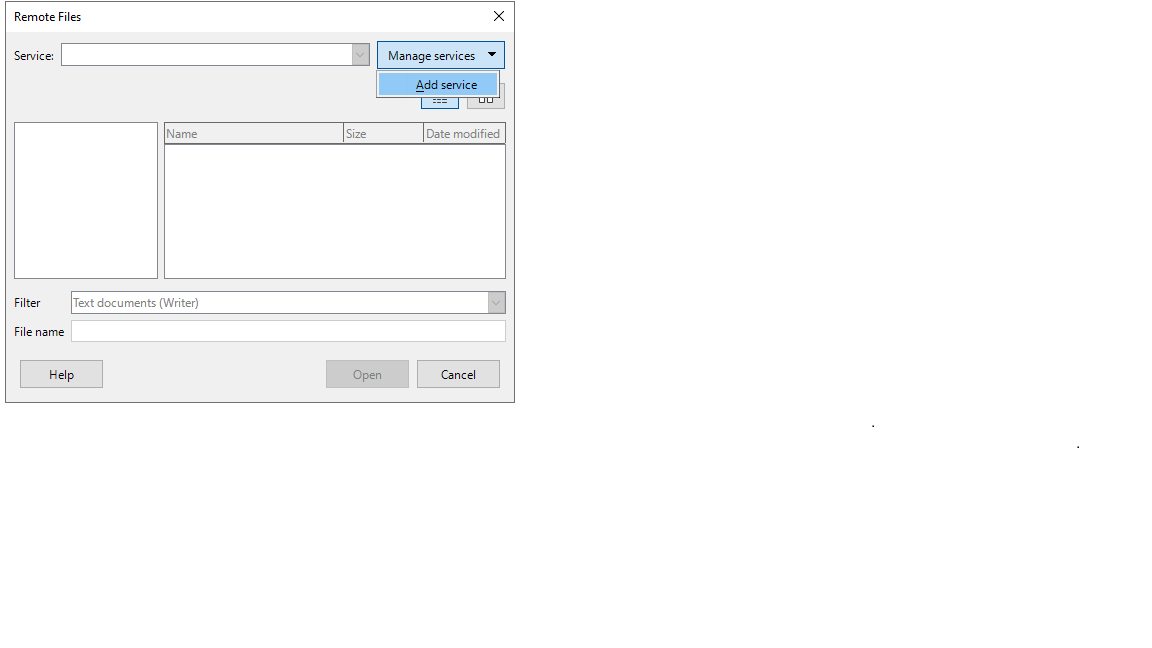
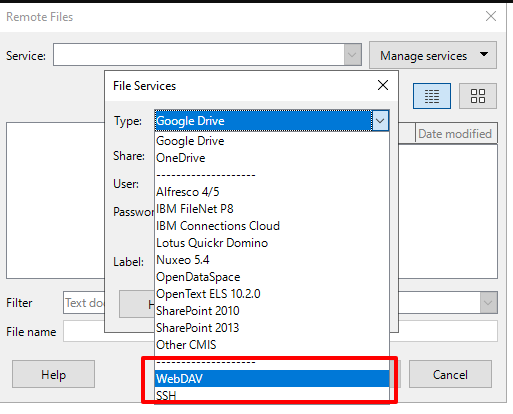
Step 5: Configure WebDAV Connection Details
Enter the details exactly as below:
Service Type: WebDAV
Host: Nextcloud server domain
Example: env-xxx-accuweb.cloud
Port: 443 (for HTTPS – recommended)
Secure Connection: Enabled (checked)
Root: /remote.php/dav/files/admin
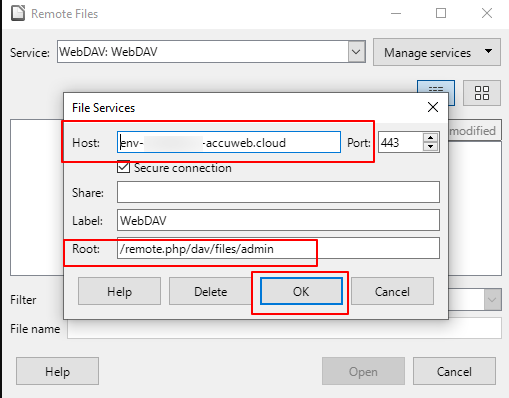
Click OK to save the configuration.
Step 6: Authenticate the Connection
After clicking OK:
Wait a few seconds
LibreOffice will prompt you to enter your Nextcloud username and password
Enter the credentials and proceed
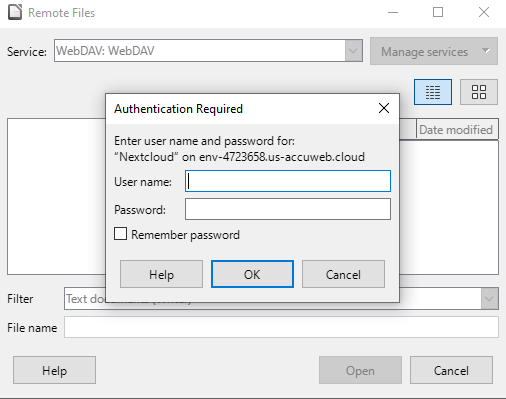
Once authenticated, the connection will be established successfully.
Step 7: Access and Work with Files
After successful integration:
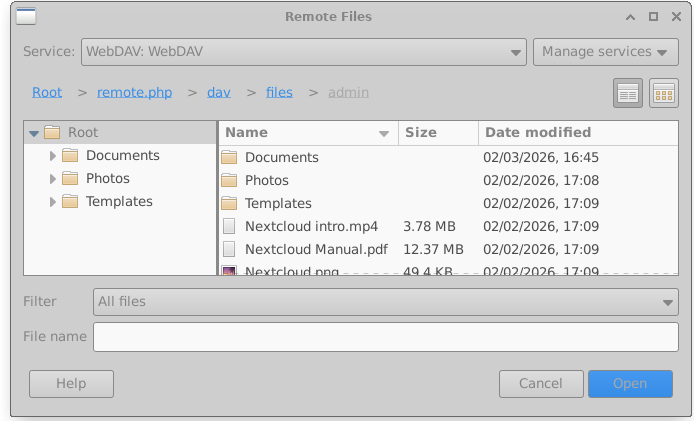
Your Nextcloud folders will appear inside LibreOffice
You can:
- Open files directly from Nextcloud
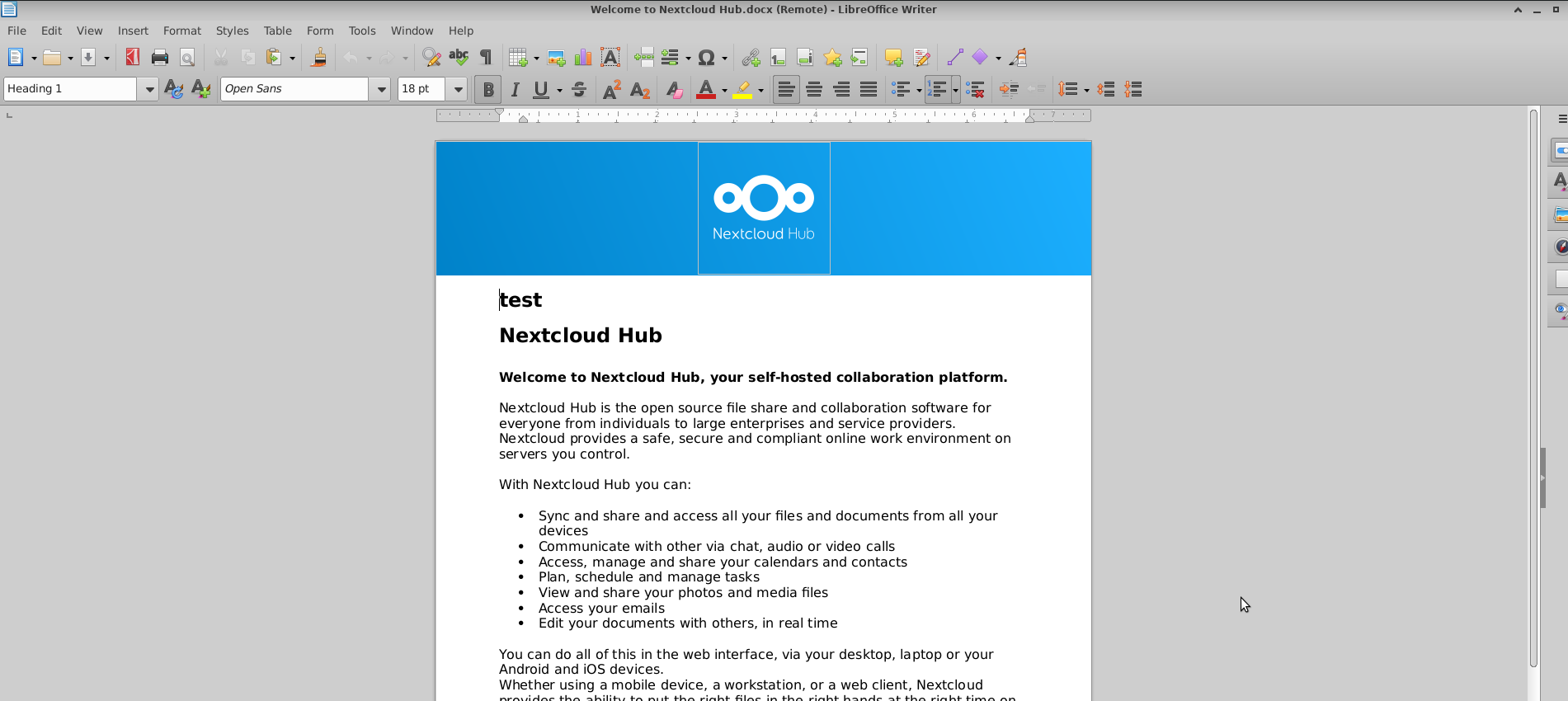
- Edit documents locally
- Save changes back to Nextcloud automatically
No manual upload or download is required.
Is This Equivalent to Google Drive?
Short Answer
Yes, functionally. But with more control.
Feature Comparison
FeatureGoogle DriveNextcloud + LibreOffice
| Storage ownership | You | |
| Editing environment | Browser | Desktop |
| Data location control | Limited | Full |
| Privacy | Provider-controlled | Self-controlled |
| Sync | Automatic | Automatic via WebDAV |
This setup delivers a Google Drive–like experience without sacrificing privacy or control.
FAQs
Q) What is Nextcloud?
A) Nextcloud is a self-hosted cloud storage and collaboration platform that lets users store, sync, and share files on their own server instead of relying on third-party cloud providers.
Q) How is Nextcloud different from Google Drive?
A) Nextcloud is self-hosted and gives full control over data location, access, and privacy, while Google Drive is a managed service where data is stored and controlled by Google.
Q) Can LibreOffice connect to Nextcloud?
A) Yes. LibreOffice can connect to Nextcloud using WebDAV, allowing users to open, edit, and save cloud files directly from their local system.
Q) How does LibreOffice access Nextcloud files?
A) LibreOffice accesses Nextcloud files using WebDAV, a secure protocol that allows remote file systems to be mounted over HTTPS.
Q) Is WebDAV enabled by default in Nextcloud?
A) Yes. WebDAV is enabled by default in Nextcloud and does not require additional server-side configuration.
Q) Do I need to install LibreOffice on the Nextcloud server?
A) No. LibreOffice is installed only on the local system. Nextcloud acts purely as cloud storage and file synchronization.
Q) Does this setup allow automatic file syncing?
A) Yes. Any file saved in LibreOffice is automatically synced back to Nextcloud through WebDAV without manual uploads.
Q) Can multiple users access the same Nextcloud files?
A) Yes. Multiple users can access shared folders in Nextcloud and connect from their own LibreOffice installations.
Q) Can multiple users edit the same file at the same time?
A) LibreOffice uses file locking over WebDAV. Only one user can edit a file at a time to prevent data conflicts.
Q) Is Nextcloud with LibreOffice secure?
A) Yes. Data is transferred over encrypted HTTPS connections and stored in a privately controlled cloud environment, such as AccuWeb.Cloud.
Q) Is this setup a replacement for Google Drive and Google Docs?
A) Yes. Nextcloud with LibreOffice provides cloud storage, document editing, and automatic syncing similar to Google Drive and Google Docs, with full data ownership.
Q) Who should use Nextcloud with LibreOffice?
A) This setup is ideal for businesses, organizations, and individuals who require data privacy, compliance, and desktop-based document editing.
Q) Is this solution suitable for large files?
A) Yes. LibreOffice handles large documents and spreadsheets more efficiently than browser-based editors.
Q) Does this require technical expertise?
A) No. Installing Nextcloud from the AccuWeb.Cloud Marketplace and connecting LibreOffice via WebDAV is straightforward and beginner-friendly.
Q) Can files be accessed from both browser and desktop?
A) Yes. Files stored in Nextcloud can be accessed via web browser, mobile apps, and LibreOffice without duplication.
Q) Why choose AccuWeb.Cloud for hosting Nextcloud?
A) AccuWeb.Cloud offers marketplace-based deployment, managed infrastructure, and reliable performance for self-hosted Nextcloud environments.
Conclusion
Installing Nextcloud from the AccuWeb.Cloud Marketplace and integrating it with LibreOffice creates a secure, private, and powerful alternative to Google Drive and Google Docs.
With this setup, you:
- Retain full ownership of your data
- Use professional desktop editing tools
- Eliminate manual file transfers
- Improve productivity without compromising security
For individuals and organizations seeking a modern, privacy-first cloud collaboration solution, this architecture offers the best of both worlds.