
How to Edit Phone Number During The Signup Process in AccuWeb.Cloud?
While signing up with AccuWeb.cloud, you need to verify the email address and phone number. If you enter the wrong phone number during the signup process, you will have the option to change it. Here are the steps to change the phone number while signing up.
Step 1: After you fill in your first name, last name, email address, and phone number, click the Submit button. The system will send a code (OTP) to your email and phone number.
Step 2: Wait for the timer to finish. Once it’s done, you will see a link to change your phone number in the Phone Number Verification section.
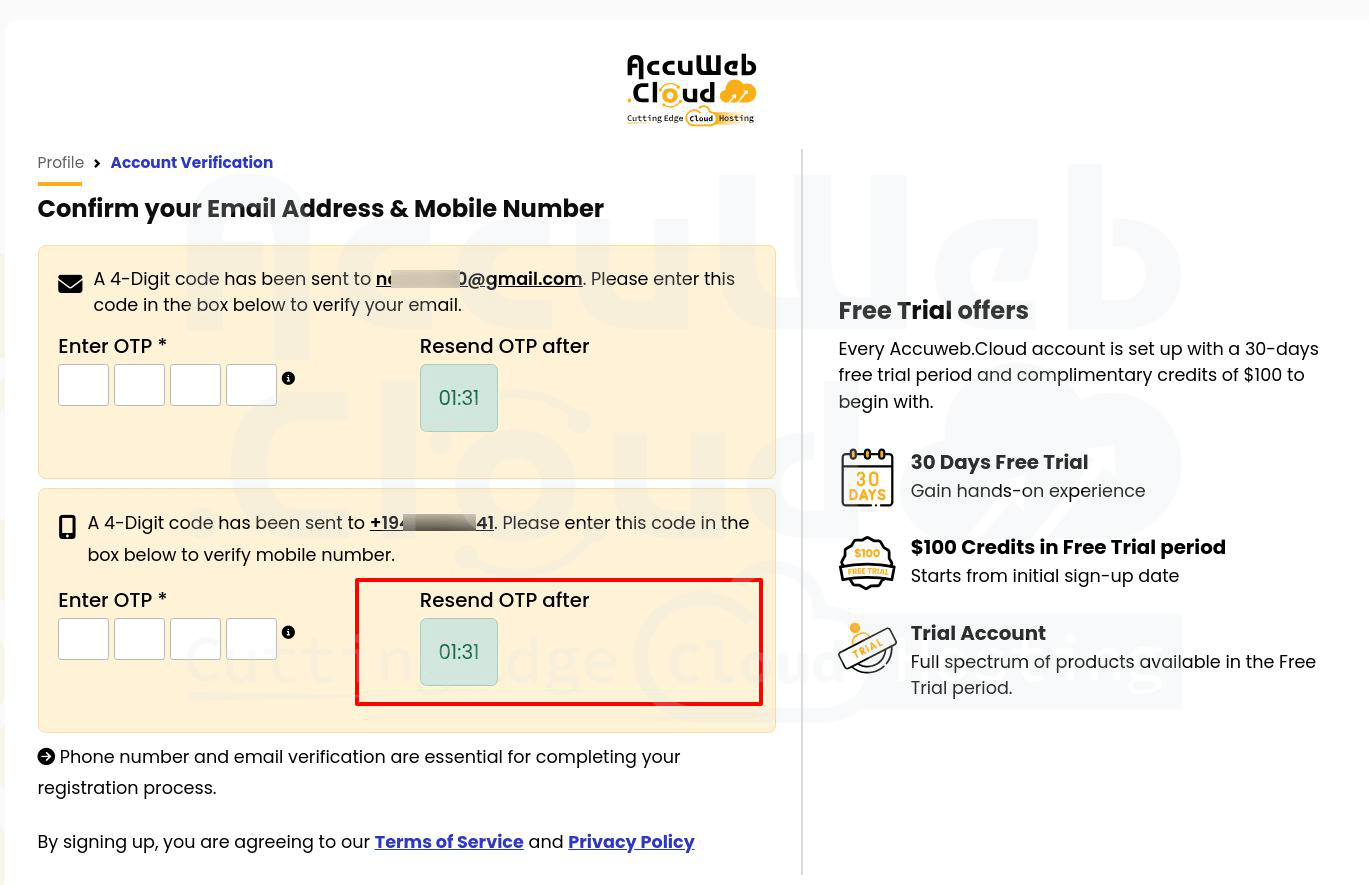
Step 3: Click the “Change Phone Number” link.

Step 4: A popup will appear. Choose your country code, enter the correct or new phone number, and click the “Change Number” button.

Step 5: After you click the button, the phone number will be updated and shown in the Phone Number Verification section.
Step 6: Once the phone number is changed, click the “Resend OTP” link to get a new OTP sent to your new phone number.

That’s all..