
One-Click Redis Hosting on AccuWeb.Cloud
Get Redis Hosting up and running quickly with AccuWeb.Cloud. Our one-click Redis deployment makes it easy to create a ready-to-use Redis instance without dealing with lengthy manual installation or server configuration.
AccuWeb.Cloud handles the backend setup and installation, so you can focus on using Redis for caching, session management, queues, and other application needs. Simply select Redis, choose the resources your workload requires, and create your instance in just three steps.
Deploy Redis in One-Click
Step 1: Sign in to your AccuWeb.Cloud account to reach the main dashboard.
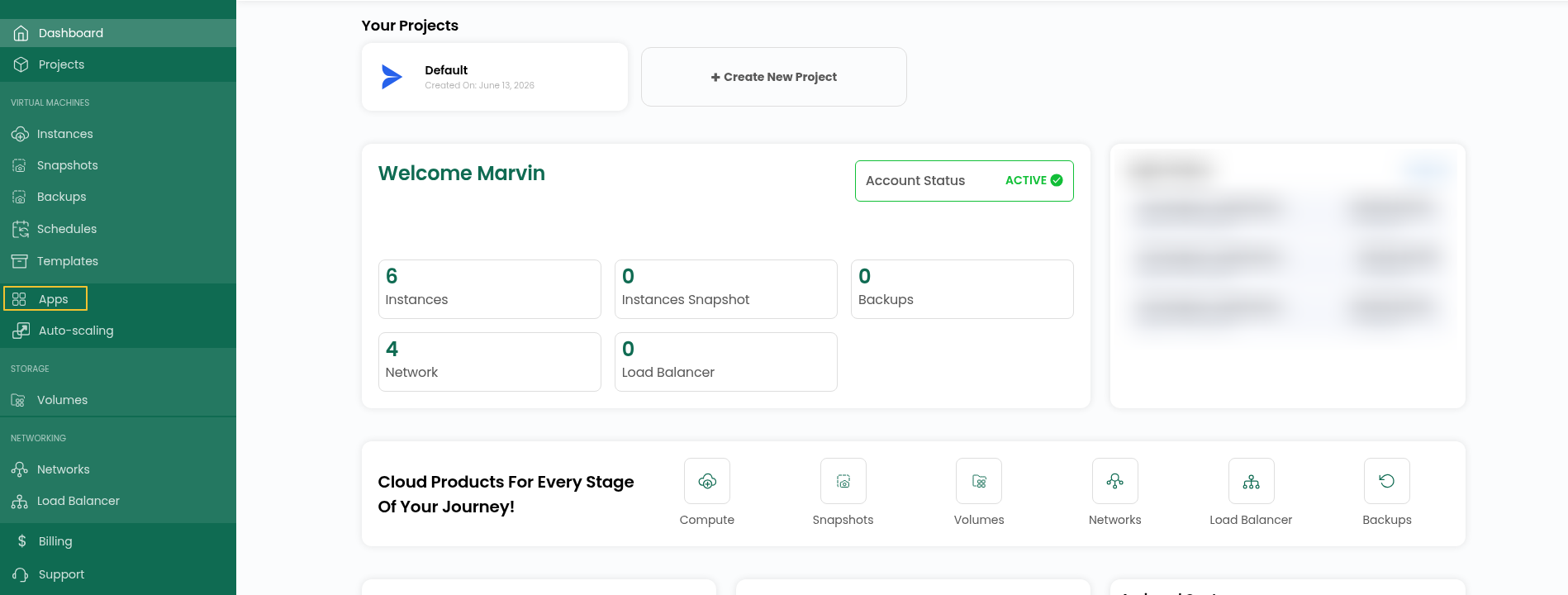
Step 2: From the main screen, head to Apps in the left-hand navigation to see what you can install.
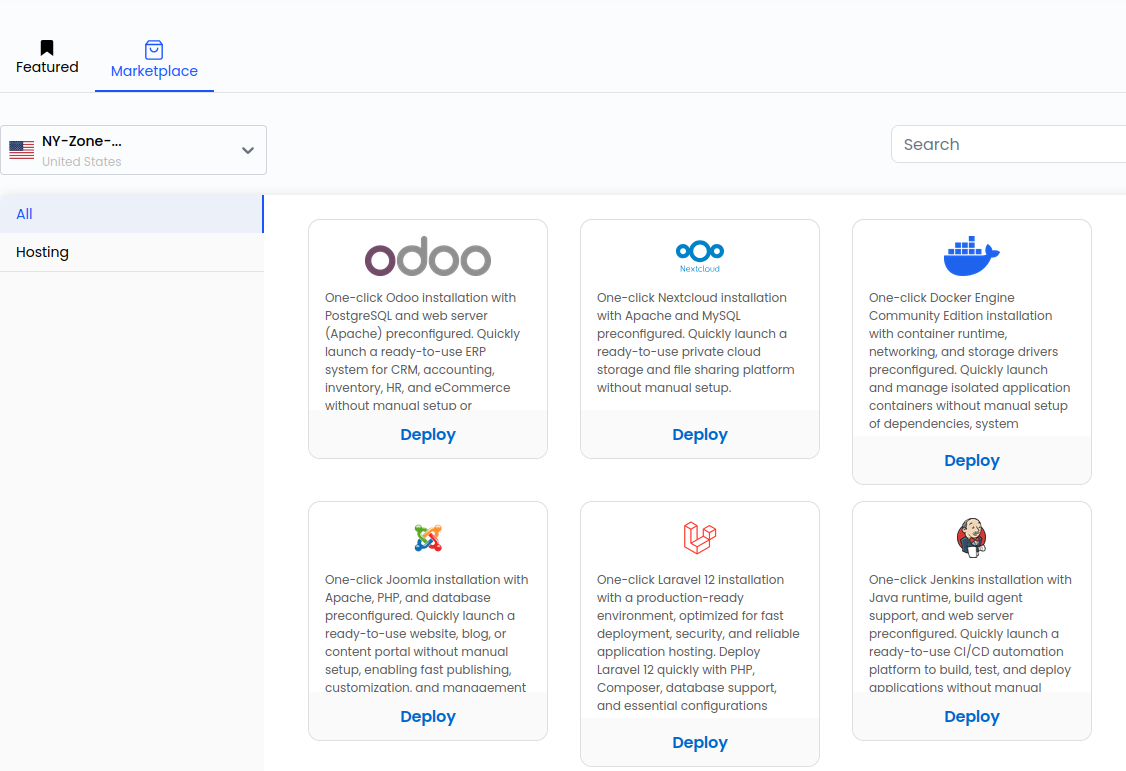
Step 3: Inside Apps, click Marketplace. You’ll see every app that can be deployed in one go.
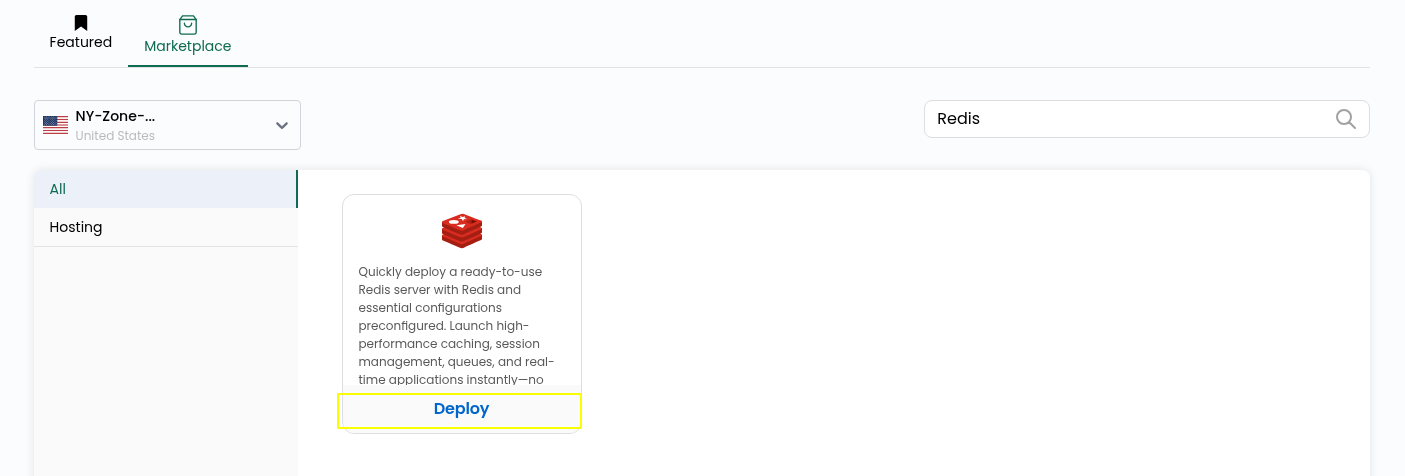
Step 4: Search for Redis in the Marketplace, then click Deploy to begin setting up your instance.
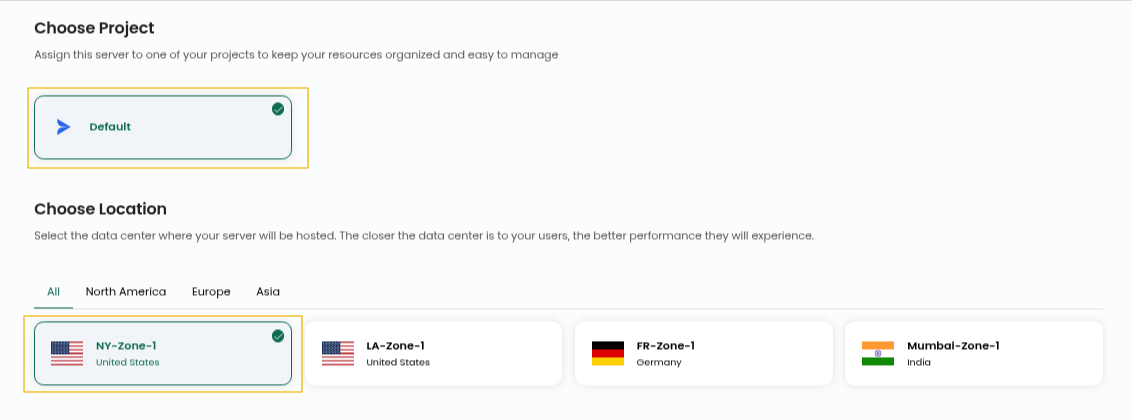
Step 5: Pick your Project and Location. Your Redis server will be created in that project and zone.
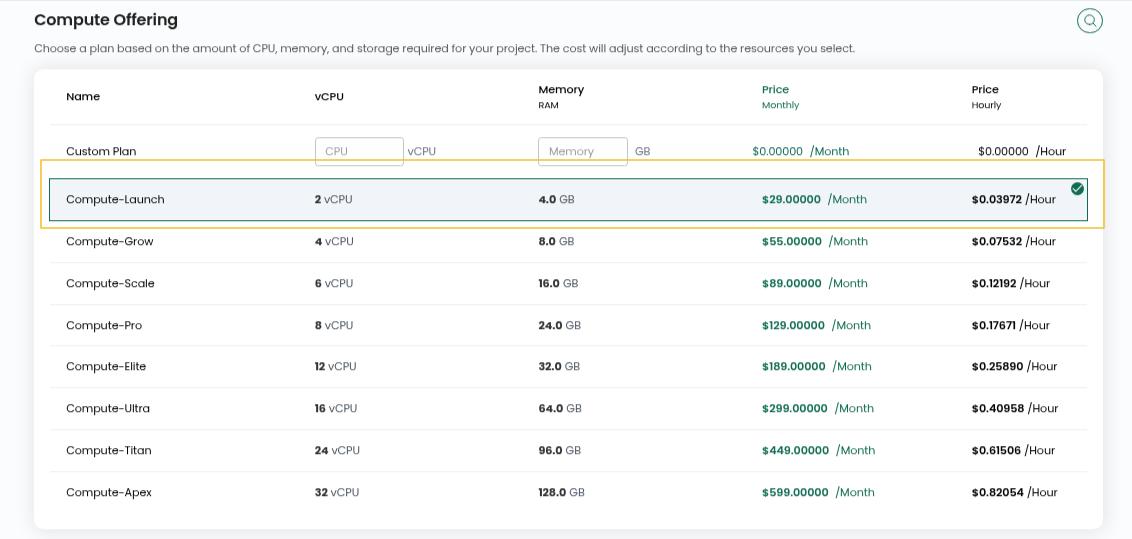
Step 6: Pick the Compute Offering that matches the CPU and memory you need for the instance.
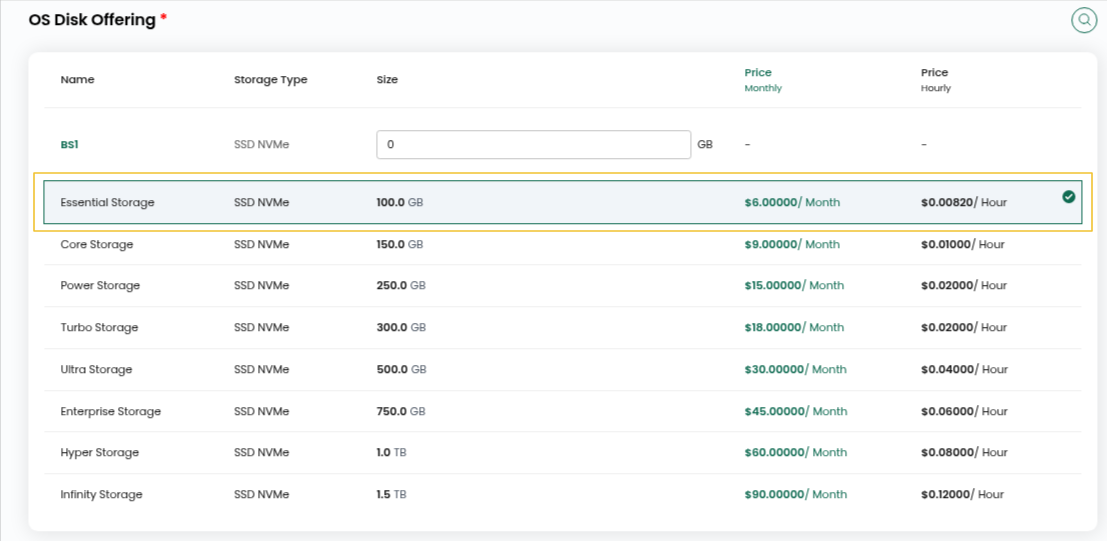
Step 7: Choose an OS Disk Offering for the root disk, then pick the Network the instance should connect to.
Step 8: Enter a Server Name and Hostname for your Redis server.

Step 9: Under billing, select Hourly if you need the instance for a short time, or Monthly for long-term use. After that, click Review & Deploy.

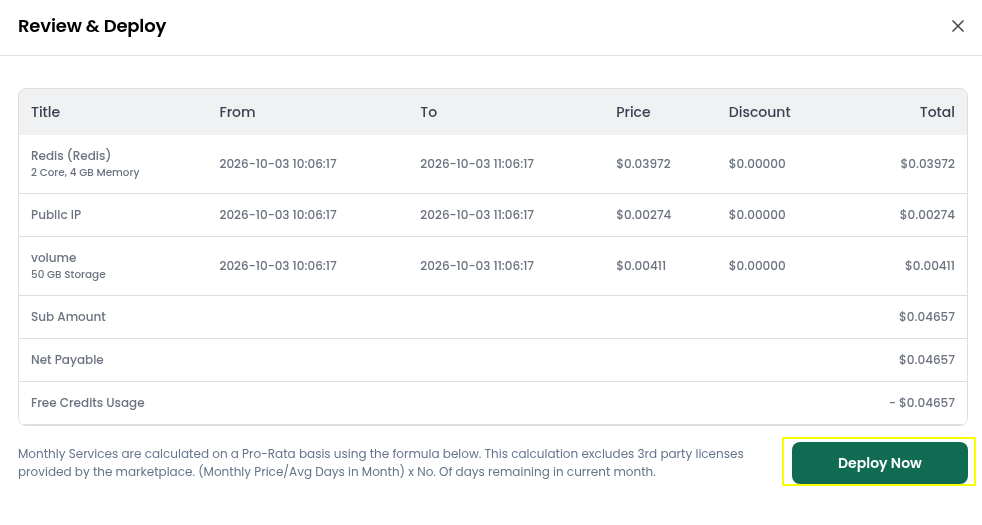
Step 10: Go over the configuration you’ve chosen to make sure everything is correct, then hit Deploy Now.
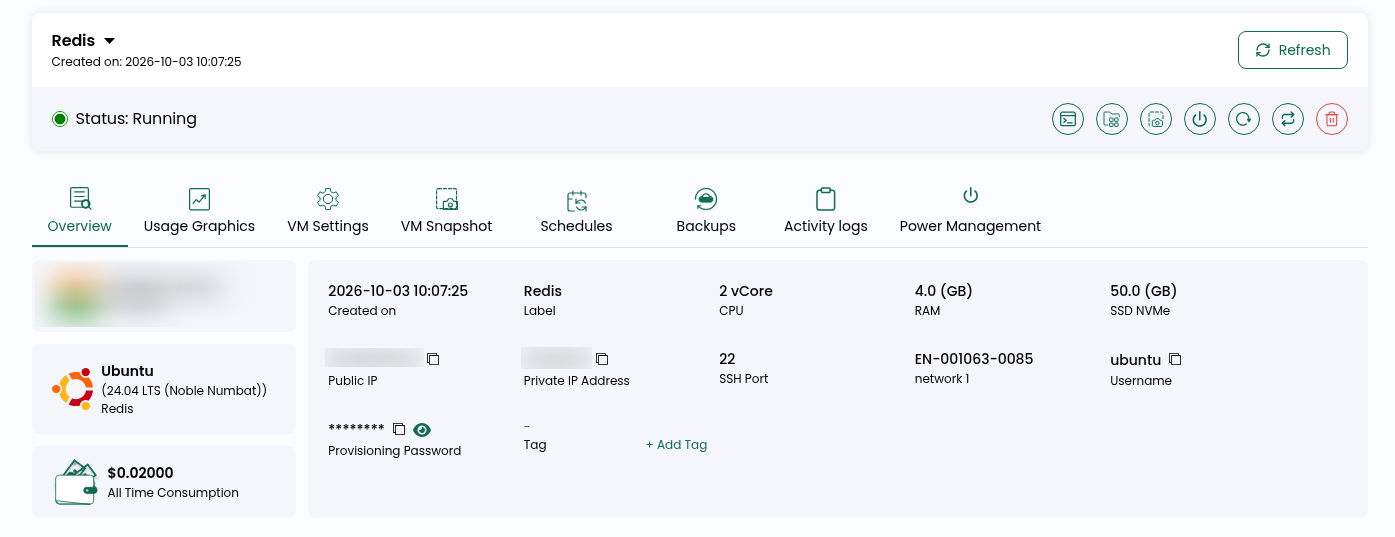
Step 11: The deployment takes a few minutes to finish. Once Redis is installed, the instance status in your list changes to Running.
Step 12: You should have the Redis login details in your email. Please check there.
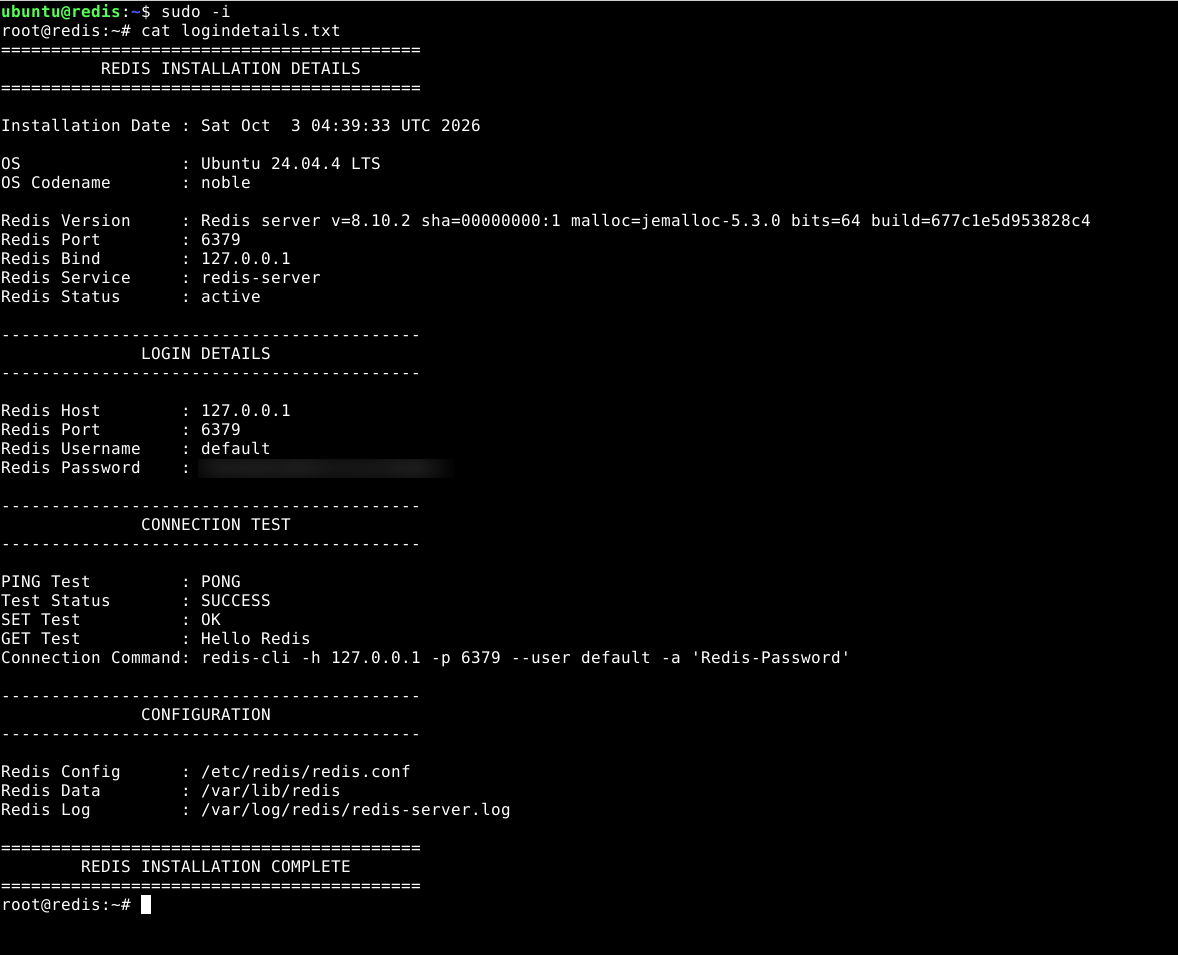
File path: /root/logindetails.txt
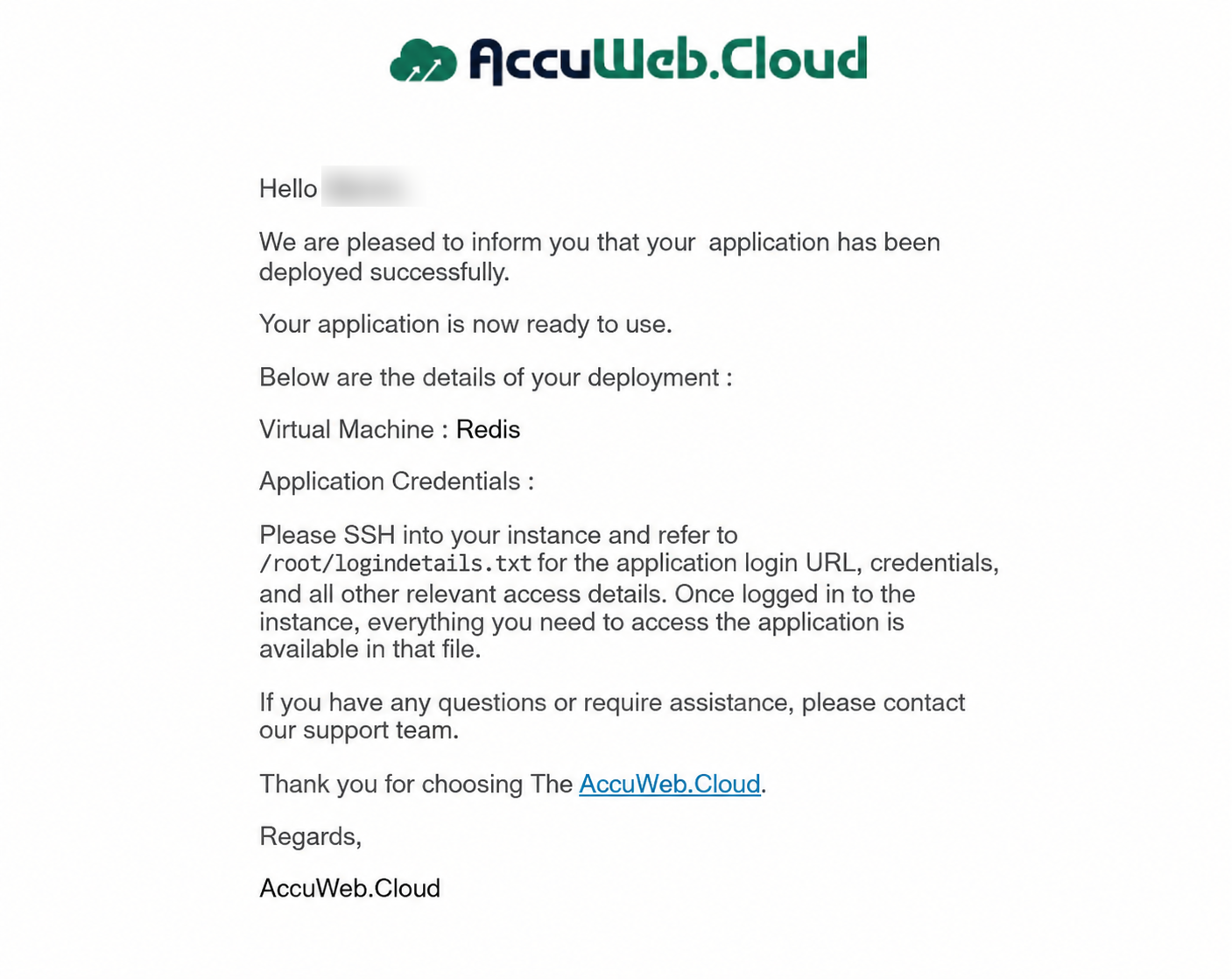
Step 13: Connect to your instance using the login credentials available on the instance overview page. After you connect, open that file and your Redis access details are inside.
ssh user@IP
sudo -i
cat logindetails.txt
Conclusion
With AccuWeb.Cloud, Redis Hosting is quick and simple to set up. One-click deployment automatically handles the installation and configuration, giving you a ready-to-use Redis instance without the hassle of manual setup. You can get started in just a few clicks and focus on powering your applications with fast, efficient data caching and session management.