
One-Click MySQL Hosting on AccuWeb.Cloud
Deploy MySQL Hosting quickly and easily with AccuWeb.Cloud. Our one-click deployment makes it simple to get your database server up and running without dealing with complicated manual configurations.
The setup takes care of the required server configuration and MySQL installation, so you can start creating and managing databases within minutes. Need MySQL for your websites, applications, or development projects? MySQL is installed on your AccuWeb.Cloud server, so you can start using it right away.
Deploy MySQL in One-Click
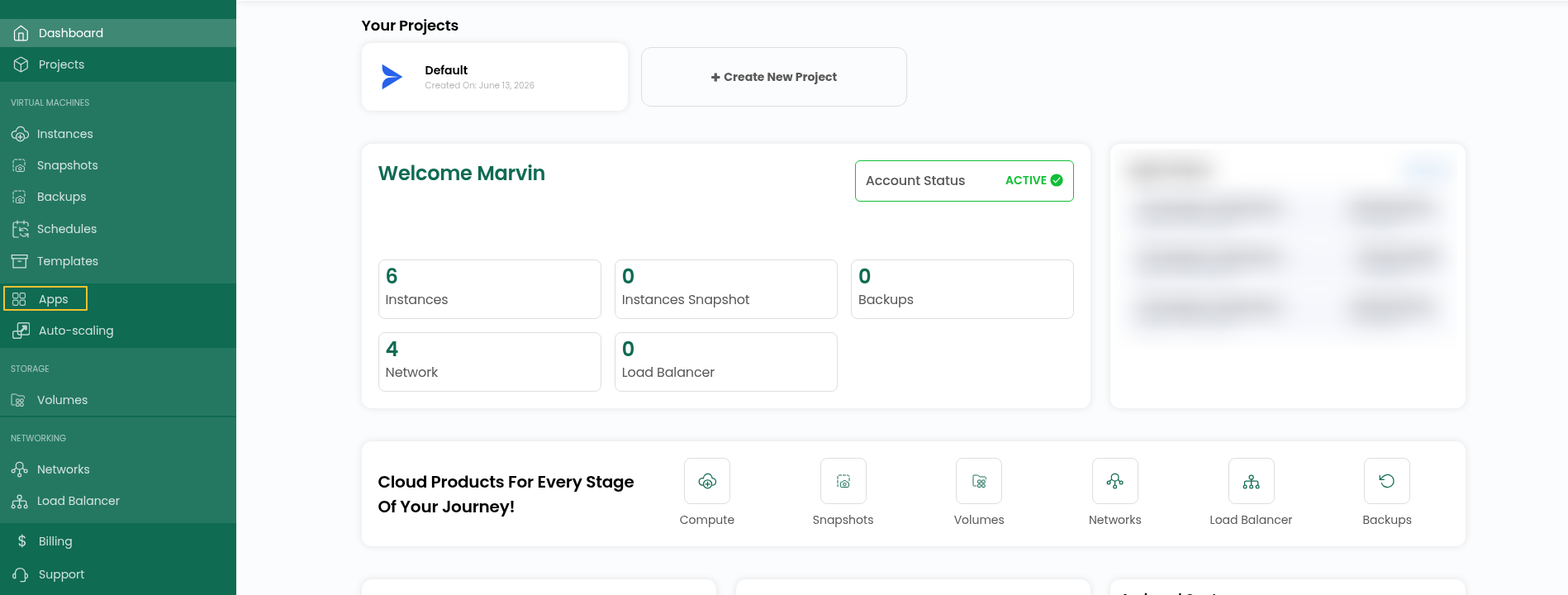
Step 1: Log in to your AccuWeb.Cloud account and open the dashboard.
Step 2: Once you are on the dashboard, go to Apps to view the available applications.
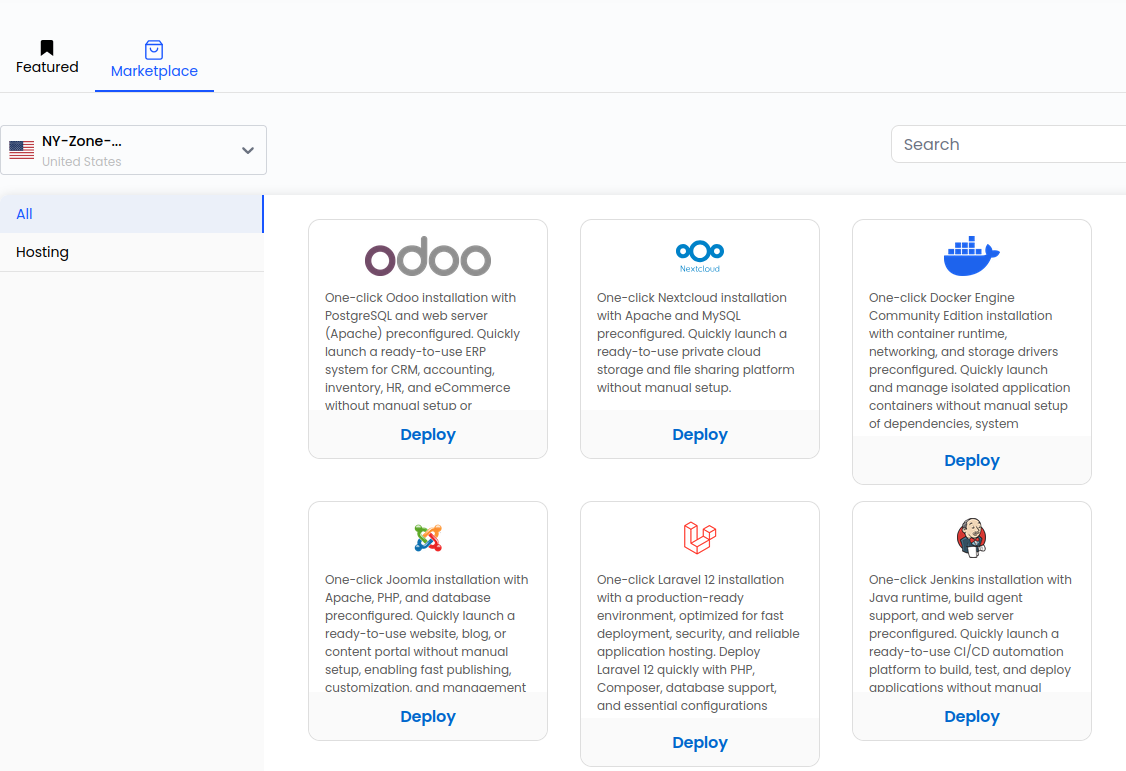
Step 3:Go to Apps and open Marketplace to browse the applications available for deployment.
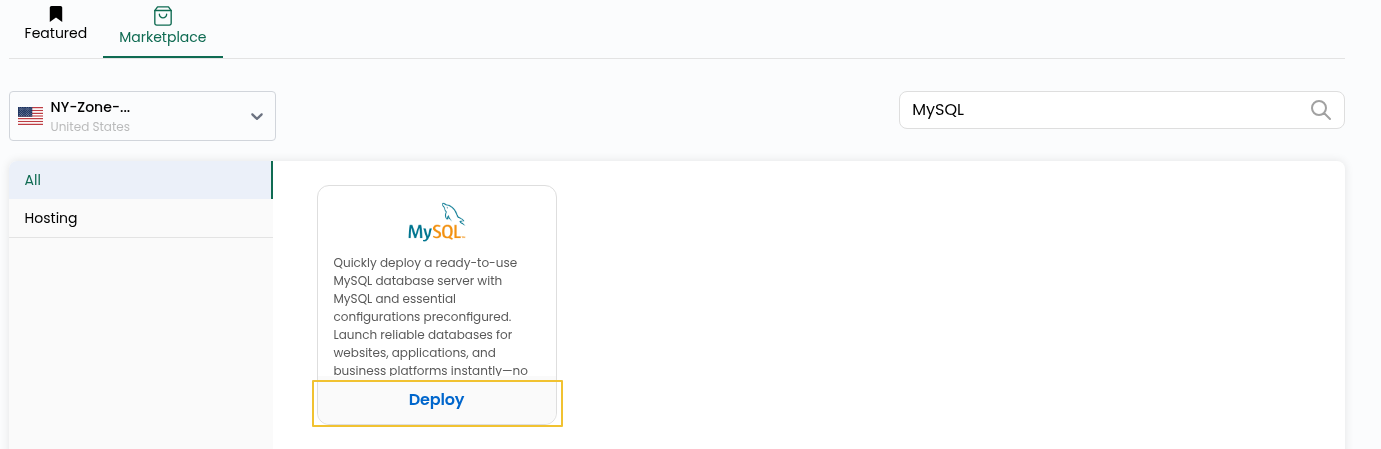
Step 4: Find MySQL in the Marketplace and click Deploy to start the deployment process.
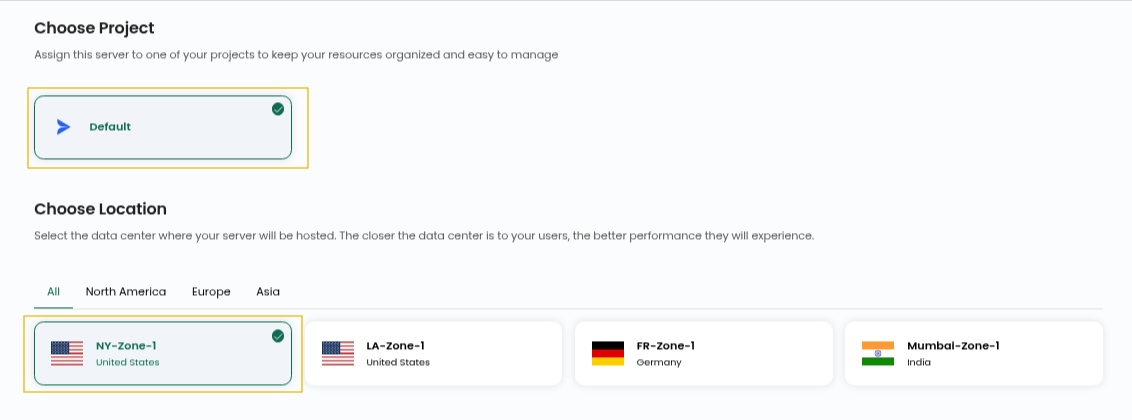
Step 5: Pick the Project and Location for your MySQL server.
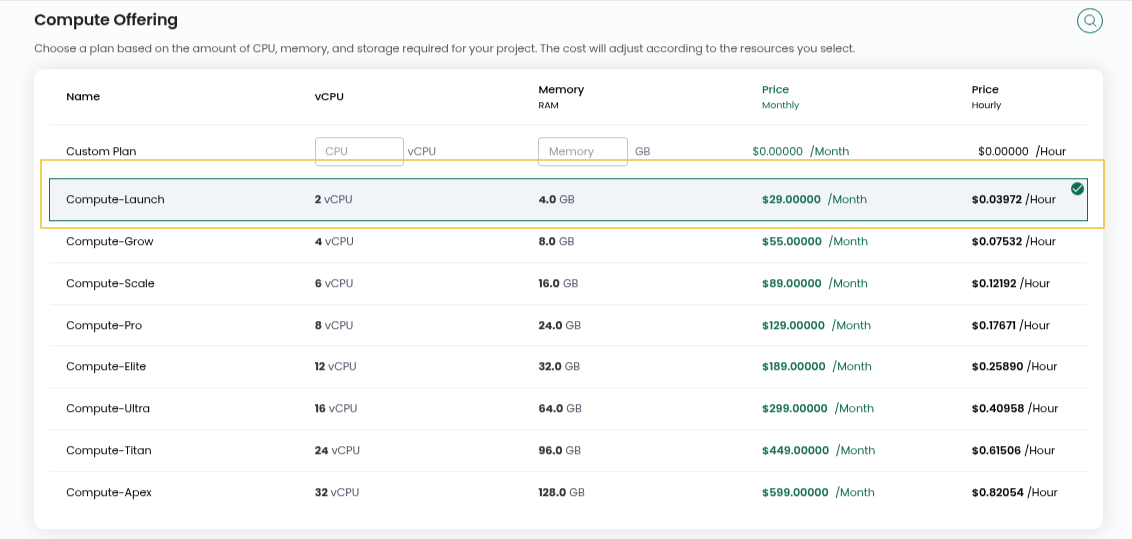
Step 6: Choose the compute option for your instance.
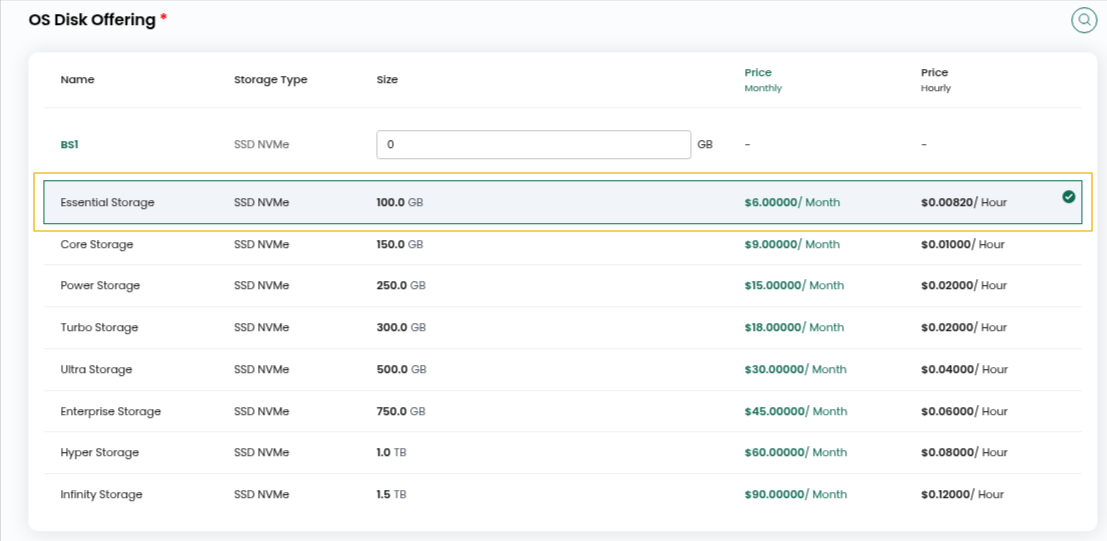
Step 7: Choose the OS Disk Offering and Network you want to use for the instance.
Step 8:Enter a Server Name and Hostname.

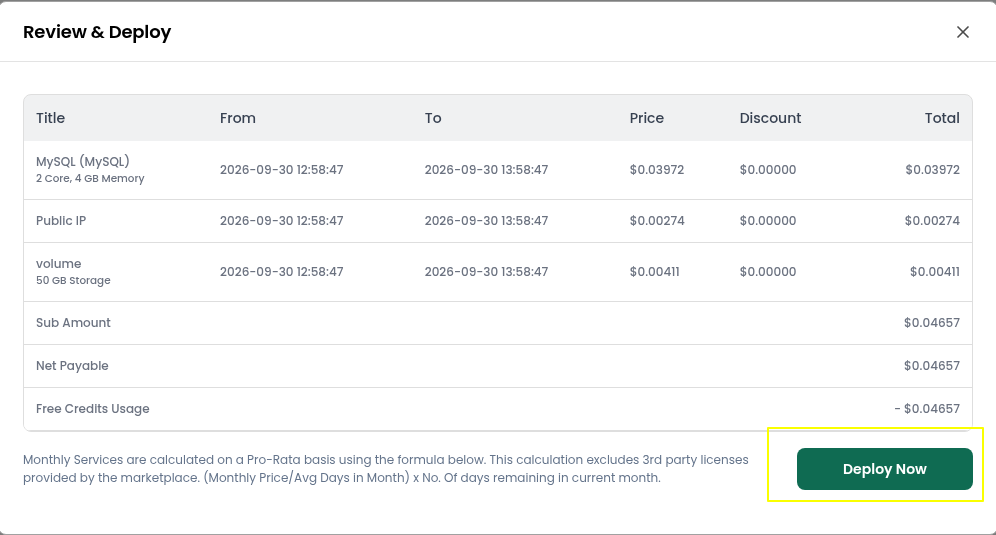
Step 9: Choose Hourly or Monthly billing. Check the configuration details and select Review & Deploy to continue with the setup.

Step 10: Check the details you selected and click Deploy Now.
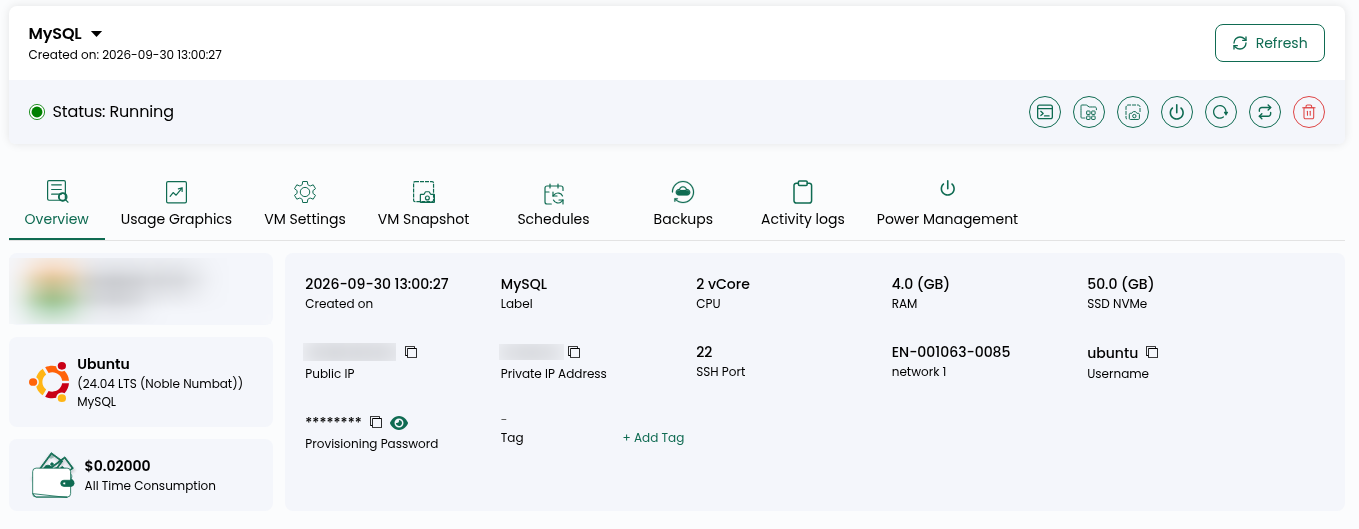
Step 11: Allow a few minutes for the deployment to complete. Wait for the deployment to finish. When MySQL has been installed, the instance will show a Running status.
Step 12: Check your email for the MySQL access details.
File path: /root/logindetails.txt
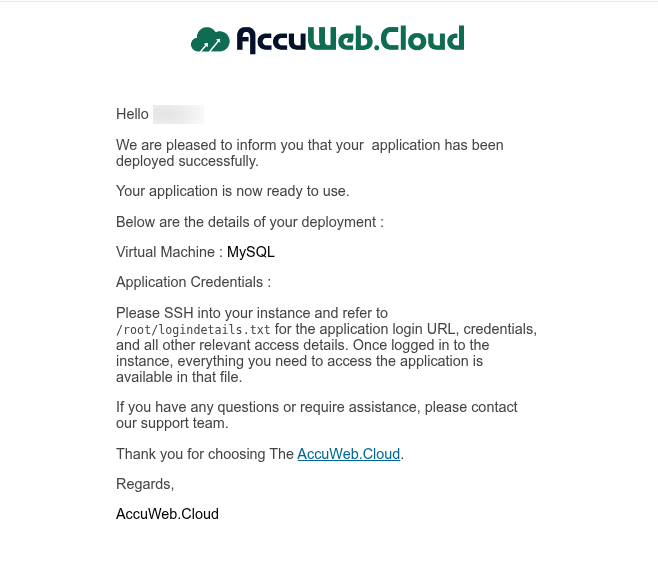
Step 13: Log in to your server using the details on the instance overview page, then open the file mentioned above to get your MySQL username and password.
ssh user@IP
sudo -i
cat logindetails.txt
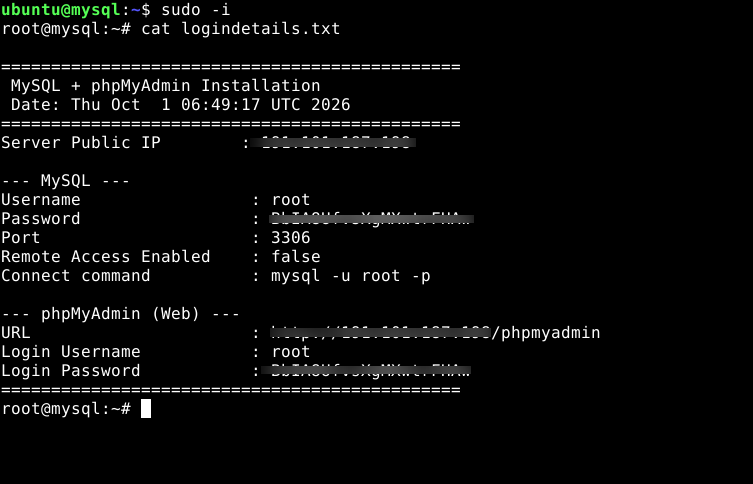 Step 14:Open the phpMyAdmin URL provided in the file in your browser and log in using the username and password provided there.
Step 15:To get into phpMyAdmin, open the link above and sign in using the credentials in logindetails.txt.
Conclusion
Once these steps are done, MySQL is ready to use on your AccuWeb.Cloud instance. The one-click deployment takes care of the installation and basic setup, so you can start creating databases and connecting your applications right away.