
Fixing Network Interface Name Changes After Migration
You migrate a VM, it boots without complaint, and then it’s just not reachable on the network. No obvious error, no crash; the server just sits there with no connectivity. Nine times out of ten when I’ve hit this, the cause is boring but easy to miss: the network interface got a new name on the new host, and every config file on the system is still referring to the old one. Here’s how to track it down and fix it properly instead of just patching around it.
Step 1: Compare What’s There Against What the Config Expects
Linux names network interfaces based on things like bus location and driver, using udev’s predictable naming scheme. Move a VM to different virtual hardware, even something as simple as a different NIC emulation type, and the interface can come back with a completely different name than it had before. Check what actually exists now against what the old config file thinks it should be called:

There it is. The system has ens3 sitting there in a down state, but ifcfg-eth0 is still configured for a device called eth0 that doesn’t exist anymore. NetworkManager, or the older network service depending on your distro, has nothing to attach that configuration to, so the interface never comes up with an IP. The docker0 entry showing up alongside it is just the default bridge Docker creates on install; it’s unrelated to the migration and safe to ignore here.
Step 2: Rename the Config to Match Reality
Rather than fighting the naming scheme, it’s simpler to just update the config file to reference the interface name the system is actually using:
mv /etc/sysconfig/network-scripts/ifcfg-eth0 /etc/sysconfig/network-scripts/ifcfg-ens3
sed -i ‘s/DEVICE=eth0/DEVICE=ens3/’ /etc/sysconfig/network-scripts/ifcfg-ens3
sed -i ‘s/NAME=eth0/NAME=ens3/’ /etc/sysconfig/network-scripts/ifcfg-ens3
systemctl restart NetworkManager
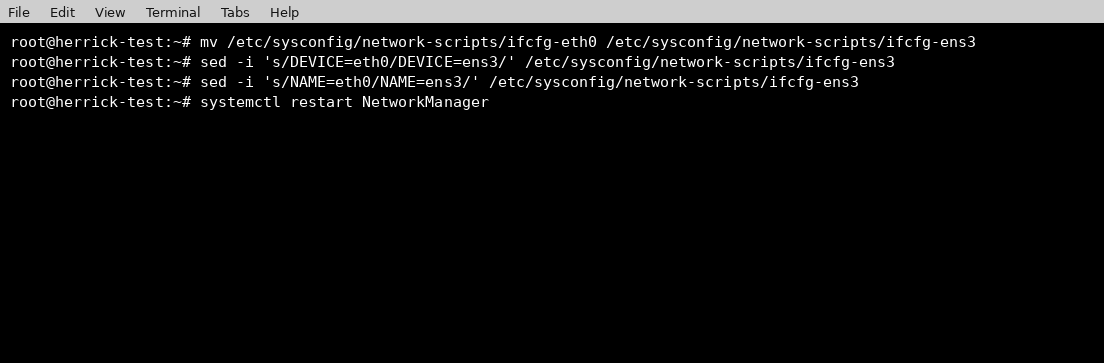
Renaming the actual file isn’t strictly required since NetworkManager reads DEVICE and NAME from inside the file rather than the filename, but keeping the filename and the DEVICE value in sync just makes life easier the next time someone, possibly you in six months, has to go looking for this config.
Step 3: Confirm It’s Actually Up and Talking
Once NetworkManager restarts, check that the interface picked up its IP and can actually reach something outside the box:
ip a show ens3
ping -c 2 8.8.8.8
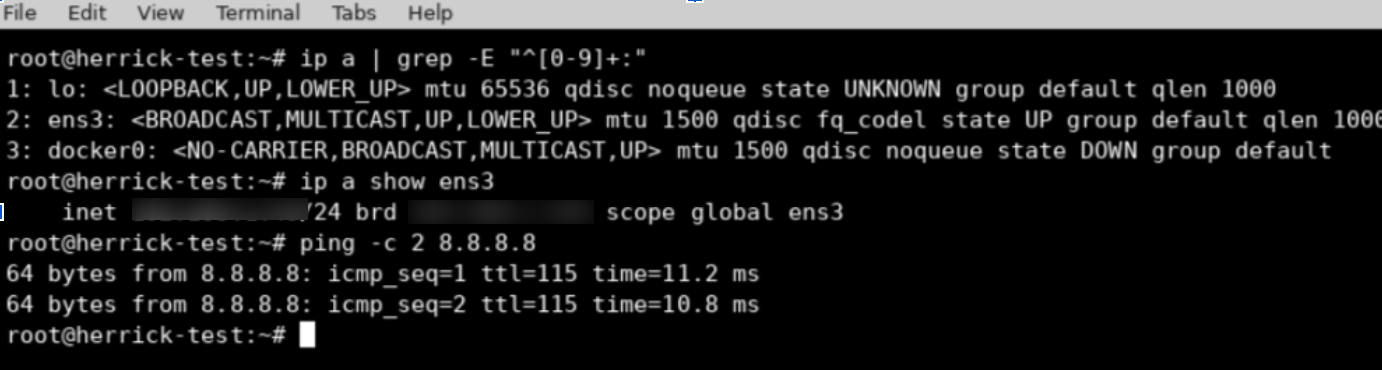
If you’re seeing replies, the fix held and the server is reachable again on its expected address.
Conclusion
An interface rename after migration doesn’t usually announce itself as a network problem, it just looks like the server went silent. Checking ip a against your existing ifcfg or netplan config takes seconds and almost always explains what happened. Update the config to the new interface name, restart networking, and confirm with a ping before you move on to anything else.