
Resolving fstab and Mount-Point Issues After VM Migration
Once a migrated VM actually boots, the next place things tend to go wrong is disk mounts. The root filesystem usually comes up fine since the bootloader forces it, but any additional volumes defined in /etc/fstab, things like a separate data disk or a dedicated MySQL volume, can quietly fail to mount and leave services starting up against empty directories instead of the real data. This article covers how to spot these failures and get every mount point back where it belongs.
Step 1: Confirm What Is Failing to Mount
The fastest way to see every fstab problem at once is to just try mounting everything and read the errors:
mount -a
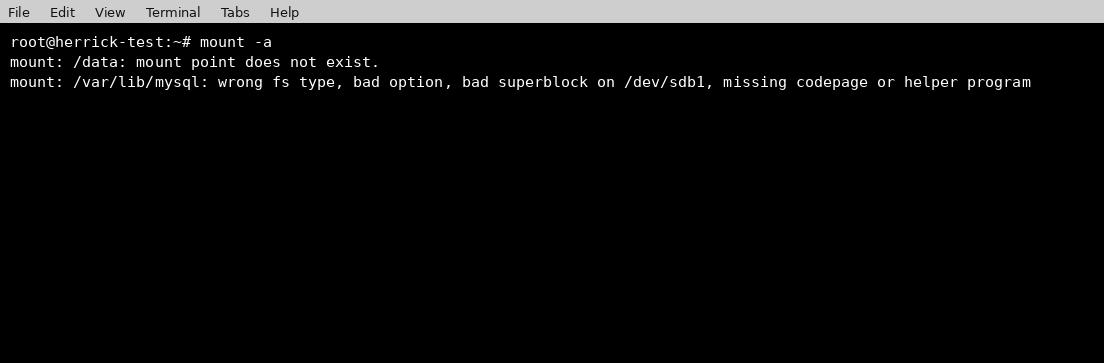
Here we have two different problems bundled into one output. The first is a missing mount point directory, which happens when the migration process copied the fstab entries but the target folder itself was never recreated. The second is a filesystem type or superblock error, which almost always means the UUID in fstab is pointing at a disk that does not match what is actually attached.
Step 2: Fix the Mount Point and Correct the UUID
For the missing directory, this is a straightforward fix; just create it:
mkdir -p /data
For the UUID mismatch, check what the disk’s actual UUID is now and compare it against what fstab currently has:
blkid /dev/sdb1
cat /etc/fstab | grep sdb1
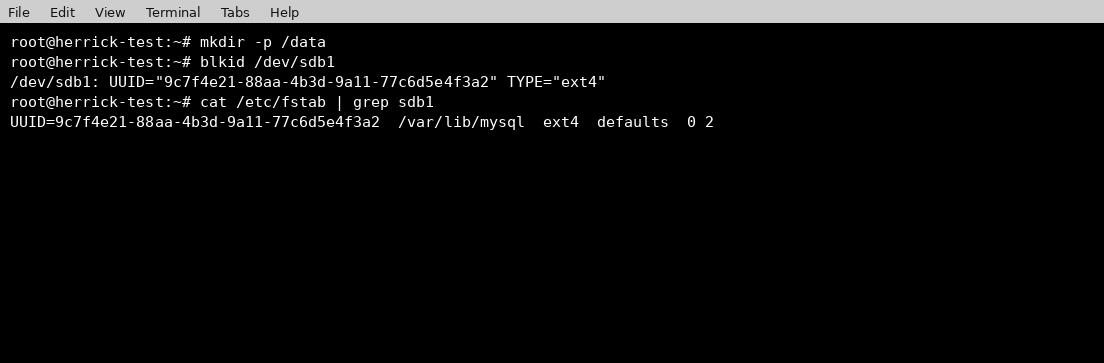
If the UUID in fstab does not match what blkid reports, that confirms the disk was reattached with a new identity during the migration, which is common when volumes are recreated from a snapshot or attached fresh rather than migrated as an exact block copy. Update the UUID in /etc/fstab to match what blkid actually shows for that device.
Step 3: Verify Everything Mounts and Stays Mounted
With the mount point created and the UUID corrected, try mounting again and confirm with df -h that both filesystems are actually attached where they should be:
mount -a
df -h | grep -E “data|mysql”
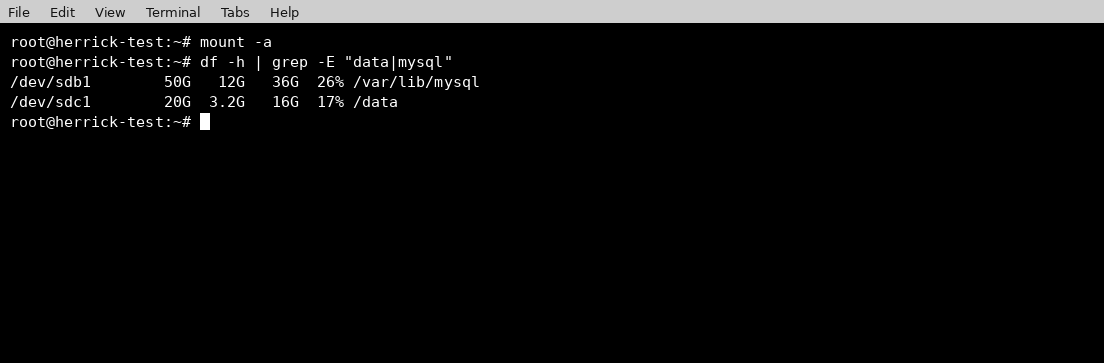
At this point, both volumes are mounted cleanly, and since the fix was made directly in /etc/fstab, it will also survive the next reboot rather than needing to be reapplied manually every time.
A Few Things Worth Checking Beyond fstab Itself
- If a service like MySQL or an application was already started before the mount was fixed, it may have written files directly into the now empty mount point directory. Stop the service, move those stray files aside, mount the real disk, then restart.
- Consider adding the nofail option to non critical mounts in fstab. This prevents a single bad mount from blocking the entire boot process and dropping the system into emergency mode the way a root disk issue would.
- If you are managing several migrated VMs, it is worth writing device UUIDs down as part of your migration checklist rather than relying on device names like /dev/sdb, since device ordering is not guaranteed to stay the same across a migration.
Conclusion
Most fstab issues after a VM migration come down to two things: a mount point directory that was never recreated, and a UUID that changed when the disk was reattached. Both are quick to fix once you know where to look, and running mount -a followed by df -h is usually all it takes to confirm everything is back in its right place. Building UUID verification into your standard post migration checklist will save you from hitting this same issue on every future migration.