
How to Create a Virtual Machine Template in AccuWeb.Cloud?
Templates allow users to deploy virtual machines quickly by using pre-configured disk images. A template can include an operating system, predefined configurations, installed software, and other settings required for a specific workload. Using templates helps standardize deployments, reduce setup time, and ensure consistency across cloud environments.
This article explains how to create a virtual machine template in AccuWeb.Cloud.
Steps to Create a Template
Step 1: Log in to AccuWeb.Cloud Panel.
Step 2: From the left-side menu, click on Templates.
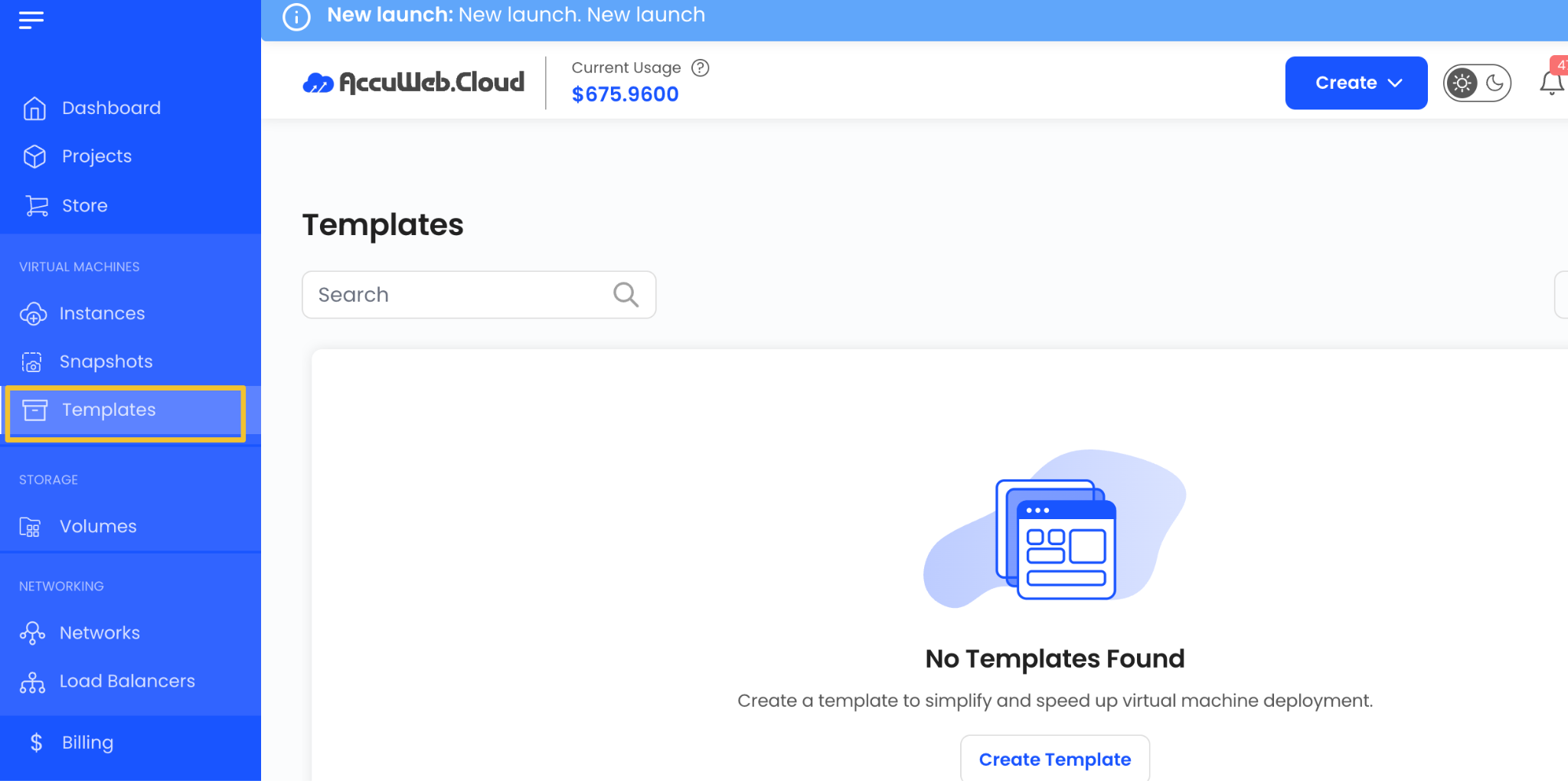
Step 3: Click Create Template or the + icon available on the right side of the page.

This will open the template creation wizard.
Assign to a Project
Select the project where you want to create and manage the template.
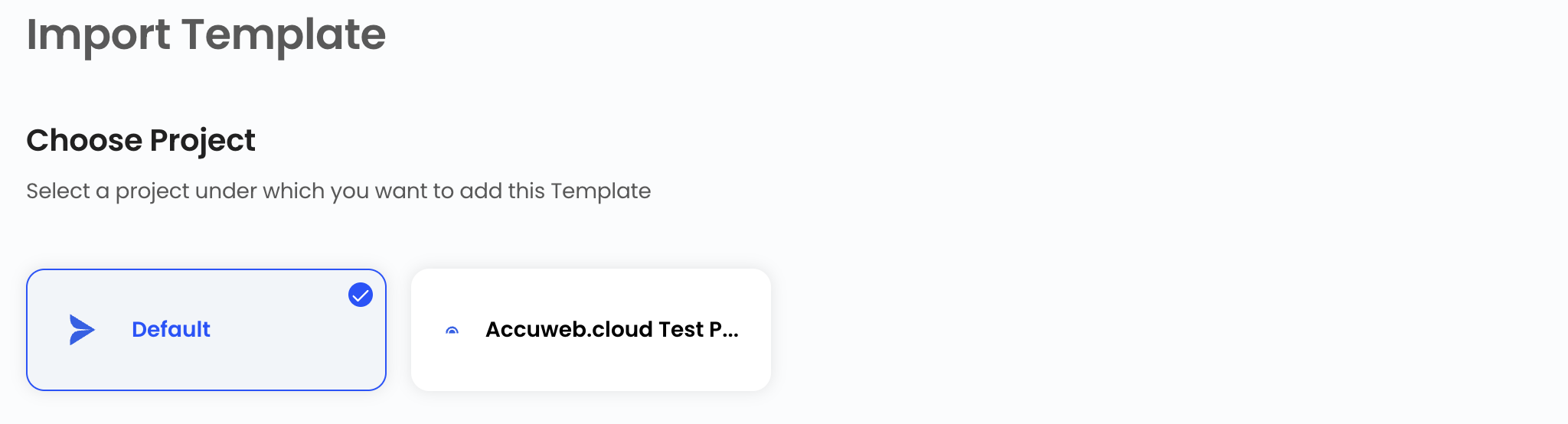
Projects help organize resources and simplify administration.
Choose a Location
Select the data center location where the template will be stored.
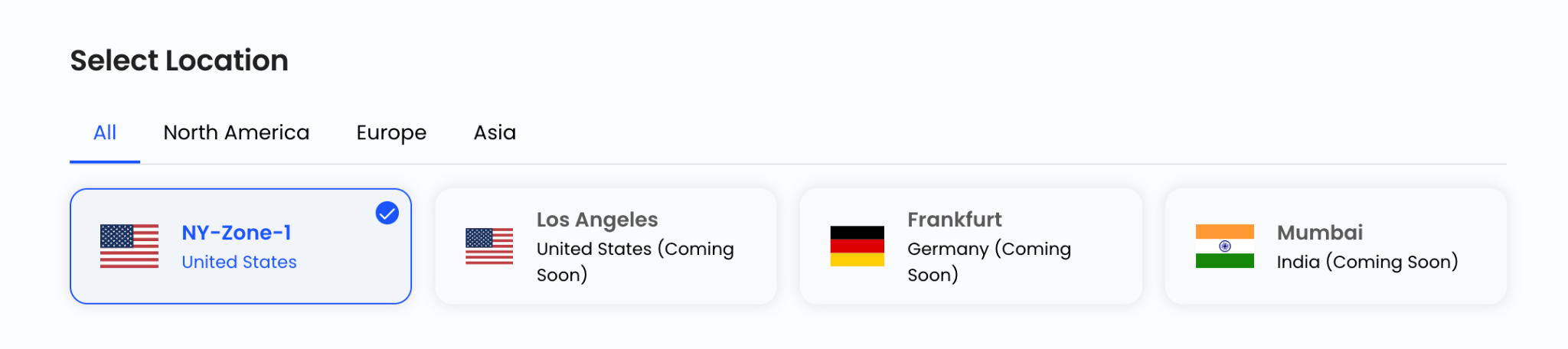
Choose the required location from the available list.
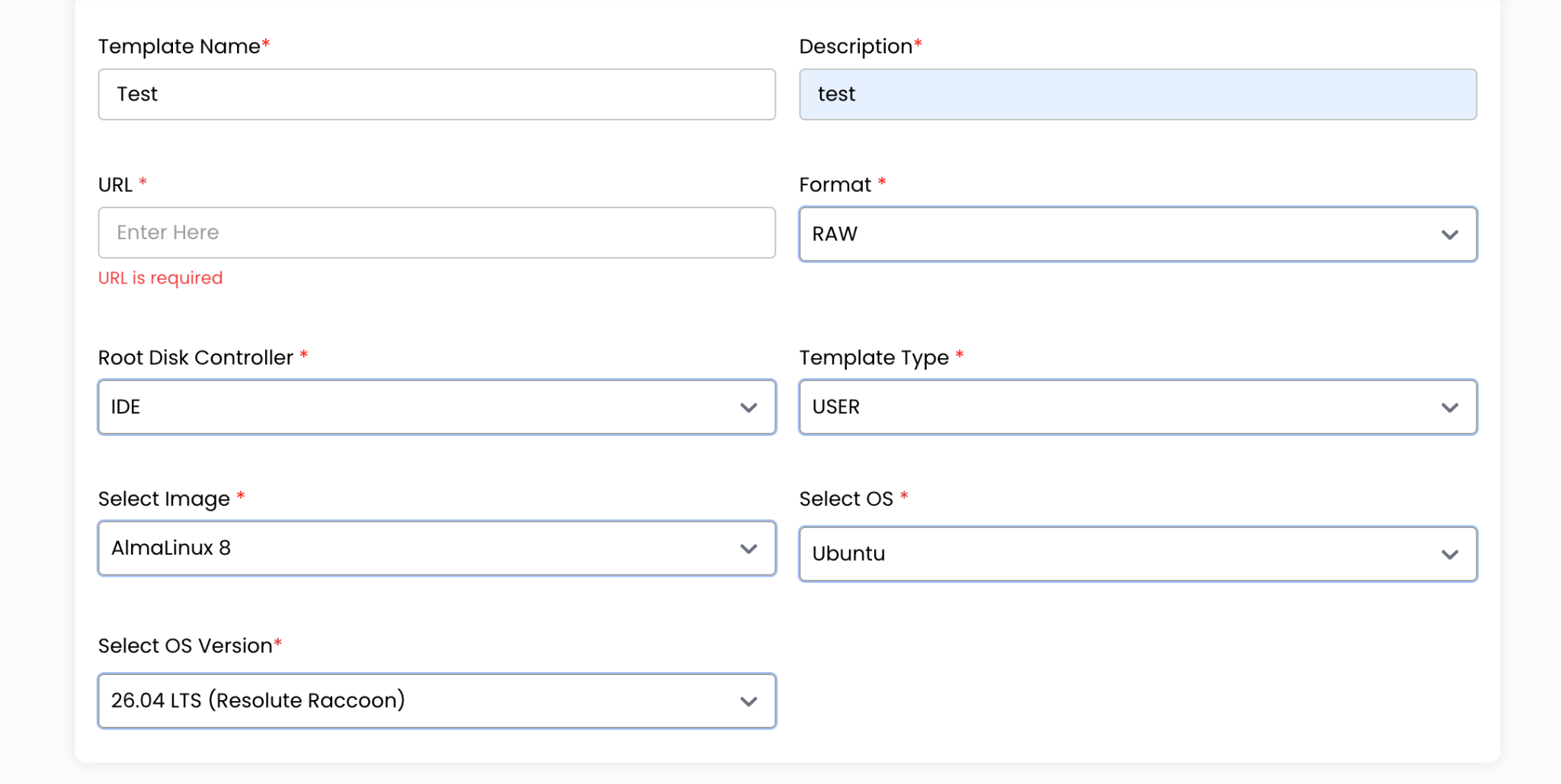
Configure Template Details
Provide the required information for the template.
Template Name
Enter a unique name that clearly identifies the template.
Description
Add a brief description explaining the purpose and contents of the template.
URL
Specify the source URL if the template image is hosted externally.
Format
Select the image format supported by the platform, such as RAW or other available formats.
Root Disk Controller
Choose the root disk controller that will be used when virtual machines are deployed from the template.
Template Type
Select the appropriate template category.
Image
Choose the image file associated with the template.
Operating System
Select the operating system included in the template.
OS Version
Choose the operating system version that matches the template image.
Configure Advanced Options
Additional settings are available to customize template behavior.
Password Enabled
Enable this option if password-based access should be available for instances deployed from the template.
Featured
Mark the template as featured to make it easier to identify within the platform.
Dynamically Scalable
Enable this option if workloads deployed from the template should support dynamic resource scaling.
Requires VM
Select this option if the template is intended for use only with virtual machine deployments.

Create the Template
Choose the billing cycle for the template.
Templates support:
- Hourly Billing Cycle
Supported billing rules include:
- Date to Date
- Fixed Calendar Month
- Unfixed Calendar Month
- Fixed Prorata
- Unfixed Prorata
Review all configuration details and verify the pricing summary.

Click Create to generate the template.
Benefits of Using Templates
Templates provide several advantages:
- Faster virtual machine deployment
- Consistent system configurations
- Reduced manual setup effort
- Standardized operating system installations
- Simplified infrastructure management
- Improved deployment efficiency
Summary
Virtual machine templates help streamline the deployment process by providing reusable images with predefined configurations and operating systems. By creating templates in AccuWeb.Cloud, users can deploy workloads more efficiently, maintain consistency across environments, and reduce the time required to provision new virtual machines.
Haven’t registered yet?