
How to Change Instance OS in Accuweb.cloud?
This setting allows you to reinstall or change the operating system on your virtual machine (VM). You can select from various OS options such as Ubuntu, CentOS, Debian, or Windows Server.
Important: Changing the OS will erase all existing data and configurations on the VM. Always take a backup before proceeding.
Steps to Change Operating System
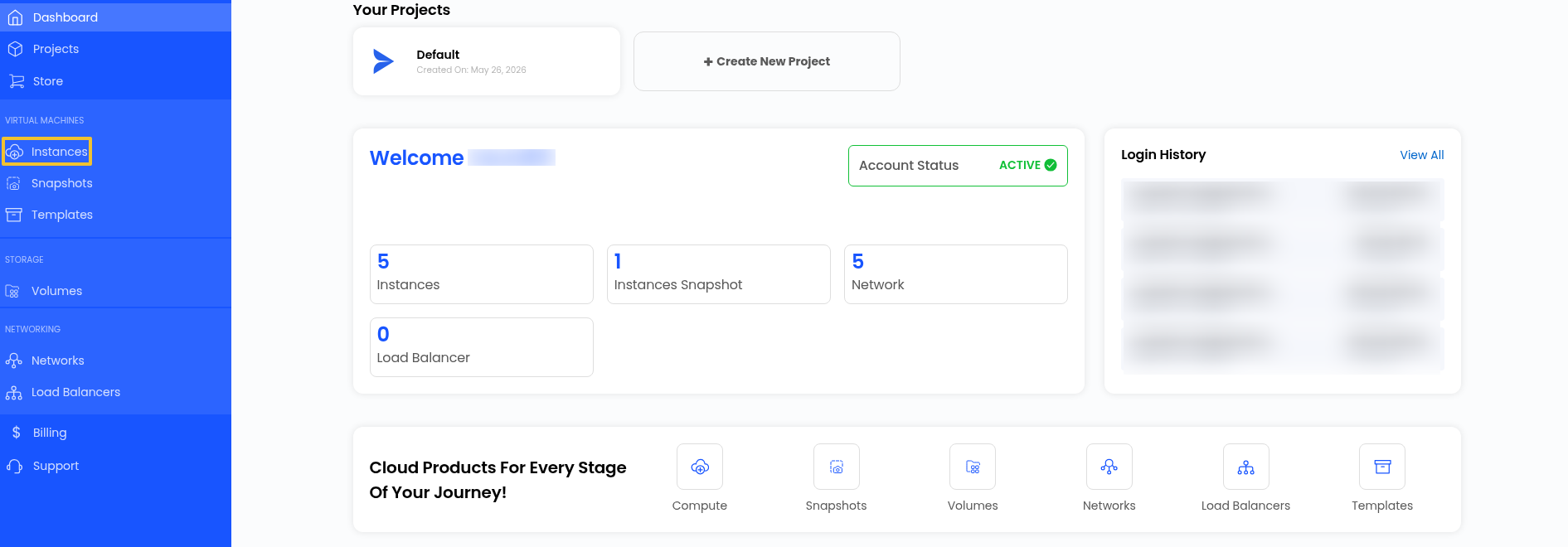
Step 1: Log in to the AccuWeb Cloud Dashboard.
Step 2: From the dashboard, go to Instances.
This will display the list of all virtual machines.
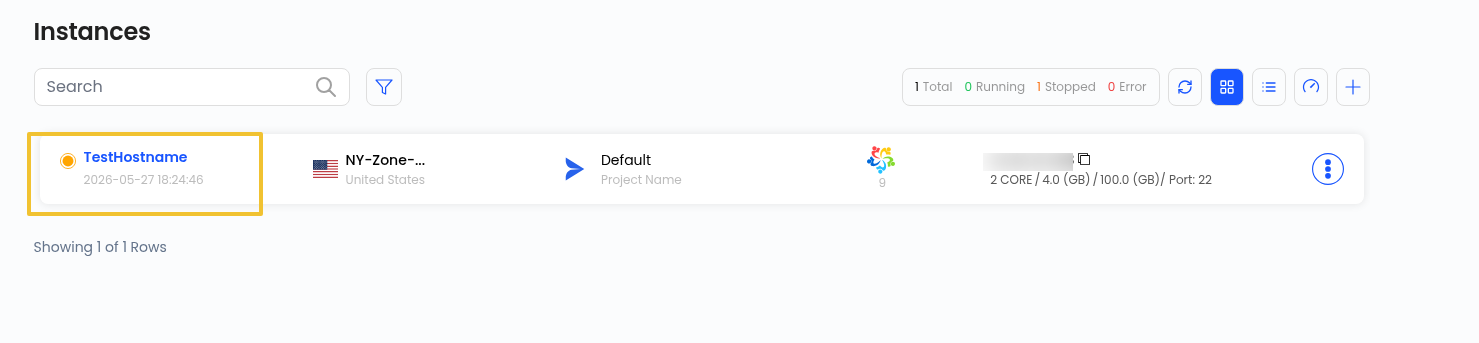
Step 3: Click on the VM where you want to change the operating system.
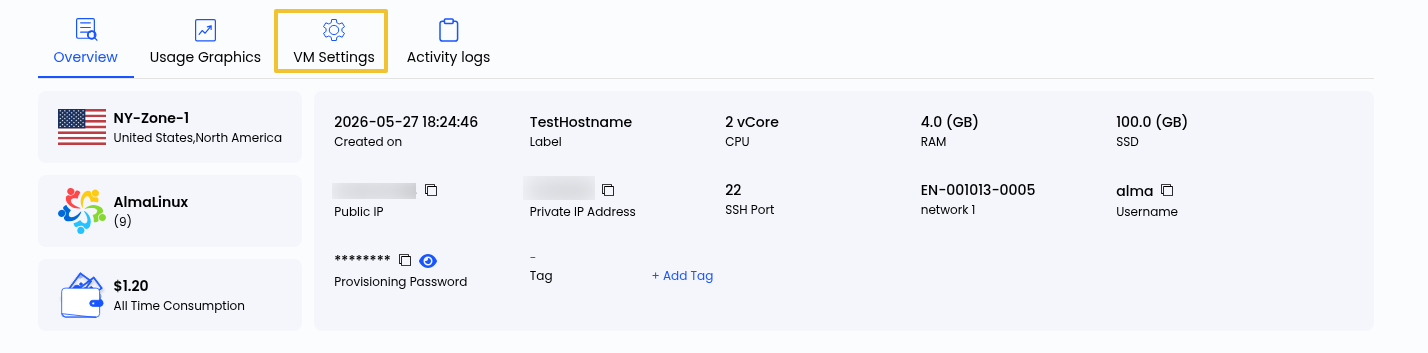
Step 4: Navigate to the VM Settings section of the selected VM.
Step 5: Locate and click on the Change OS option available in VM actions or settings.
Step 6: Choose the required operating system from the available list.
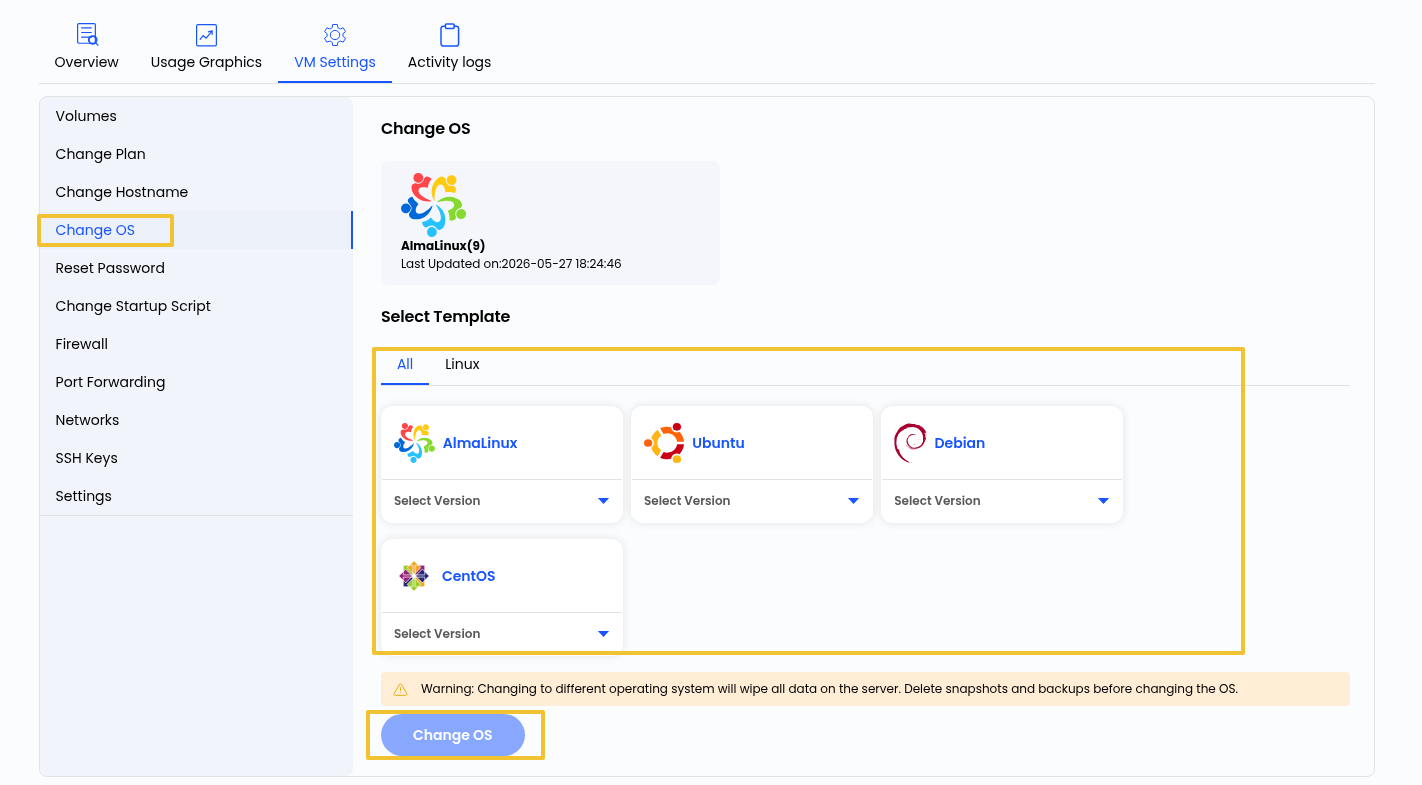
Note: Changing to a different operating system will wipe all data on the server. Delete snapshots and backups before changing the OS.
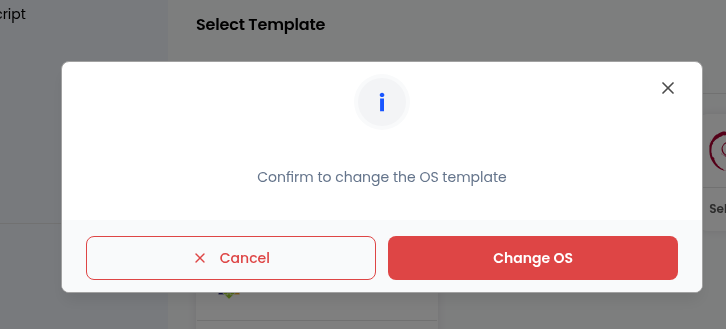
Step 7: Click on the Change OS button to start the OS replacement process.
Conclusion
By following the above steps, you can successfully change the operating system of your virtual machine. Ensure you take proper backups before proceeding, as this process will remove all existing data.
Still don’t have an account?