
How to Optimize WordPress Images for Faster Site Loading?
A WordPress website with properly optimized images loads faster, feels smoother to browse, and has a better chance of ranking higher in search results.
In this article, we will cover four simple ways to optimize images in WordPress. We will also share some of the best plugins for image optimization and answer common questions related to WordPress images.
Why Optimizing Images in WordPress Matters
Optimizing images is not just a technical step. It directly affects your website’s performance and growth. Here are four key reasons to do it:
- Faster Page Loading
Large, uncompressed images increase the overall page size and slow down loading time. When you reduce image file sizes without hurting quality, your pages load much faster.
- Better User Experience
Nobody likes waiting for a slow website. If a page takes more than three seconds to load, many visitors leave without viewing anything else. Faster pages keep visitors engaged and encourage them to explore more.
- Improved SEO Rankings
Search engines prefer fast websites. If your images are optimized and your site loads quickly, you have a better chance of ranking higher in search results.
- More Efficient Use of Hosting Space
Smaller image files take up less storage space. This helps you use your hosting resources wisely and gives you more room for additional content, features, or media files.
4 Simple Ways to Optimize Images in WordPress
1. Resize Your Images
Resizing images means reducing their dimensions to fit your website layout. WordPress already includes this feature.
By default, WordPress creates four versions of each image: Thumbnail: 150 × 150 pixels
Medium: up to 300 × 300 pixels
Large: up to 1024 × 1024 pixels Full Size: original image size
You can change these sizes if needed. To adjust image sizes:
Step 1: Go to your WordPress dashboard.
Step 2: Click Settings -> Media.
Step 3: Enter your preferred width and height.
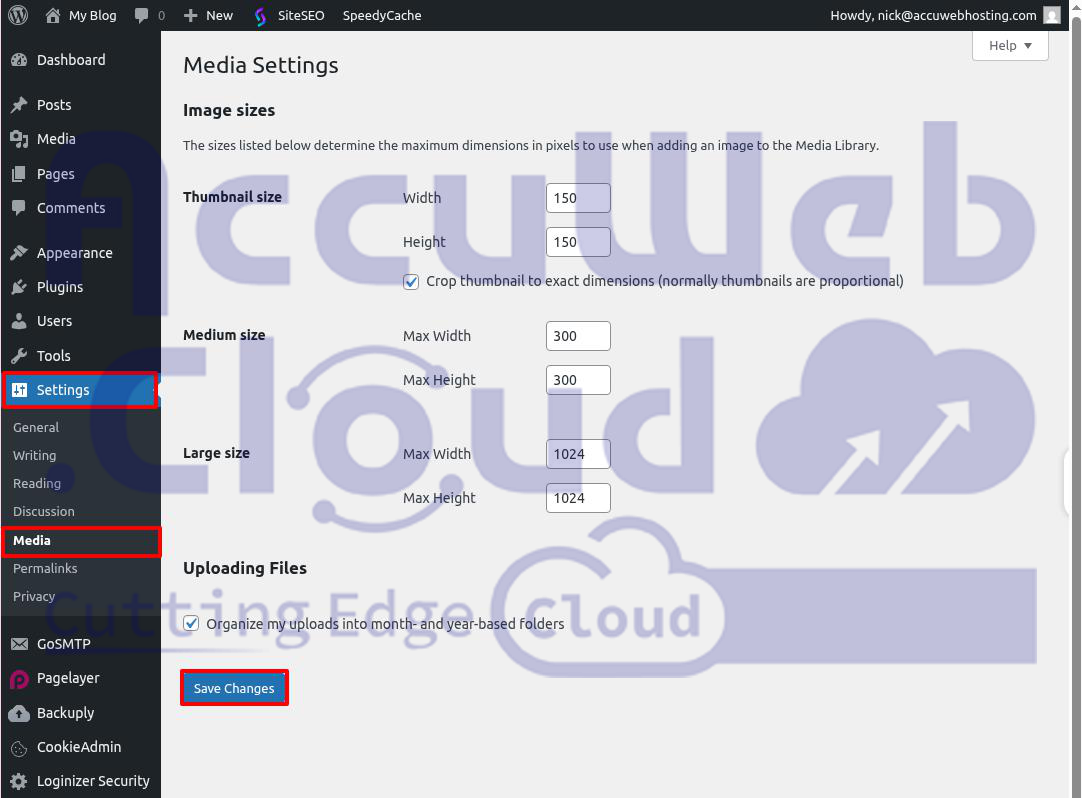
Step 4: Click Save Changes.
2. Compress Your Images
Image compression reduces the file size of your images. Smaller images load faster, which improves your website speed.
The easiest way to compress images in WordPress is by using an image compression plugin. These plugins not only reduce file size but also help optimize images in other ways.
You can also compress images manually before uploading them. Use image editing software or a free tool like TinyPNG.
TinyPNG works with PNG, JPEG, and WebP files. Just upload your image, and the tool will reduce its size. You can also upload multiple images at once.
3. Clean Your Media Library
Over time, your WordPress media library collects many images. Some are used on your site, but others may no longer be needed, such as images from deleted posts.
Unused images take up space, slow down backups, and make file management harder.
Before deleting anything, create a full backup of your website. This allows you to restore your site if something goes wrong.
You can clean your media library in two ways. Manual Method:
Step 1: Go to the WordPress dashboard.
Step 2: Click Media -> Library.
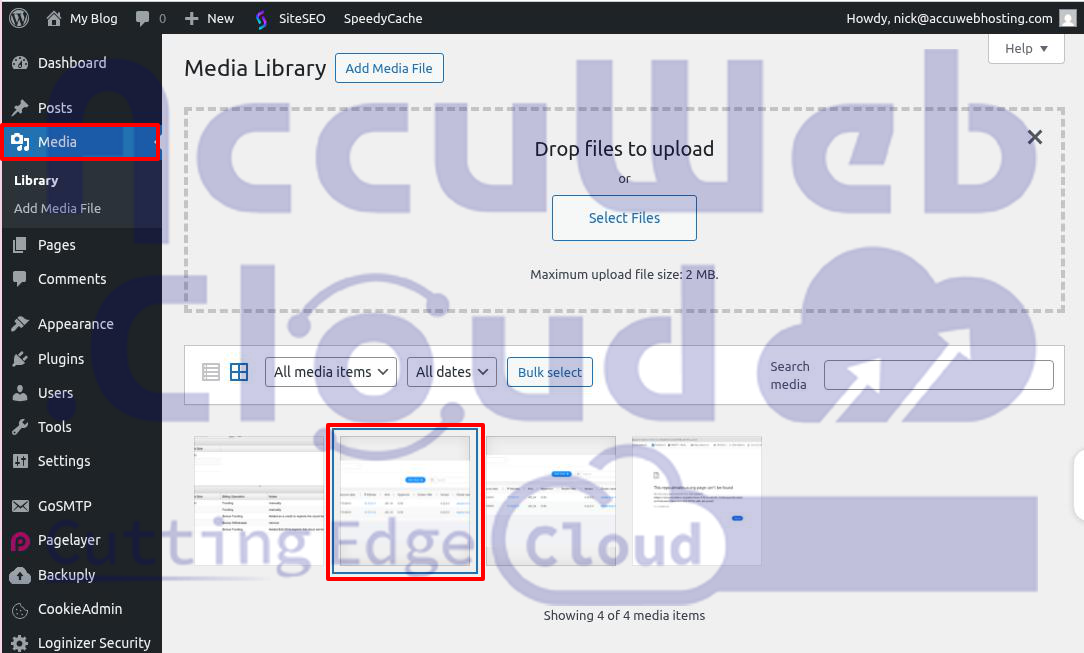
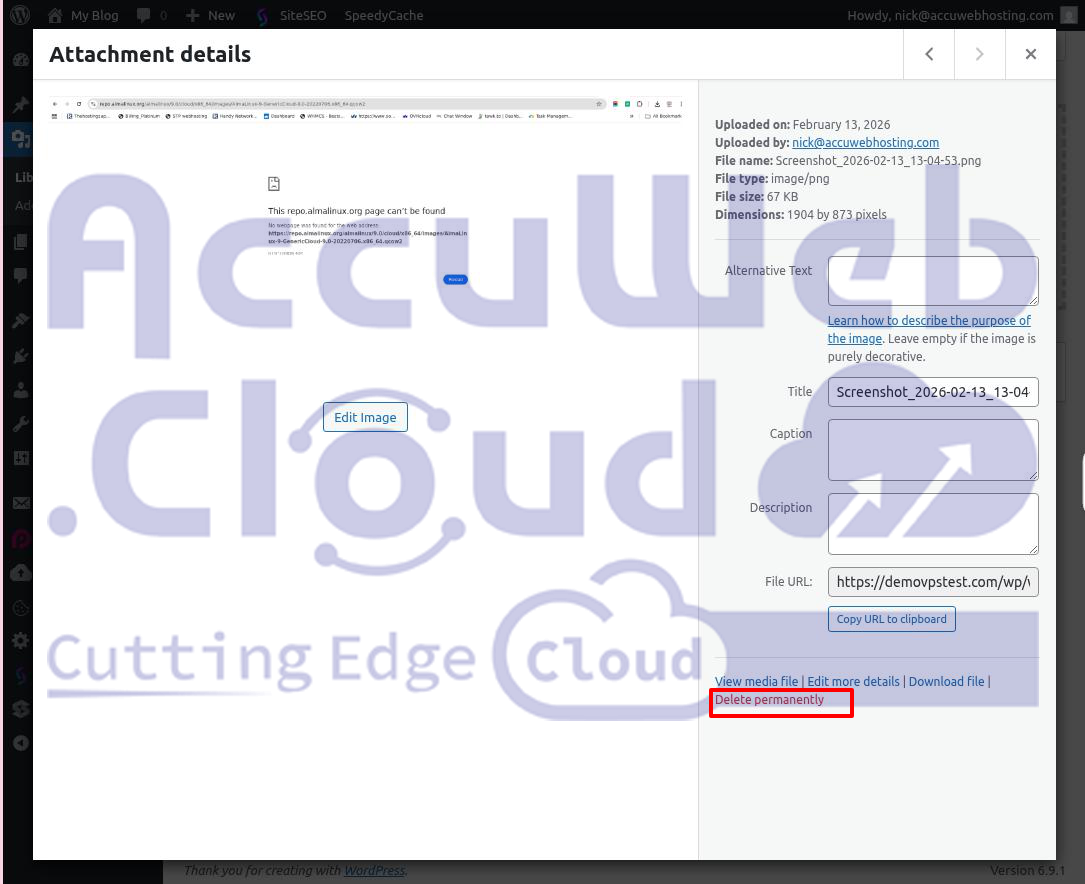
Step 3: Delete images one by one by selecting Delete permanently.
Step 4: Click Bulk Select.
Step 5: Choose the images.
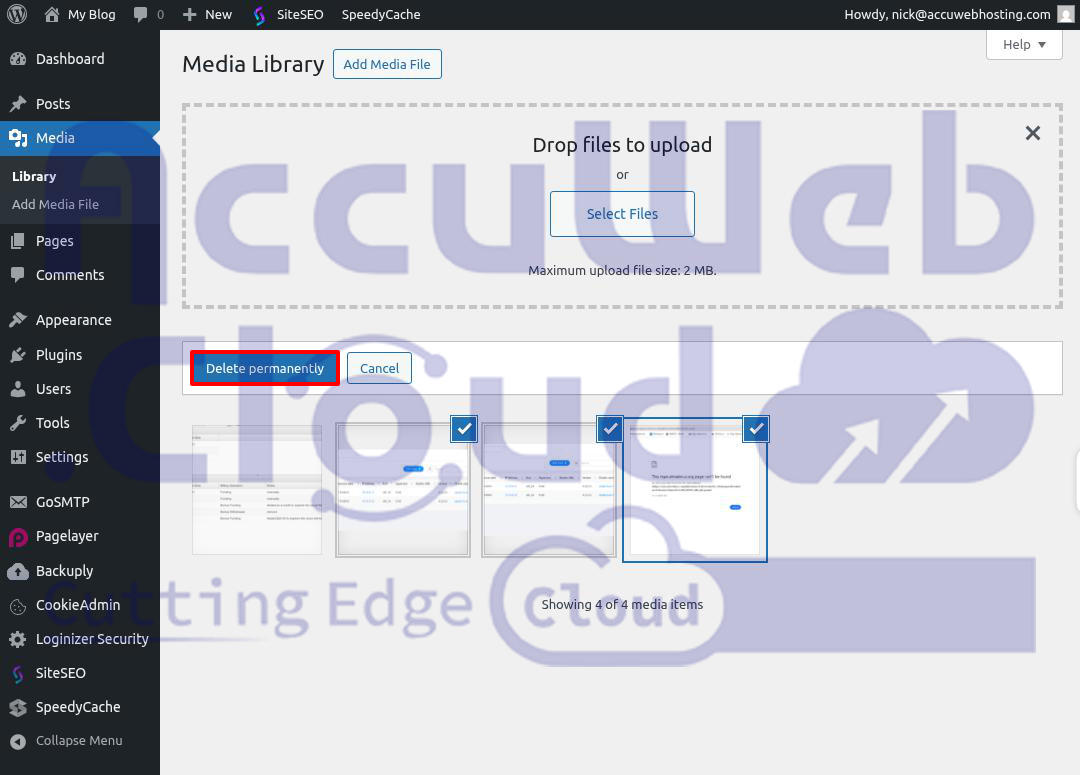
Step 6: Click Delete permanently. Using a Plugin:
Step 1: Install and activate the Media Cleaner plugin. Step 2: Go to Media ? Cleaner.
Step 3: Click Scan.
Step 4: Unused images will appear as “Seems not in use.” Step 5: Select the images and click Delete.
4. Cache Your Content
To make your images load faster, you can store your website content in a cache. A cache saves a temporary copy of your site so it loads more quickly for visitors.
If you have a self-hosted WordPress website, you can install a caching plugin like W3 Total Cache, WP Rocket, or WP Super Cache from the WordPress Admin Dashboard.
5. Use a CDN to Deliver Images Faster
A CDN, or Content Delivery Network, is a group of servers located in different parts of the world. It helps your website load faster by sending content from the server closest to the visitor.
For example, if someone visits your site from Indonesia, the content will load from a nearby server instead of a faraway one. This reduces loading time.
You can connect a CDN like Cloudflare to your WordPress website.
Simple Setup Steps:
Step 1: Create a Cloudflare Account
Sign up on Cloudflare and log in to your account.
Step 2: Add Your Website
Click “Add Site,” enter your domain name, and choose a plan.
Step 3: Change Nameservers
Cloudflare will give you two nameservers.
Log in to your domain provider and replace the old nameservers with the new ones. Wait until Cloudflare shows that your site is active.
Step 4: Turn on the CDN (Orange Cloud)
Go to the DNS section.
Make sure your A record shows an orange cloud icon.
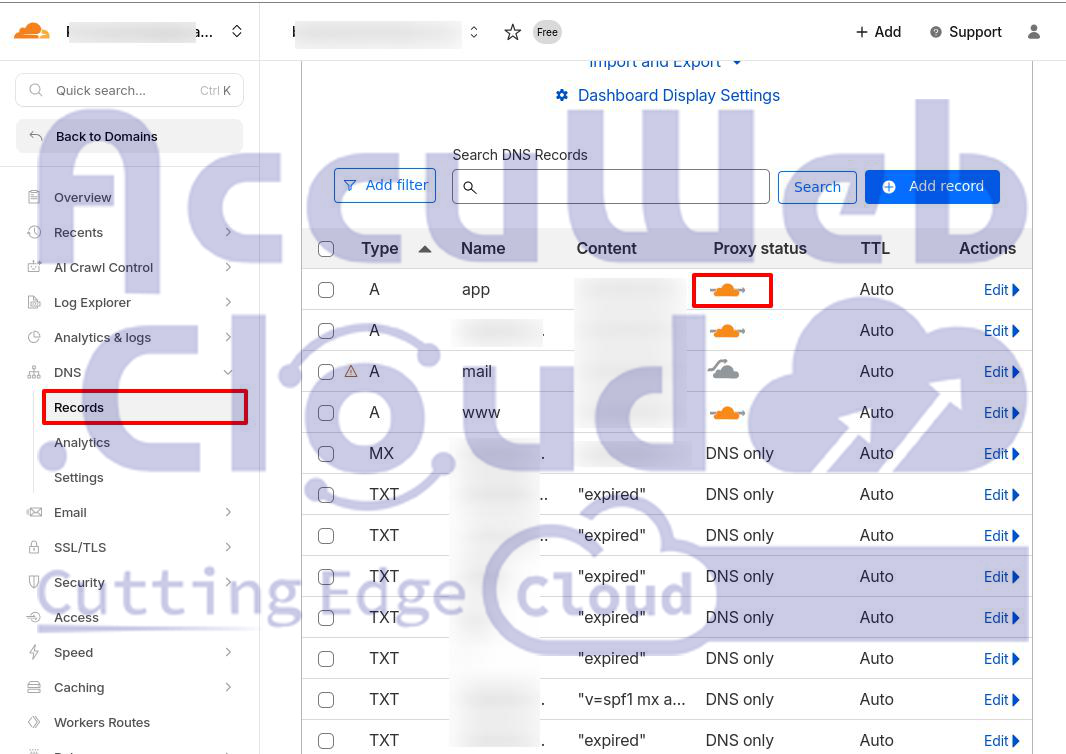
This means your traffic is going through Cloudflare.
Step 5: Turn on Image Optimization
Go to Speed -> Settings -> Image Optimization.
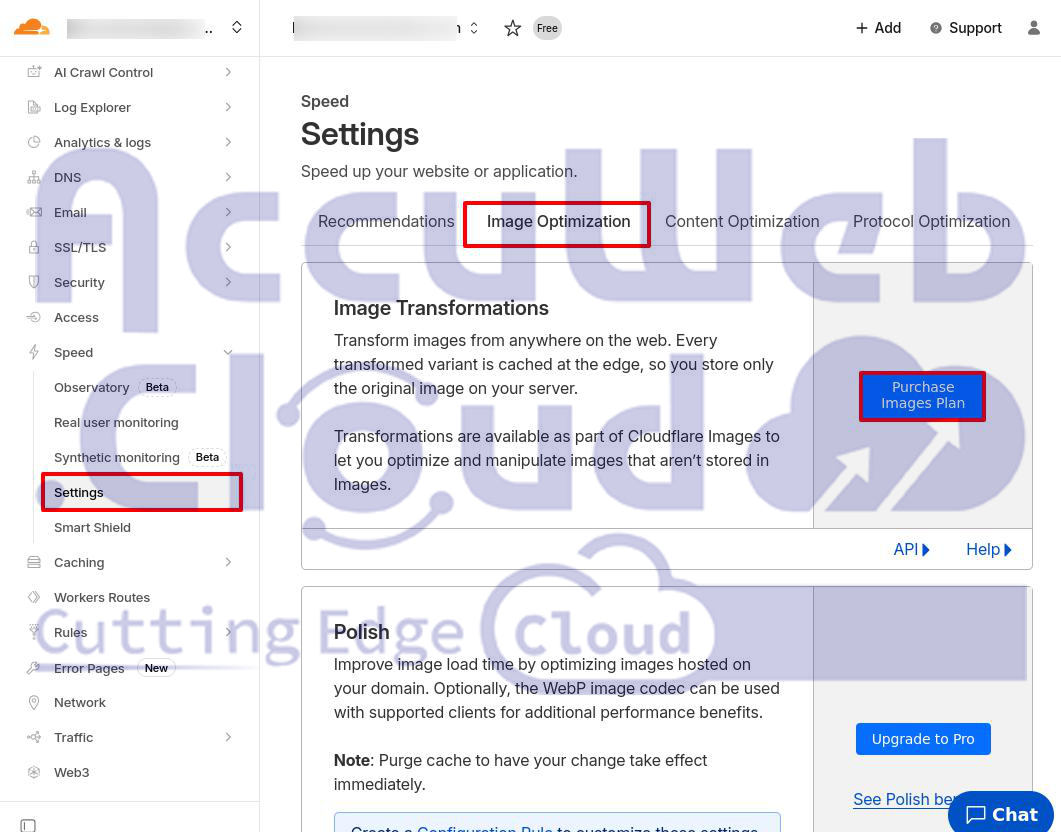
Click on the Purchase Images Plan and select the plan for the Image Optimization.
Step 6: Create a Cache Rule for Images
Go to Rules -> Cache Rules. Create a rule for:
yourdomain.com/wp-content/uploads/
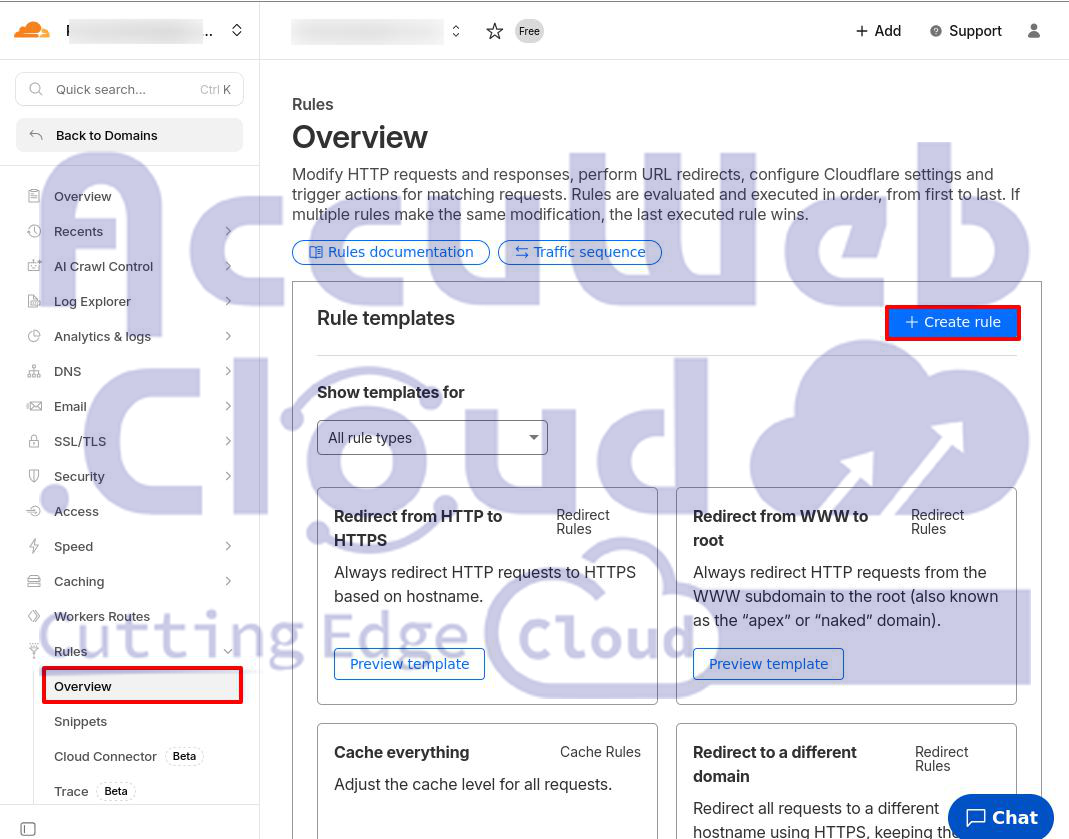
Set it to Cache Everything.
Step 7: Clear Cache and Test
Go to Caching and click Purge Everything.

Then test your website speed using any speed testing tool.
After this setup, Cloudflare will automatically compress, store, and deliver your images faster through its global servers.
Conclusion
Optimizing images in WordPress is a simple but powerful way to improve website speed, user experience, and search rankings. Large images can slow down your site and waste hosting resources, but resizing, compressing, cleaning unused media, enabling caching, and using a CDN can make a big difference.
With properly optimized images, your website loads faster, performs better, and creates a smoother experience for visitors, helping you grow traffic and engagement more effectively.
#AccuWeb.Cloud no longer offers its Premium CDN service. The instructions below apply to the legacy CDN offering and are retained for historical/reference purposes.