

In the cluster topology, each database container is configured with default vertical scaling, ranging from 1 reserved cloudlet to 32 dynamic cloudlets (up to 4 GiB of RAM and 6.4 GHz of CPU), which are allocated dynamically based on incoming load. You can adjust the resource allocation limit by following the linked guide.
The Database Cluster can be installed automatically through the following methods:
In this tutorial, we will delve into both methods.
Installing a PostgreSQL Cluster from the Marketplace
You can easily locate the PostgreSQL Master-Slave Cluster package in the Marketplace.

Modify the database version, environment name, and destination region as needed within the installation window.
PostgreSQL Automatic Clustering Mode
In AccuWeb.Cloud, enabling auto-clustering is made simple with a dedicated switch designed to streamline the clustering process.
To activate it, access the topology wizard in the dashboard, select your software stack (e.g., PostgreSQL 15), and toggle the Auto-Clustering switch to the on position.

Cluster Topology
The database cluster topology resulting from both deployments is depicted as follows:

Once the database cluster installation is finished, you will receive a confirmation message containing the master node URL and database access credentials. Additionally, this information will be sent to you via email for your records.

Now, let’s activate the master database to verify the successful replication of data to the slave.
Testing PostgreSQL Database Replication Functionality
To verify proper data replication, we will create a new database instance in the master container and confirm its presence in the slave.
Create a New Database
Step 1. Click on “Open in Browser” next to the PostgreSQL Master node to access the phpPgAdmin web interface.

Step 2. Navigate to Servers, select PostgreSQL, and log in using the credentials provided during cluster installation.

Step 3. Select “Create database” from the menu.
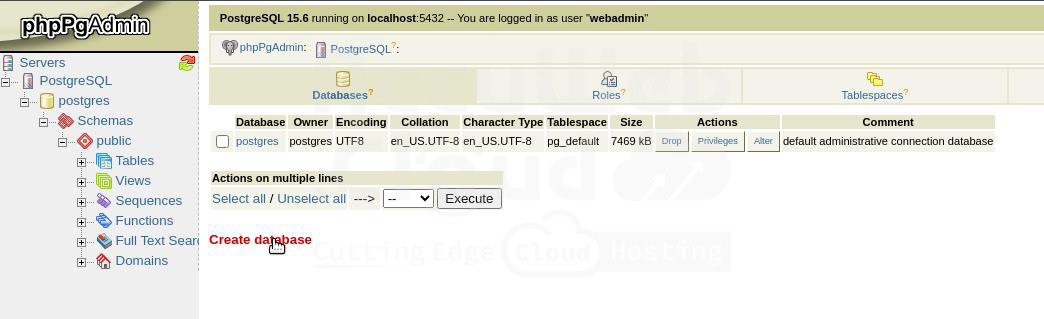
Step 4. Enter a name in the Name box (e.g., test) and click on the Create button.
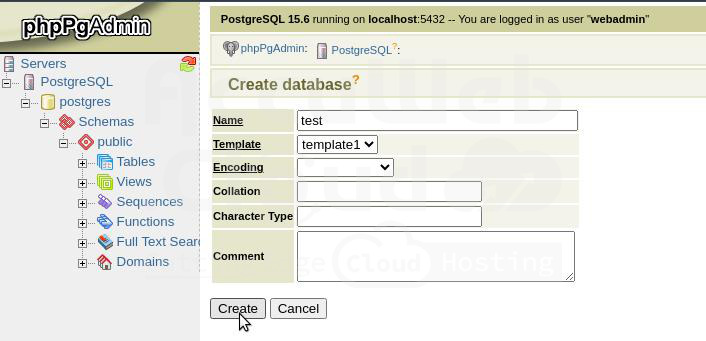
Now that the database is created on the master node, let’s verify the replicated data on the slave node.
Check the Replication
Step 1. Open the phpPgAdmin web interface by clicking on “Open in Browser” next to the PostgreSQL Slave node.

Step 2. Log in to the admin interface using the same username and password that you used to access the master node
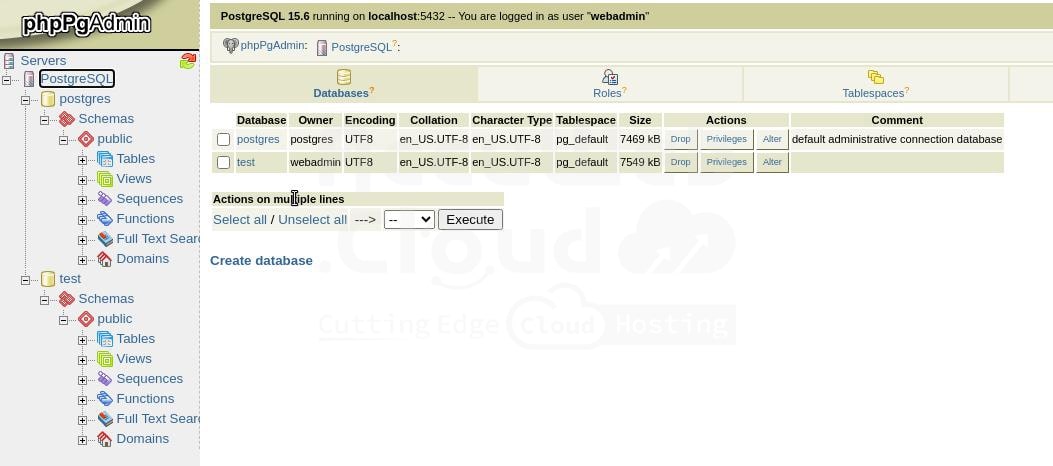
Once logged in, you’ll find the replicated database (e.g., test) visible.
Congratulations! Your PostgreSQL environment with master-slave asynchronous replication is now operational and ready for data processing.
Next, connect this PostgreSQL replicated database to your project. Follow the instructions below based on your application specifics:
Configure PostgreSQL Replication