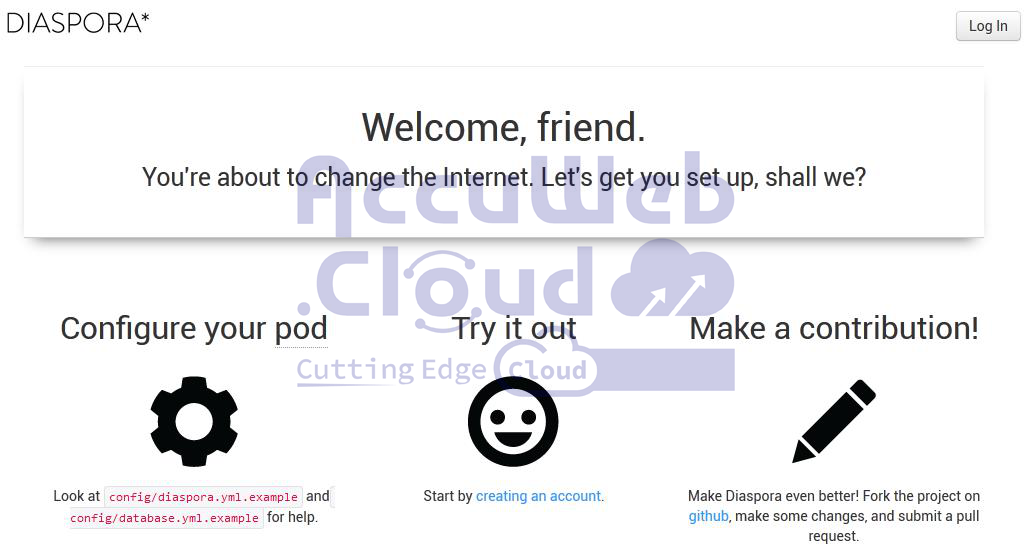
How to Install Diaspora?
Over a million users worldwide are part of the global community of Diaspora, an open-source social network that users own. The network is decentralized and made up of independent servers called pods. Each pod runs its instance of the Diaspora software, functioning as an individual web server.
Now, let’s explore how to set up your Diaspora* pod using Platform as a Service (PaaS).
Create Environment
- First, log into the platform dashboard using your credentials.
- Next, click on the Create Environment button. Go to the Ruby programming language tab when the environment topology wizard opens. Select the following nodes:
- Apache application server
- MySQL database
- Redis data structure server
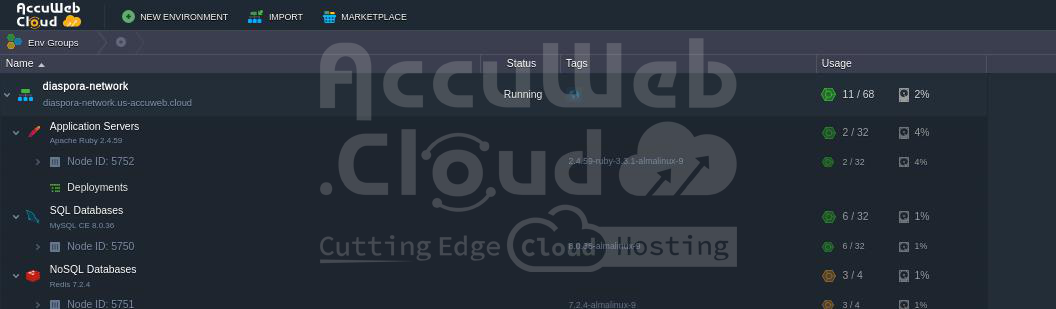
Set the resource limits for each of the selected nodes. Then, give your environment a name, such as diaspora-network, and click the Create button.

- In about a minute, your new environment will be displayed on the dashboard.
Diaspora* Deployment
Step 1. Go to the Diaspora GitHub repository. Switch the branch to master and click the Download ZIP button.
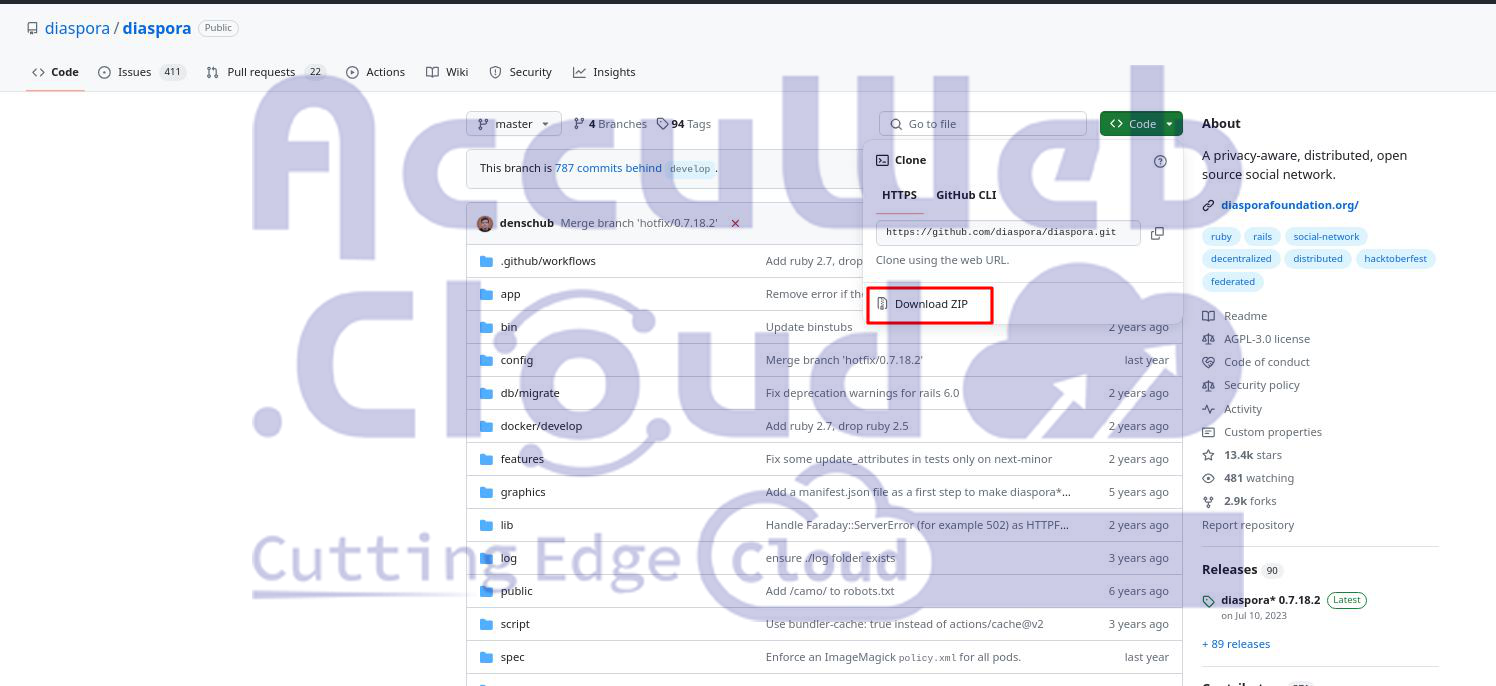
This will download a .zip archive containing the latest stable version of Diaspora.
Step 2. Next, return to the platform dashboard and use the Deployment Manager to upload the downloaded archive.
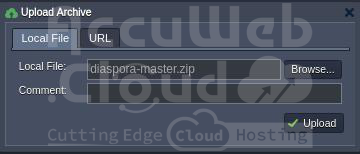
Step 3. Click the Deploy to… button next to the diaspora-master.zip package. In the window that appears, select the Diaspora environment you created, choose the deployment type to test and then click Deploy.
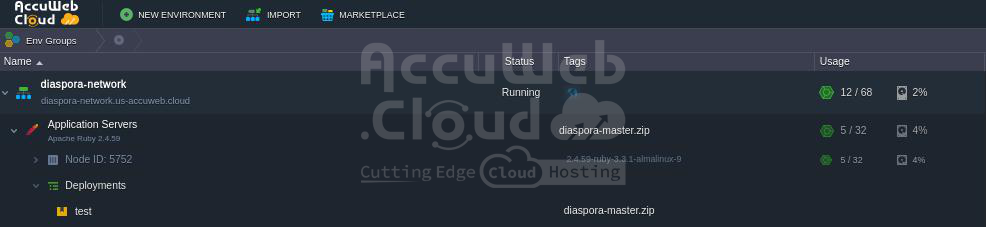
Step 4. The deployment process might take a while, so please be patient. Once it’s complete, you’ll see a new test context listed for Apache.
Database Configurations
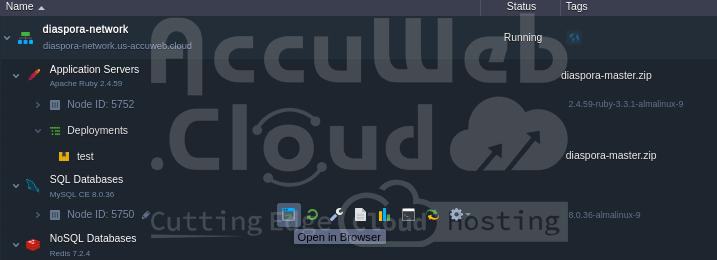
Step 1. Click the Open in Browser button next to the MySQL node in your environment.
Step 2. In the newly opened browser tab, log in with the MySQL credentials provided during the creation of your environment, then navigate to the SQL section.
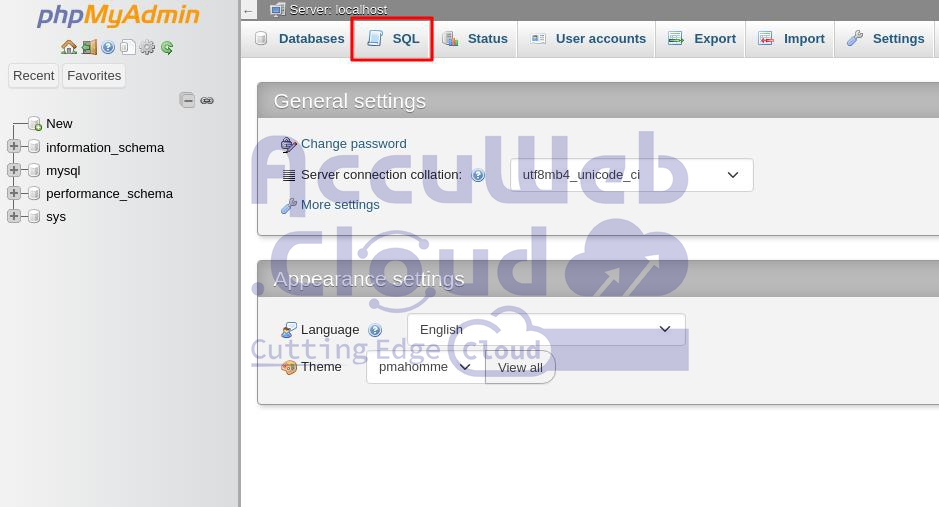
Step 3. You will see an empty form for executing SQL requests. Enter the following command and click Go to create a new database named diaspora_test:
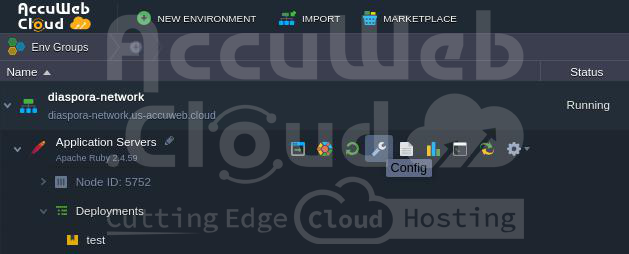
CREATE DATABASE diaspora_test CHARACTER SET utf8;Step 4. Return to the platform dashboard and click the Config button for the Apache application server.
Step 5. In the configuration manager, navigate to the webroot > config folder, and locate the database.yml.example file, and copy its contents.
Step 6. Create a new file named database.yml in the same config folder and paste the copied content into it.
Step 7. Set up the connection between your application and the MySQL database by specifying the MySQL host (the URL to your database without the http://) and the credentials you received during environment creation in the username and password fields.
Don’t forget to Save the changes you made.
Application Server and Redis Configurations
Step 1. Click the Config button for the Apache application server again.
Step 2. Create a new file called diaspora.yml in the webroot > config folder. Find the diaspora.yml.example configuration file in the same folder, copy its contents, and paste them into the newly created diaspora.yml file.

Step 3. Next, open the new configuration file and make the following changes:
- Locate the line #url: “https://example.org/” and replace https://example.org/ with your environment’s URL. You can find your URL by clicking the Open in Browser button for your environment and copying the URL from the address bar.
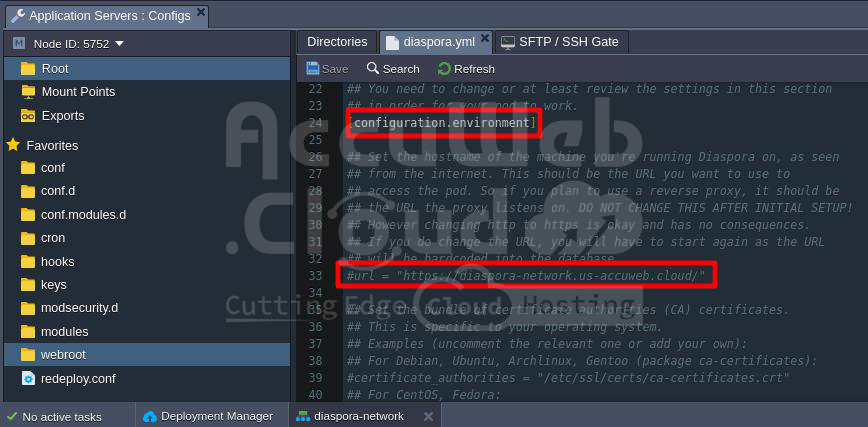
Finally, find the line #require_ssl: true and change the value true to false.
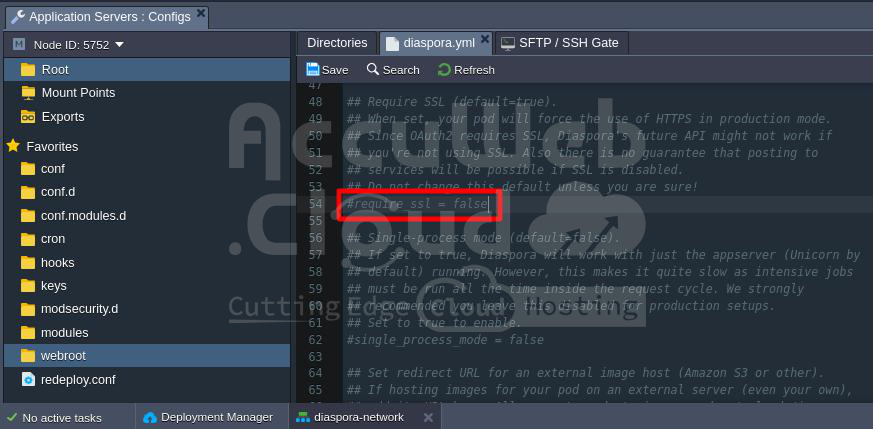
Save the changes.
Step 4. Then, find the defaults.yml file in the same config folder. Around lines 219-220, you’ll see these lines:
test:
environment:
url: 'http://localhost:9887/'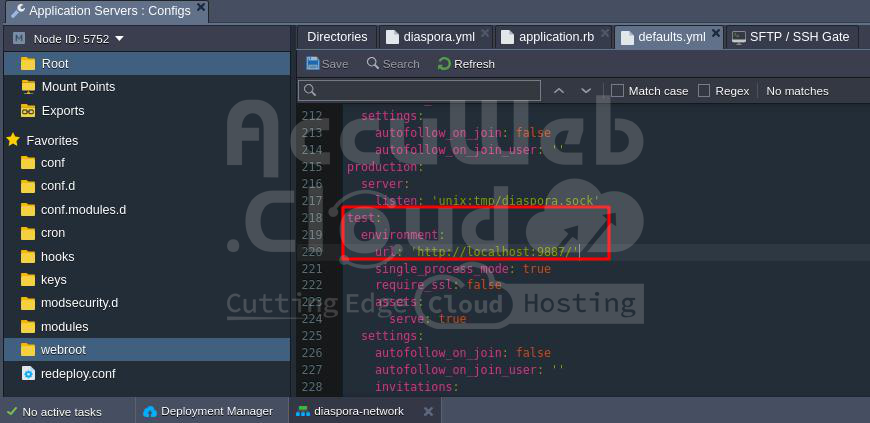
Update the url value to match the host URL of your environment. You can find by clicking the Open in Browser button next to your environment and copying the URL from the address bar.
You should get something like following:
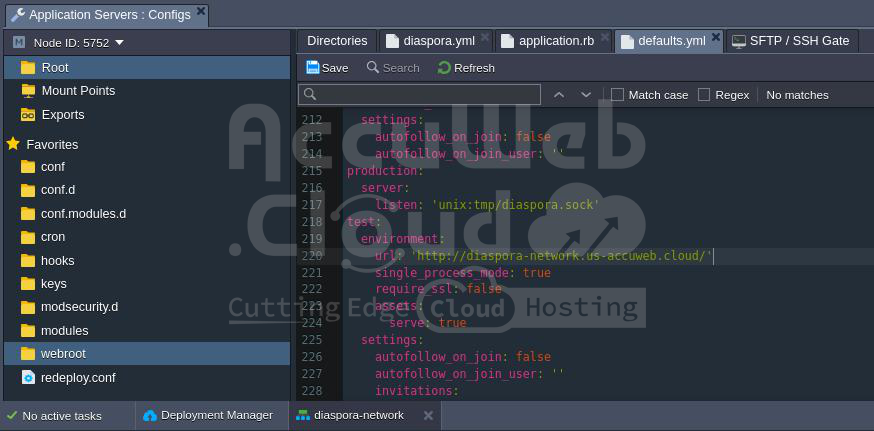
Save your changes.
Step 6. After that, create a new file named rake_deploy in the webroot folder. Add the following lines to it:
db:create
db:schema:load
Assets:precompile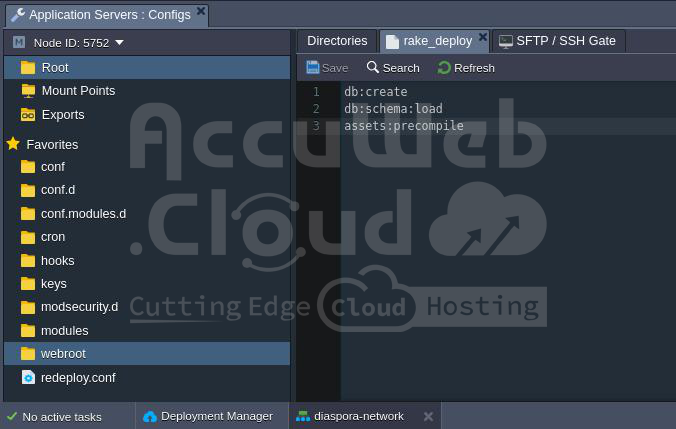
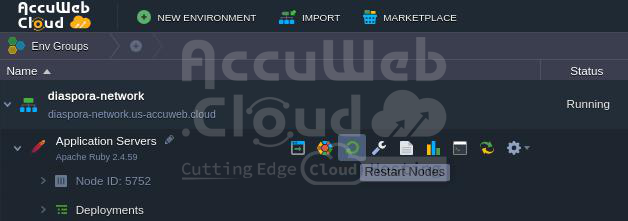
Step 7. Save the file again and Restart the Apache server to apply all the changes.
Step 8. Finally, click the Open in Browser button for your environment to start using your own Diaspora* application.