
Dashboard Guide
This guide will give you the info you need to use the platform dashboard and get familiar with what it can do for you.
To get to know us better, we suggest making a free account (if you haven’t already) on our Cloud platform (https://app.cp-accuweb.cloud/) and then following the steps in the guide.
Note: You can access a quick, interactive tutorial right from the dashboard by clicking on Help > Tutorial in the top-right corner.
Now, let’s dive into a thorough exploration of the platform dashboard.
- Creating and Managing Environments
- Function Icons for Environments
- Environment Settings
- Function Icons for Each Instance
- Import
- Marketplace
- Environment Groups
- Dashboard Search
- Deployment Manager
- Tasks Panel
- User Settings
- Upgrade Trial Account & Balance
- Help and Account Options
Creating and Managing Environments
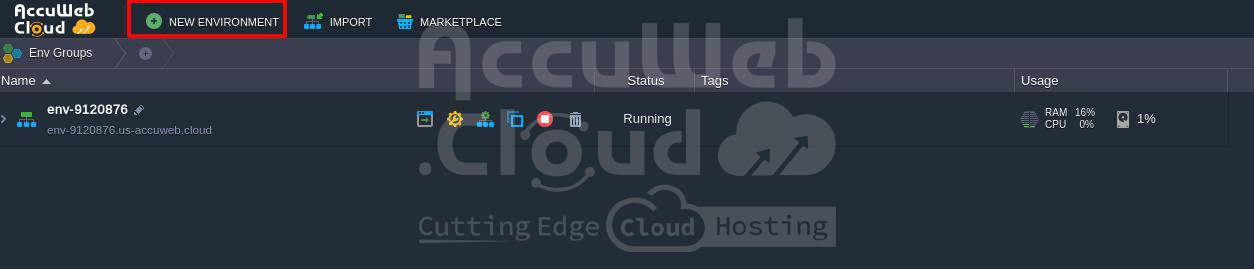
1. Press the New Environment button located at the top left corner of the dashboard.
2. The Topology Wizard will pop up, allowing you to personalize your environment settings completely.
The Setting Up Environment article explains all the things you can do with this window.
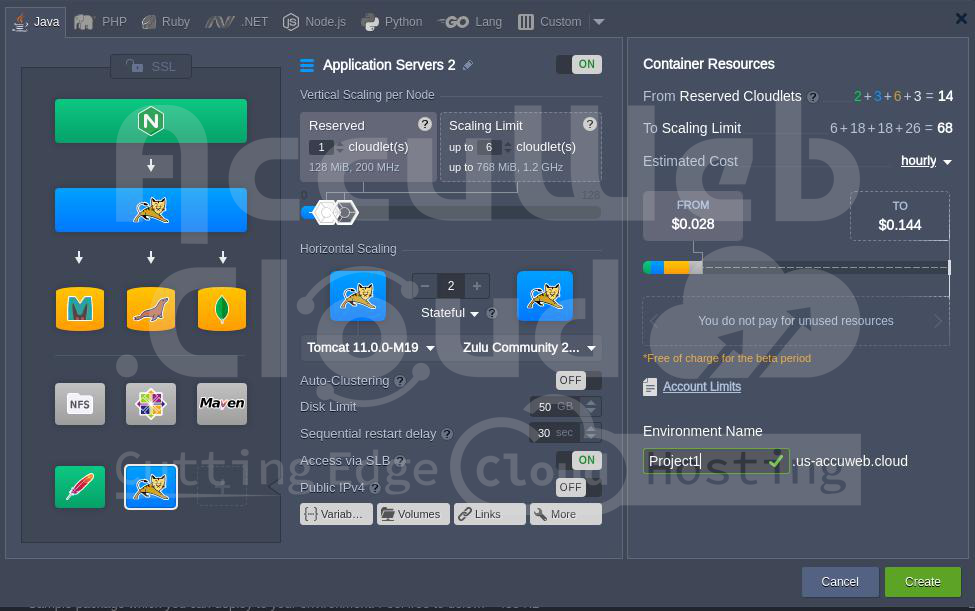
Once you’re done setting everything up, enter your Environment Name and hit the Create button.
You’ll find a list of all your environments right in the main panel of the dashboard.
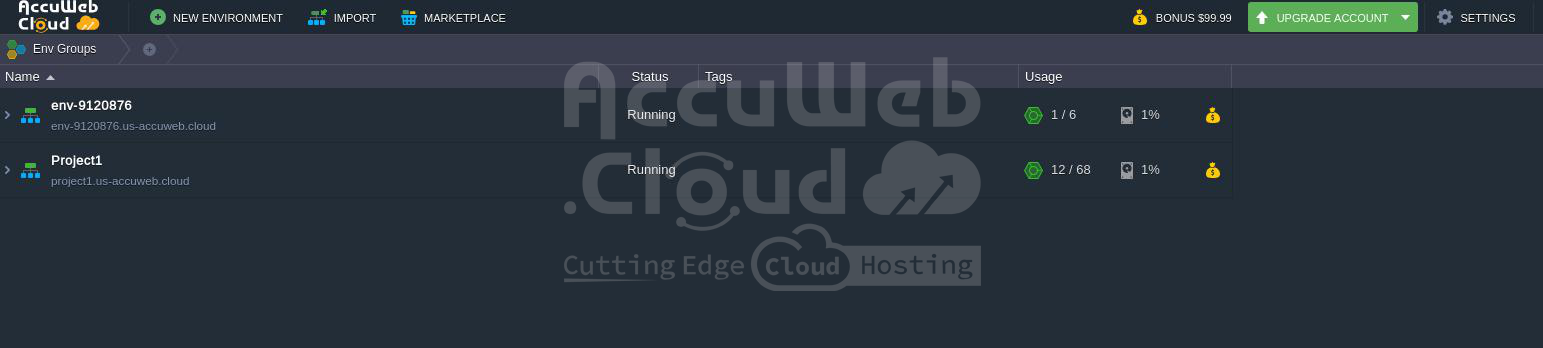
Here’s what you’ll discover in the columns:
- Name: This includes the name (or alias if provided) of the environment and its domain. Clicking the arrow icon next to the environment’s name expands the list of nodes it contains.
- Status: This shows the current state of your environments (such as Running, Sleeping, Stopped, Creating, etc.).
- Tags: Here you can see Environment Groups, region of this environment, container versions (tags), and the name of the deployed project.
- Usage: This section displays the current load, including cloudlets and disk space usage. You can also access your Billing History from here, which takes you to a separate tab with your spending statistics for the current environment.
Function Icons for Environments
Move your mouse cursor over a running environment to find various icons for managing it: Set Alias, Region, Open in Browser, Settings, Change Environment Topology, Clone Environment, Start/Stop, Delete Environment, Add/Edit Env Groups.

1. Click on the Set Alias  icon to give a different name to your environment (the domain will stay the same).
2. Click the Open in Browser  icon to open the environment in a new tab on your browser.
Note: This option might not be available if your setup doesn’t have an application server and load balancer layers.
3. To access various configuration options, click on the Settings  icon. This will open a new tab with multiple panels. For more information, refer to the detailed description in the linked section.
4. To Change Environment Topology, click on  icon for changing the environment topology. Then, make the necessary adjustments in the window that appears.
5. To Clone your environment, simply click on the clone environment  icon. Then, in the window that pops up, give your new environment a name and click on Clone.
6. To switch the environment’s status, click on the Start  icon to begin or the Stop
  icon to pause.
Note: When the environment is stopped, you’ll only see the Settings, Clone Environment, Start, and Delete Environment buttons.
Additionally, in the Settings tab for that kind of environment, there are just four options you can use: Collaboration, Change Owner, Migration, and Info.