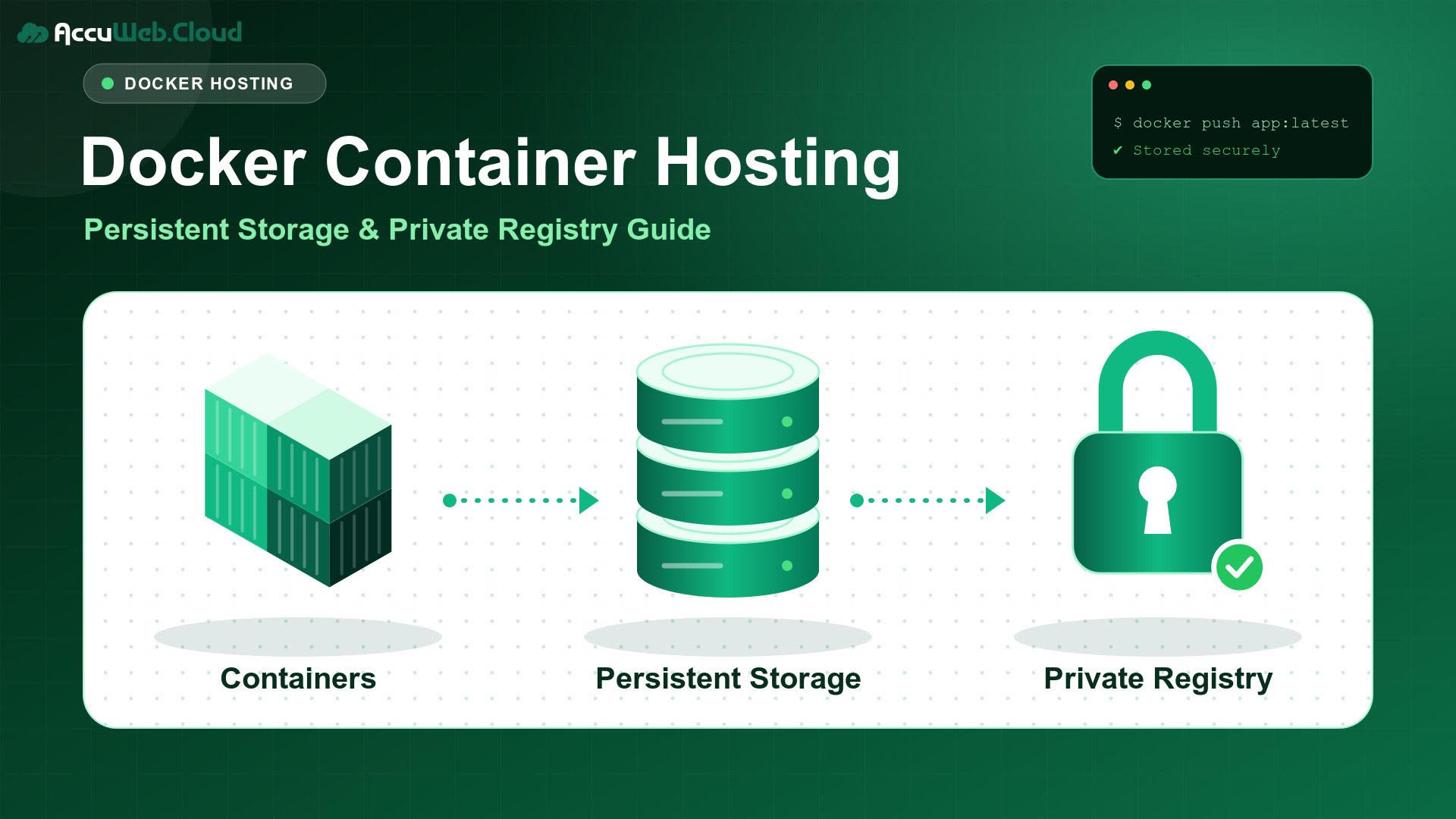
Docker Container Hosting: Persistent Storage & Private Registry Guide
Before you run containers in production, two questions need clear answers. Where does your data live when a container is replaced? And who can pull your images?
Docker container hosting gives your apps a place to run, but the answers depend on two pieces: persistent storage and a private registry. Persistent storage keeps data safe across stops, updates and redeploys. A private registry keeps your images away from the public and limits who can pull them. This guide walks through how each one works, how they connect in a real deployment, and which points to check before you choose a Docker container hosting host.
TL;DR
Containers lose any data they write to their own filesystem once they’re removed, so use Docker volumes to keep your data safe when a container is replaced. Pair them with a private registry, which controls who can push and pull your images. Persistent storage protects your data and a private registry protects your code, so most production apps need both. Add regular backups alongside your volumes for complete protection.
I turned the “a volume is not a backup” point into a recommendation to add backups, because that fits your preference for no limitation-style wording. If your senior wants it stated plainly, swap the last sentence for “Remember that a volume is not a backup, so back it up separately.”
I can also write a shorter one- or two-line version, or add a soft CTA at the end, such as a pointer to your cloud hosting or backup storage plans.
What Is Docker Container Hosting?
Docker container hosting is a server or platform that runs your Docker containers for real users. It gives them the CPU, memory, disk and network they need. It also runs Docker Engine, which starts and manages each container.
A Docker image is a read-only package that holds your app and everything it needs to run. When you start an image, Docker creates a container: a running copy of that image with its own thin writable layer on top. Many containers can run from the same image, and each one keeps its own changes separately.
Most Docker hosting falls into one of three models:
- Docker on a cloud server: you get an instance with Docker Engine installed and run containers yourself. You have full control over volumes, networks and images.
- Managed container platforms: you hand over an image and the platform decides where it runs. You trade some control for less setup.
- Orchestrated clusters: tools such as Docker Swarm or Kubernetes spread containers across many servers. They suit larger teams that need high availability.
The right model depends on how much control you want. Whichever you pick, the same two questions come up quickly: where does the data go, and where do the images come from?
Why Persistent Storage Matters for Docker Containers
What Happens to Data Inside a Docker Container?
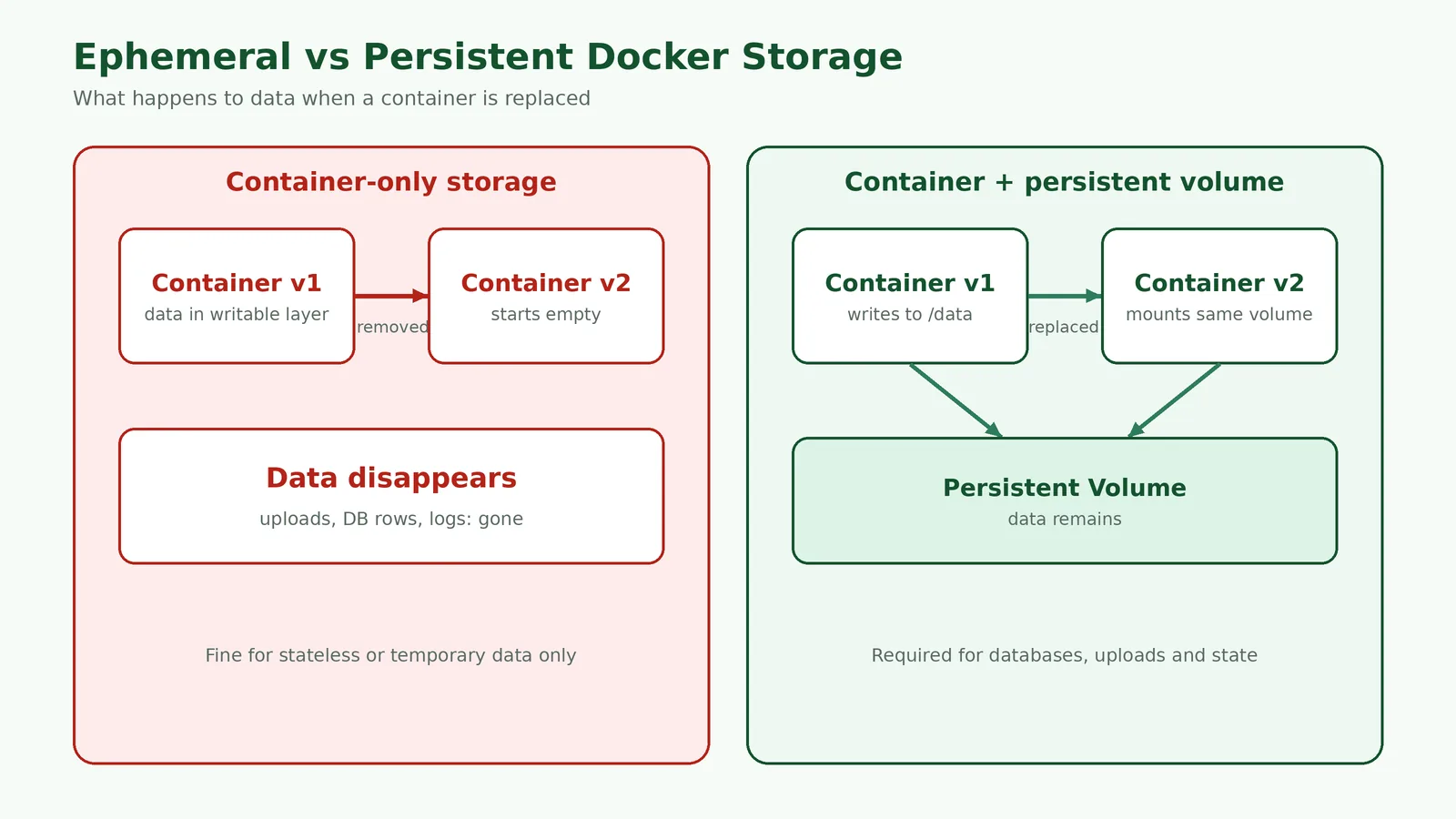
Data that a container writes to its own filesystem is lost when that container is removed. Docker’s storage documentation states this directly: the writable layer is unique to each container and doesn’t outlive it.
Stopping a container is not the same as removing it. A stopped container keeps its writable layer, so you can start it again with the data intact. The risk appears when you replace a container, which is exactly what happens during most updates.
Picture a content site running in a container. Editors upload images for six months, and every file lands inside the container. You then pull a new image and recreate the container to apply a security patch. The new container starts clean, and six months of uploads are gone.
Docker Volumes vs Container Filesystems
Docker can store data outside the container’s writable layer in three ways. Volumes are managed by Docker and are its preferred option for persistent data. Bind mounts map a folder on the host straight into the container. tmpfs mounts keep data in memory only, so nothing is saved when the container stops.
| Criteria | Container writable layer | Named volume | Bind mount |
|---|---|---|---|
| Data survives container removal | No | Yes | Yes |
| Managed by | Docker storage driver | Docker | You (a host path) |
| Behaviour on replacement | New container starts empty | Remount the same volume | Remount the same path |
| Typical use | Temporary files, caches | Databases, uploads, app state | Config files, local development |
| Backup needed? | Not usually | Yes | Yes |
Volumes have practical advantages. You can create, list and inspect them with Docker commands, and they aren’t tied to a specific folder layout on the host. Docker’s documentation also notes that writing to a volume is faster than writing to the container’s writable layer.
Creating and using a named volume takes two commands:
docker volume create app-uploads
docker run -d --name web \
  -v app-uploads:/var/www/uploads \
  registry.example.com/team/web:1.4.2
Watch out for anonymous volumes. They get a random name instead of one you choose. They survive container removal too, unless the container was started with --rm. However, a new container won’t reuse them automatically, so data can quietly end up in a volume nothing is using.
When Persistent Storage Is Required
You need persistent storage whenever data must outlive a single container. Common cases include:
- Databases: MySQL, PostgreSQL, MongoDB and similar engines write their data files to disk.
- User uploads: images, documents and media that customers or editors add.
- Application state: sessions, queues or generated files that your app saves to disk.
- Certificates and runtime settings: files made after the container starts.
- Logs you must keep: although shipping logs to a central system is usually a better approach.
Some services keep nothing on disk, such as an API that reads everything from a database. They often need no volume at all, which makes them easy to replace and scale.
One limit is easy to miss. A standard local volume lives on one server. If you scale a service across several servers, the volume doesn’t follow the container. In that case you need shared storage, a volume driver that supports it, or a separate managed database.
What Is a Private Docker Registry?
A private Docker registry is an image store that only approved users and servers can access. You push images to it from your build process, and your hosts pull from it after signing in.
A registry holds repositories. Each repository holds the versions of one image, identified by tags such as 1.4.2 or latest. Docker Hub is the default public registry, and organizations can also run their own.
Public vs Private Container Registries
| Criteria | Public registry | Private registry |
|---|---|---|
| Who can pull images | Anyone | Only authorized users and systems |
| Authentication to pull | Usually not required | Required |
| Typical content | Open-source base images, official images | Your own application images |
| Access control | Basic | Per user, team or service account |
| Best for | Sharing and discovery | Proprietary code and controlled releases |
Most teams use both. They pull trusted base images from a public registry, build their own application on top, and push the result to a private one.
Why Use a Private Registry?
Your app image holds your code, the libraries it uses and often some internal settings. Publishing it on a public registry is the same as publishing your source. A private registry keeps it inside your organization.
- Protect intellectual property: only your team and servers can download the image.
- Control who can release: developers might push, while production servers only pull.
- Know where images came from: production pulls only from a source you trust.
- Keep a version history: previous tags stay available for quick rollbacks.
Docker Hub does offer private repositories, but plan limits apply. Docker’s docs say a Personal plan gives you one private repository. For unlimited private ones, you need a Team plan. Teams with many services often run their own registry or use one from their cloud provider instead.
How Private Image Authentication Works
A server must sign in before it can pull a private image. With Docker, you do this with docker login, which works with any public or private registry where you have credentials.
# Sign in without leaving the password in shell history
cat ~/registry-token.txt | docker login registry.example.com \
  --username deploy-bot --password-stdin

# Pull a specific version
docker pull registry.example.com/team/web:1.4.2
Where those credentials are stored matters. As the Docker login reference explains, Docker saves them in the configured credential store. Without one, it writes them to config.json encoded in base64, which is an encoding rather than encryption.
For production servers, three habits help. Use a credential helper or an external store. Give each server a dedicated account with pull-only access. Rotate those tokens on a schedule.
How Persistent Storage and Private Registries Work Together
A private registry stores your code, and persistent storage holds your data. Keeping the two apart is what lets you replace a container safely. The image changes with every release, while the volume carries the data forward.
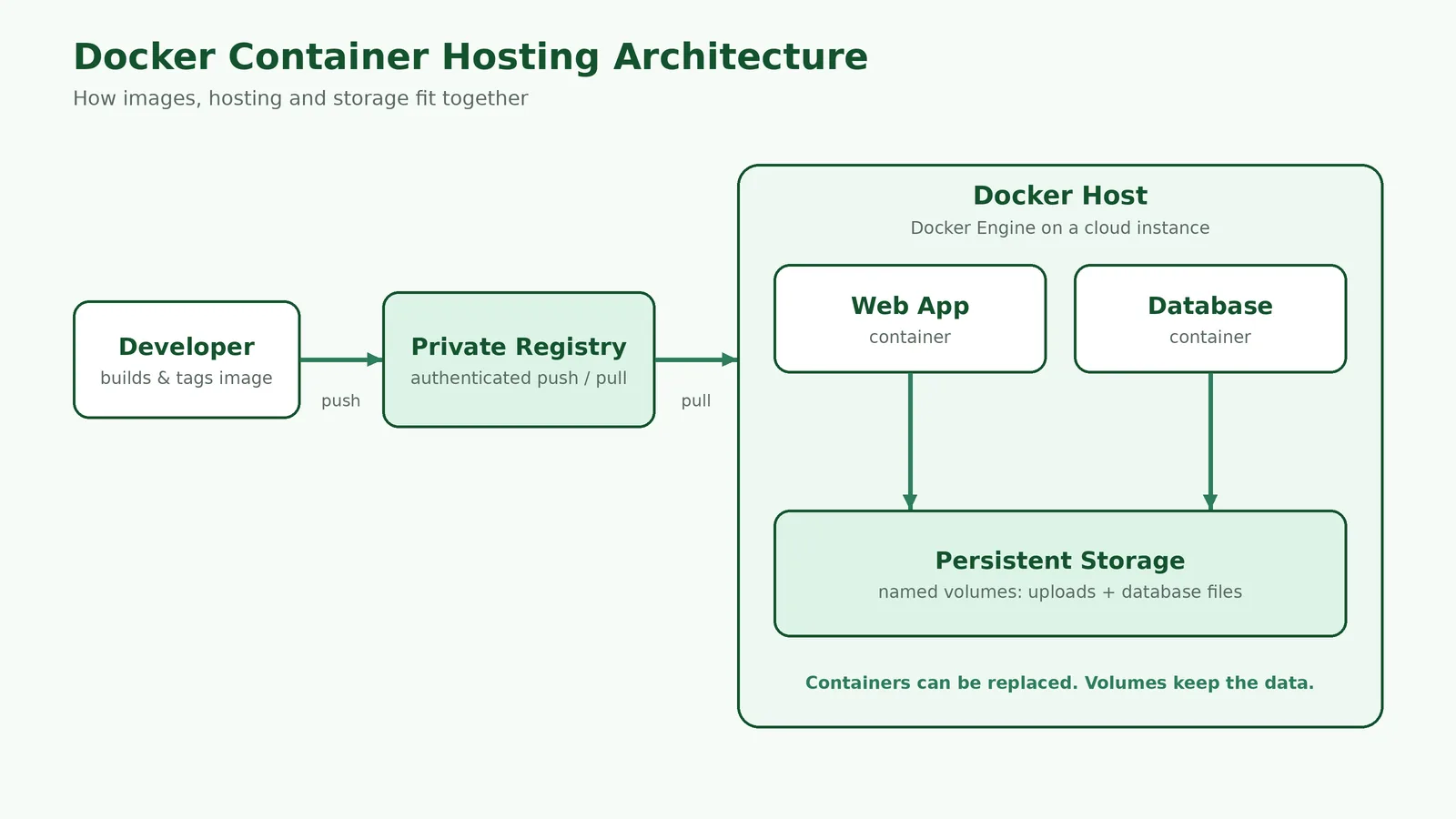
A typical release follows these steps:
- Your build pipeline creates an image and tags it with a version number.
- The pipeline pushes that tag to your private registry.
- The Docker host signs in and pulls the new tag.
- The old container is stopped and removed. Its volume is untouched.
- A new container starts from the new image with the same volume mounted.
- If something breaks, you start the previous tag against the same volume.
Step six has a catch that many guides skip. If the new release changed the database schema, the old image may not understand the updated data. Take a backup before any release that migrates data, so a rollback has something safe to return to.
Here is a small Docker Compose file that applies this pattern to a web app and a PostgreSQL database:
services:
  web:
    image: registry.example.com/team/web:1.4.2
    ports:
      - "80:8080"
    volumes:
      - uploads:/app/uploads
    restart: unless-stopped
  db:
    image: postgres:16
    environment:
      POSTGRES_PASSWORD_FILE: /run/secrets/db_password
    secrets:
      - db_password
    volumes:
      - db-data:/var/lib/postgresql/data
    restart: unless-stopped

volumes:
  uploads:
  db-data:

secrets:
  db_password:
    file: ./db_password.txt
Updating the web app now means changing one tag and recreating one container. The uploads and database files stay where they are.
What to Look for in Docker Container Hosting
Not every server that runs Docker is ready for production. Check these areas before you commit:
- Persistent storage: find out where volumes live, what type of disk backs them, and whether you can grow the disk later.
- Compute: dedicated CPU and RAM give steadier speed. Check how easily you can resize them.
- Registry support: you should be able to pull from Docker Hub, your own registry or a cloud registry without restrictions.
- Networking: look for a public IP, control over open ports and firewall rules, and a simple path to HTTPS.
- Backups and snapshots: confirm what is available, where copies are stored, and how restores work.
- Security and access: SSH key access, root control and help with operating system patching all matter.
- Monitoring: you need visibility into CPU, memory and disk before a full disk takes your database down.
- Support scope: ask exactly what support covers. Server help and application debugging are very different things.
- Billing: hourly billing suits testing, while monthly billing suits steady workloads.
If you want Docker Engine ready on a server with management included, AccuWeb.Cloud’s Docker hosting gives you a starting point you can configure your own way.
Docker Container Hosting on AccuWeb.Cloud
accuweb.cloud/blog/ runs Docker on dedicated cloud instances rather than on a shared platform. Here is what its live product pages confirm:
- Docker Engine pre-installed: Docker Community Edition is installed natively on an Ubuntu instance. accuweb.cloud/blog/ states you can go from deployment to your first running container in under 60 seconds.
- Full root access: you control the instance through its public IP. That includes networks, volumes, firewall rules and exposed ports.
- Your choice of registry and tools: you can pull any image and set up your own private registry, Portainer or Docker Swarm. These are optional and installed by you, not included by default.
- Dedicated resources: instances are dedicated, with no resource sharing, and vertical scaling lets you change CPU and RAM as needs grow.
- Flexible billing: pay-as-you-go pricing with hourly or monthly billing and no long-term commitment. Current rates are on the cloud pricing page.
- Backups when you need them: backups and snapshots are available as add-ons, along with cloud backup storage for off-instance copies.
- Data center choice: Docker instances are listed in New York, Los Angeles, Frankfurt and Mumbai. See all AccuWeb.Cloud data centers.
What “Fully Managed” Covers, and What It Doesn’t
Every accuweb.cloud/blog/ plan is fully managed by default, so there is no separate support tier to buy. The team helps run your server. That covers setup, security help, monitoring, backup setup and fixing server issues. Each plan also includes two hours of administrator time per month for eligible server-level work.
| Area | AccuWeb.Cloud | You |
|---|---|---|
| Cloud infrastructure and instance | Manages | — |
| Supported OS security updates | Applies on request | Approves timing |
| Firewall and SSH hardening | Assists | Decides which ports to open |
| Restore from an available backup | Assists | Keeps an independent copy |
| Dockerfile, images and Compose files | — | Owns |
| Application code and configuration | — | Owns |
| Third-party software behaviour | — | Owns |
This split is worth understanding before you deploy. accuweb.cloud/blog/ looks after the server your containers run on. Your containers, images and application logic stay in your hands, and custom-code debugging is outside the managed scope.
Already running Docker somewhere else? AccuWeb.Cloud offers a free migration with a staging setup and a cutover scheduled around your approval. Larger or more complex migrations are reviewed first.
Example Production Docker Deployment
A small but solid production setup has five layers. Each one protects against a different kind of failure.
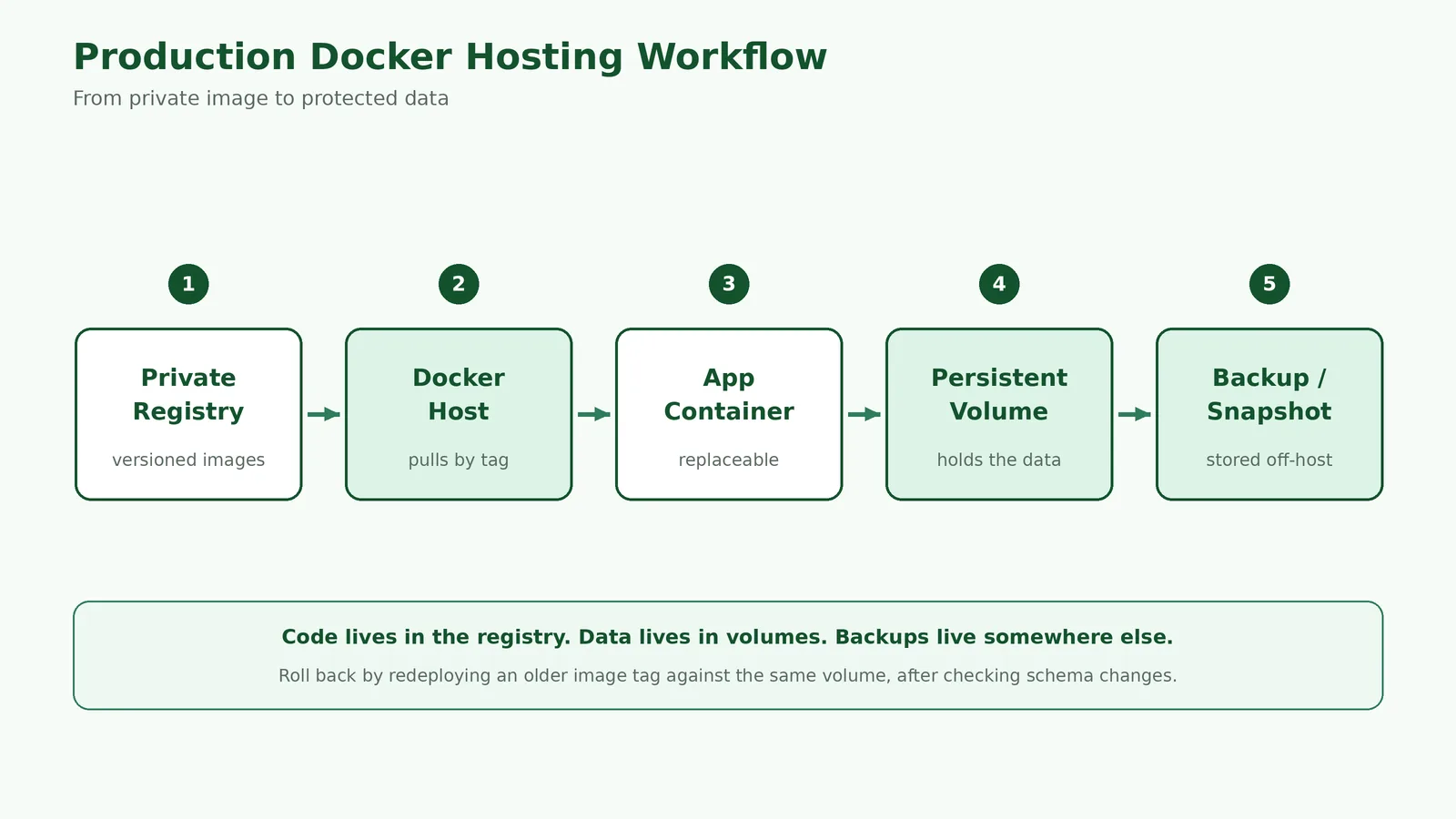
- Private registry: stores every released image by version.
- Docker host: a cloud instance running Docker Engine, with only the ports you need open.
- Application containers: the web app and database, each started with a restart policy.
- Persistent volumes: named volumes for uploads and database files.
- Backup and snapshot: scheduled database dumps and volume copies stored off the instance.
The value of this design shows up when something goes wrong:
| If this happens… | What protects you |
|---|---|
| A container crashes | A restart policy brings it back automatically |
| A release has a bug | Redeploy the previous image tag from the registry |
| A volume is deleted by mistake | Restore from an off-instance backup |
| The whole instance fails | Rebuild from a snapshot or backup, then pull images again |
| A registry password leaks | Rotate the token; servers only had pull access |
For databases, prefer the database’s own dump tool over copying live files. Copying files while the database writes to them can produce a backup that won’t restore cleanly.
Managed Docker Hosting vs Self-Managed Docker Hosting
With self-managed hosting, your team runs everything from the operating system up. With managed hosting, the provider looks after the server layer and you focus on containers and code. In both cases, your app is still your job.
| Criteria | Managed Docker hosting | Self-managed Docker hosting |
|---|---|---|
| Server administration | Provider, within a published scope | Your team |
| OS patching | Provider assists or applies | Your team |
| Infrastructure monitoring | Provider monitors the server | Your team sets it up |
| Technical skill needed | Docker and application skills | Docker, Linux and security skills |
| Support availability | Provider support, often 24/7 | Community or paid add-on support |
| Operational workload | Lower | Higher |
| Application, images and code | You | You |
| Control over the server | High, with root access on many plans | Full |
Self-managed hosting suits teams with strong Linux skills who want to own every setting. Managed hosting suits teams that would rather spend that time on their product. On accuweb.cloud/blog/, you get both: management comes as standard, and you keep root access.
Docker Container Hosting Best Practices
- Pin image versions. Deploy a specific tag such as
1.4.2, or an image digest, instead oflatest. You’ll always know what is running. - Use named volumes. Give every persistent volume a clear name so it is easy to find, back up and reuse.
- Keep secrets out of images. Anyone who can pull an image can read what is inside it. Pass secrets at runtime instead.
- Give servers pull-only registry access. Separate the accounts that push images from the ones that pull them.
- Back up off the instance and test restores. A backup you have never restored is only a hope.
- Set restart policies and health checks. Let Docker restart failed containers and detect ones that hang.
- Open only the ports you need. Keep databases off the public internet and route web traffic through HTTPS.
- Rebuild images regularly. Updated base images bring security fixes that a running container never receives on its own.
- Log to standard output. Send logs to a central place rather than filling a volume.
Frequently Asked Questions
What is Docker container hosting?
Docker container hosting is a server or platform that runs your Docker containers for real users. It gives you CPU, memory, storage and network, plus Docker Engine to start and manage each container.
Do Docker containers need persistent storage?
Only if they hold data that must outlast the container. Databases, uploaded files and saved app state need it. Stateless services usually don’t.
What happens to Docker data when a container is deleted?
Data in the container’s writable layer is deleted with it. Data stored in a volume or bind mount stays on the host and can be mounted by a new container.
What is a Docker volume?
A Docker volume is a storage area managed by Docker that lives outside any single container. It is Docker’s preferred way to keep data across container restarts and replacements.
What is a private Docker registry?
A private Docker registry is an image store that only authorized users and servers can access. Teams use it to keep proprietary application images out of public view.
Is a private Docker registry more secure?
It limits who can download your images, which a public registry cannot do. It is not secure by itself, though: you still need strong credentials, pull-only accounts for servers and no secrets baked into images.
What is managed Docker hosting?
Managed Docker hosting means the provider looks after the server for you. That includes OS updates, monitoring and fixing server issues. You still own your images, containers and code.
Is Docker hosting suitable for production?
Yes, when it is set up correctly. Production use needs persistent volumes for data, a trusted image source, off-host backups, restricted network access and monitoring.
Final Thoughts
Containers are meant to be replaced, and that is their strength. The trick is making sure replacement only affects code. Persistent volumes keep your data in place, and a private registry controls exactly which code reaches your servers.
Before choosing a host, check where volumes live, how backups work, which registries you can use, and where the provider’s support stops. Those answers matter more than how quickly a container starts.
If you’d like Docker Engine on a dedicated, fully managed instance with root access and hourly or monthly billing, start with AccuWeb.Cloud’s managed Docker hosting.

Jilesh Patadiya, the visionary Founder and Chief Technology Officer (CTO) behind AccuWeb.Cloud. Founder & CTO at AccuWebHosting.com. He shares his web hosting insights on the AccuWeb.Cloud blog. He mostly writes on the latest web hosting trends, WordPress, storage technologies, and Windows and Linux hosting platforms.