


How to Fix the 403 Forbidden Error: Causes, Examples, and Step-by-Step Solutions
TL;DR
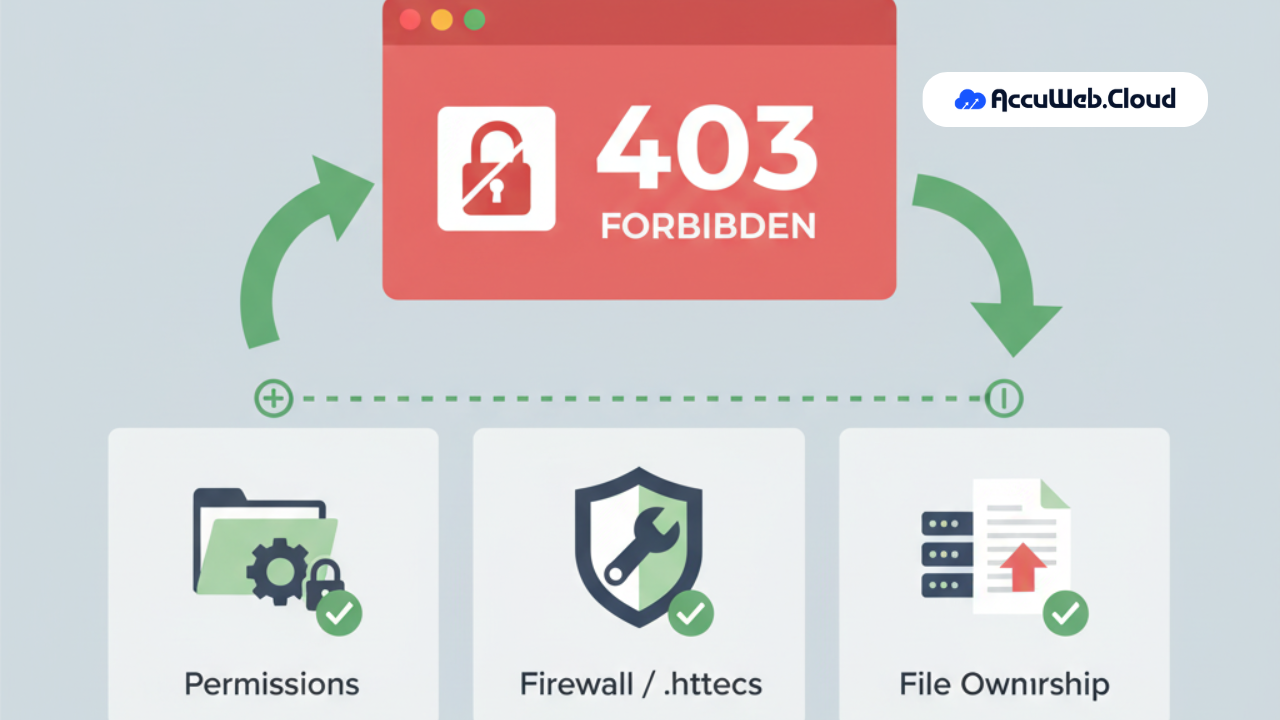
- A 403 Forbidden error indicates the server understands the request but blocks access due to permissions or authorization rules.
- Common causes include restrictive file permissions, .htaccess rules, IP blocking, missing index files, and authentication restrictions.
- Variants like 403.1, 403.2, and 403.6 specify whether execution, read access, or IP authorization is denied.
- Browsers can trigger 403 errors when cached credentials conflict with updated access rules on the server.
- Resolution steps include correcting file permissions, reviewing .htaccess directives, clearing cache, disabling security plugins, and confirming user login authorization.
Ever clicked on a link only to be greeted by a cold “403 Forbidden” message? It’s frustrating, especially when you don’t know what it means or how to fix it.
What Is a 403 Forbidden Error?
A 403 Forbidden error is an HTTP status code that means the server understands the request but refuses to authorize access. The page exists, but permission rules, authentication restrictions, or security settings prevent the user from viewing it.
HTTP Code: 403
Category: Client Error (4xx)
Defined in: HTTP/1.1 Specification (RFC 7231)
Unlike a 404 error, the content is present on the server, but access is blocked.
What Does 403 Forbidden Mean?
When you see a 403 error, it means:
- The server received your request.
- The request is valid.
- The server is intentionally denying access.
Think of it like arriving at a private event. The venue exists, but you are not on the guest list.
Common Variations of the 403 Error
Depending on the web server (Apache, Nginx, or Microsoft IIS), the message may appear as:
- 403 Forbidden
- HTTP Error 403
- 403 – Access Denied
- 403.1 Execute Access Forbidden
- 403.6 IP Address Rejected
Microsoft IIS provides subcodes for debugging:
403.1 – Execute permission denied
403.2 – Read access denied
403.3 – Write access denied
403.6 – IP address rejected
403.7 – Client certificate required
These help administrators identify the exact restriction.
What Causes a 403 Forbidden Error?
A 403 error typically happens because of server-side access restrictions. Below are the most common causes.
1. Incorrect File or Folder Permissions
Web servers use permission settings to determine who can read, write, or execute files.
Recommended settings:

Files: 644
Folders: 755
If permissions are set to 000 or overly restrictive values, the server blocks access.

This commonly occurs on servers running Apache or Nginx.
2. Corrupted or Misconfigured .htaccess File
On Apache servers, the .htaccess file controls access rules.
A directive such as:
deny from all
can block the entire website if misconfigured.
Even a small syntax error can trigger a 403 response.

3. IP Address Blocking
Firewalls, security plugins, or server configurations may block IP addresses due to:
- Multiple failed login attempts
- Suspicious traffic patterns
- Geo-restrictions
- ModSecurity rules
This often results in 403.6 on Microsoft IIS servers.
4. Missing Index File
If your root directory does not contain:
index.html
index.php
and directory browsing is disabled, the server may return a 403 error.

5. Authentication Restrictions
Protected pages requiring login credentials may return 403 if:
- Session expired
- Incorrect role permissions
- Restricted admin areas
This is common in WordPress and membership websites.
6. CDN or Firewall Blocking
Services like Cloudflare or server-level firewalls may block requests based on:
- User agent
- IP reputation
- Rate limiting
- Bot detection
This can mistakenly block legitimate visitors or search engine crawlers.

403 vs 401 vs 404: What’s the Difference?
Understanding the differences helps with debugging and SEO.
403 Forbidden
The page exists, but access is denied.
401 Unauthorized
Authentication is required and has failed or not been provided.
404 Not Found
The page does not exist.
Simple analogy:
401 = Show your ID
403 = You are not allowed inside
404 = This place does not exist
Is a 403 Error Bad for SEO?
Yes.
If important pages return a 403 status:
- Googlebot cannot crawl them
- Pages may be deindexed
- Organic impressions may drop
- Internal linking equity is disrupted
Always monitor crawl errors in Google Search Console.
Blocking search engine bots accidentally is a common cause of traffic loss.
How to Fix the 403 Forbidden Error (Step-by-Step)
Follow these steps in order.
Step 1: Check the URL
Ensure there are no typos or incorrect directory paths.
Step 2: Clear Browser Cache and Cookies
Outdated authentication sessions can trigger 403 responses.
In Chrome:
Settings → Privacy → Clear Browsing Data
Step 3: Reset File Permissions
Using FTP (such as FileZilla) or your hosting control panel:
Set files to 644
Set directories to 755
Avoid 777 unless absolutely required.
Step 4: Rename the .htaccess File
Rename:
.htaccess → .htaccess_old
If the site loads correctly afterward, regenerate a new file.
For WordPress:
Dashboard → Settings → Permalinks → Save Changes
Step 5: Disable Security Plugins
If using WordPress security plugins:
Rename the plugins folder via FTP:
wp-content/plugins → plugins-old
Reload the site to test.
Step 6: Check Firewall or CDN Rules
If using Cloudflare or server firewalls:
- Review blocked IPs
- Check rate limiting rules
- Verify bot protection settings
- Ensure Googlebot is not blocked
Step 7: Review Server Logs
Advanced users should check:
- Apache error log
- Nginx error log
- IIS request logs
Look for entries such as: Client denied by server configuration, access forbidden by rule
These logs reveal the exact cause.
Step 8: Contact Your Hosting Provider
If the issue persists, your hosting provider can review:
- Server ownership settings
- ModSecurity triggers
- SELinux restrictions
- Directory index configuration
Example
A WordPress site experienced a sudden drop in impressions.
Google Search Console showed multiple 403 errors on category pages.
Root cause:
A firewall plugin blocked Googlebot due to aggressive rate limiting.
Solution:
Whitelisted Googlebot IP ranges and adjusted security rules.
Result:
Pages were reindexed within one week and impressions recovered.
People Also Ask(And You Should Too!)
Q) What does 403 Forbidden mean?
A) A 403 Forbidden error means the server understands your request but refuses access due to permission settings, IP restrictions, or authentication rules.
Q)M How do I fix a 403 Forbidden error?
A) Fix file permissions, review the .htaccess file, clear browser cache, disable firewall rules, and verify no IP blocks are active.
Q) Can antivirus software cause a 403 error?
A) Yes. Some antivirus programs or browser extensions may modify or block requests, causing the server to respond with a 403 status.
Q) Does 403 mean I am banned?
A) Not necessarily. It may indicate temporary IP blocking or permission misconfiguration rather than a permanent ban.
Q) Can visitors fix a 403 error?
A) Visitors can try clearing cache, switching networks, using incognito mode, or contacting the website owner.
Final Summary
A 403 Forbidden error occurs when a server understands a request but refuses to authorize access. It is usually caused by incorrect file permissions, IP blocking, misconfigured .htaccess rules, authentication restrictions, or firewall settings.
Fixing it involves reviewing permissions, resetting server rules, and ensuring search engines and users are not unintentionally blocked.

Jilesh Patadiya, the visionary Founder and Chief Technology Officer (CTO) behind AccuWeb.Cloud. Founder & CTO at AccuWebHosting.com. He shares his web hosting insights on the AccuWeb.Cloud blog. He mostly writes on the latest web hosting trends, WordPress, storage technologies, and Windows and Linux hosting platforms.